A great gaming PC on a mediocre screen is like a great movie on a phone. The best gaming monitor for you is the one that shows off what your PC can actually do: the right resolution for your graphics card, a refresh rate your PC can keep up with, and a panel type that suits the games you play and the room you play in.
We build gaming PCs, and the most common regret we hear isn’t about the PC itself, it’s about the screen it’s plugged into. This guide explains how to choose a gaming computer monitor, what the specs really mean, which panel types suit which players, and how to match a monitor to your PC so neither is wasted.
Quick answer
For most players, the best monitor for gaming is a 27-inch 1440p screen at 144 to 240Hz, with an IPS or OLED panel and G-SYNC or FreeSync support. Competitive esports players often prefer a 24 or 25-inch 1080p screen at 240Hz or more. For the best visuals with a high-end PC, a 27 or 32-inch 4K OLED is stunning. Match the monitor to your graphics card first.
In this guide
How to choose the best gaming monitor
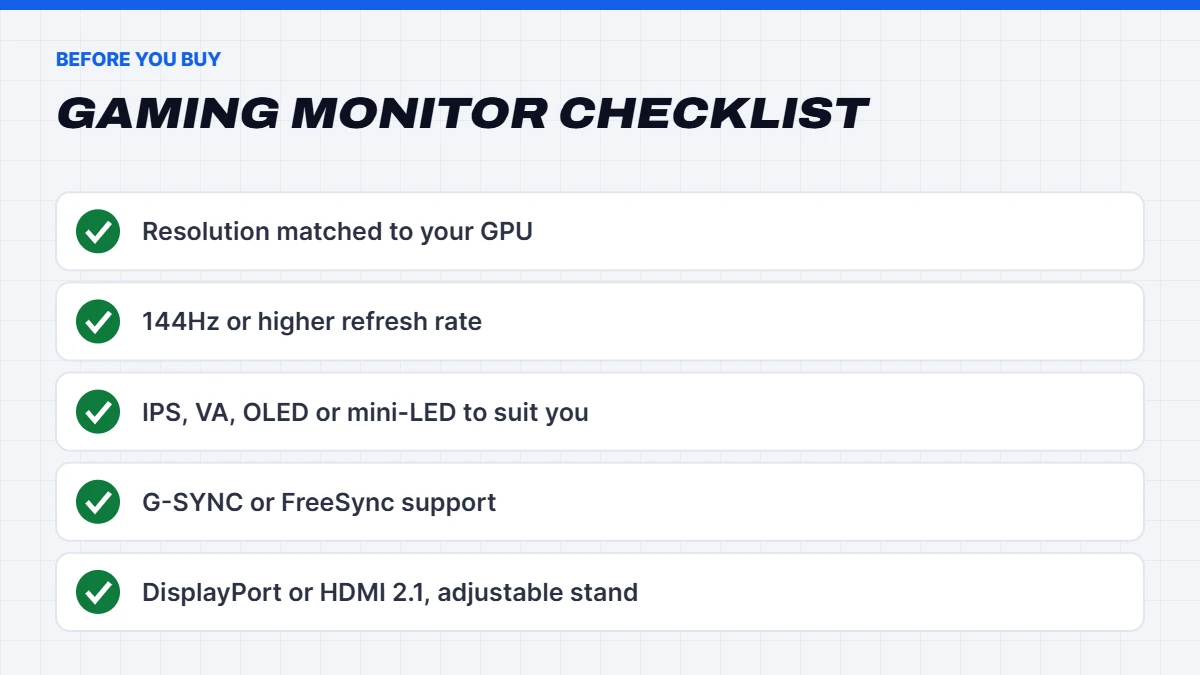
These are the specs that matter most, roughly in order:
- Resolution: 1080p, 1440p or 4K. This decides how sharp the image is and how much graphics power you need.
- Refresh rate: 144Hz or higher for gaming. Higher makes motion smoother.
- Panel type: IPS, VA, OLED or mini-LED, each with different strengths.
- Adaptive sync: G-SYNC or FreeSync to prevent tearing and stutter.
- Size: 24 to 25 inches for esports, 27 inches for most players, 32 inches or ultrawide for immersion.
- HDR: genuinely useful on OLED and good mini-LED screens, less so on basic monitors.
- Connectivity and stand: DisplayPort or HDMI 2.1, and a stand that adjusts height.
Our guide to 1080p vs 1440p vs 4K explains resolution and refresh rate in more detail.
Matching your monitor to your gaming PC
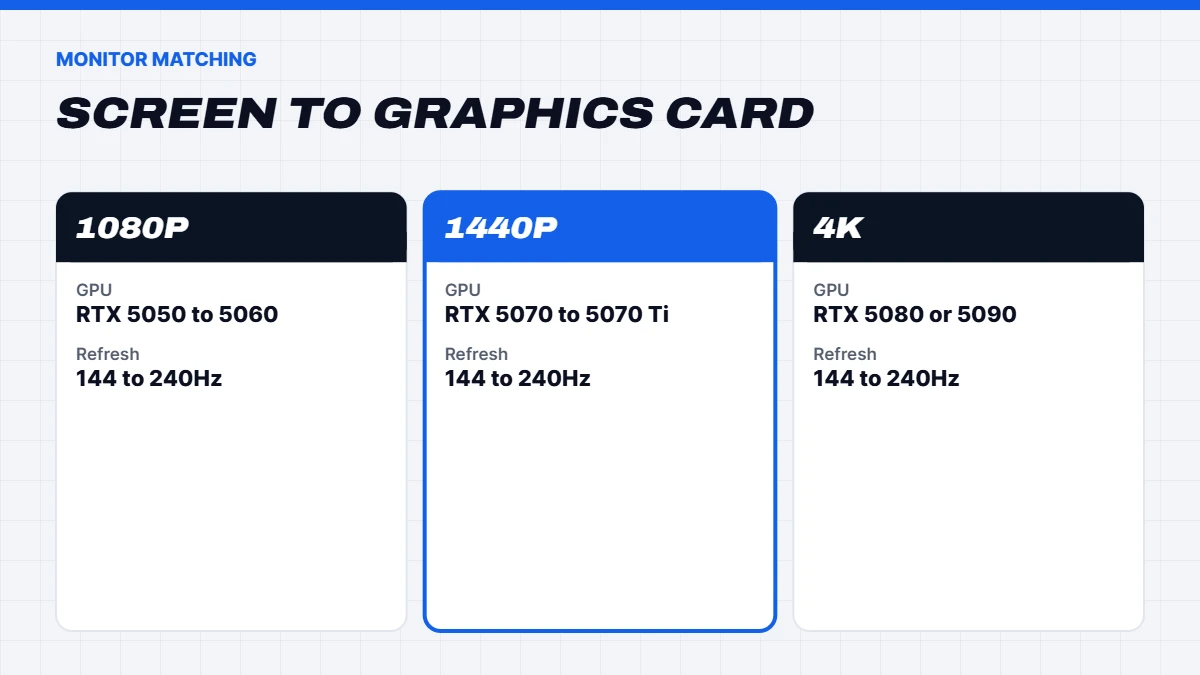
The single most important rule for choosing a gaming PC monitor is to match it to your graphics card:
| Graphics card | Best match |
|---|---|
| — | — |
| RTX 5050, RTX 5060, RX 9060 XT | 1080p at 144 to 240Hz |
| RTX 5070, RTX 5070 Ti, RX 9070 XT | 1440p at 144 to 240Hz |
| RTX 5080, RTX 5090 | 4K at 144 to 240Hz, or high refresh 1440p |
A 4K monitor on an entry-level PC will struggle, and an RTX 5090 on a 1080p 60Hz screen is mostly wasted. If you’re buying both together, our guide to the best gaming PC Australia options pairs each tier with the right screen.
Panel types explained
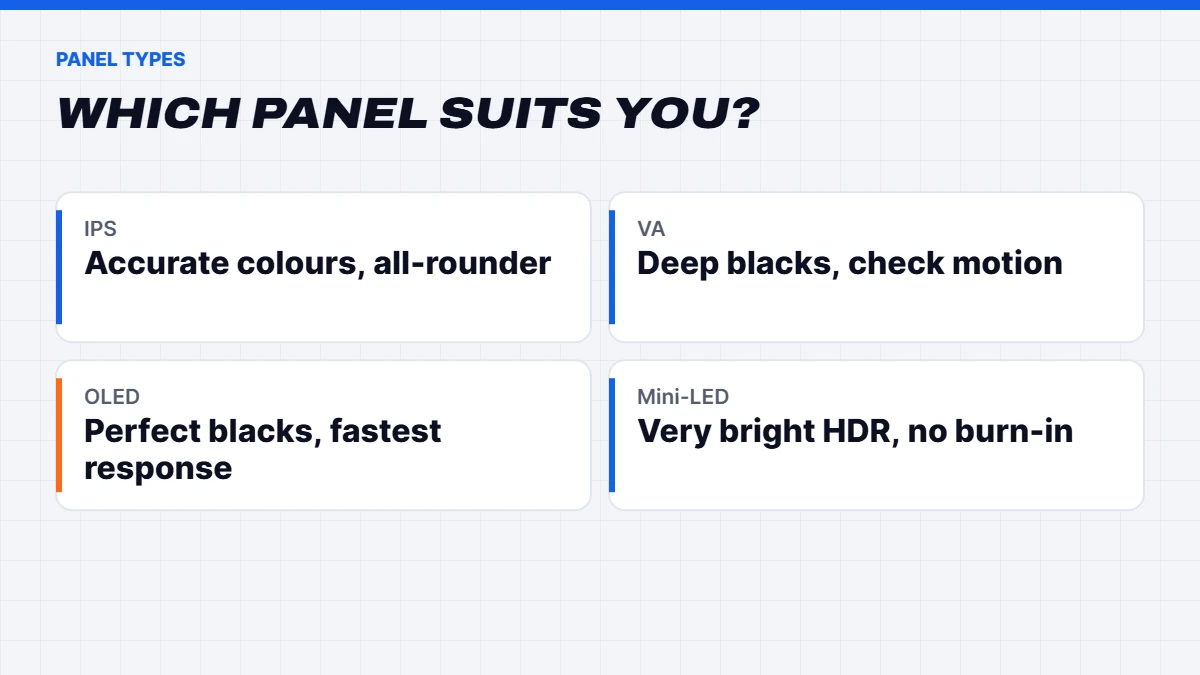
IPS panels have accurate colours and wide viewing angles, with fast response times on modern gaming models. They’re the safe all-rounder. The weakness is contrast: blacks look greyish in a dark room, and some panels show a slight glow in the corners.
VA panels have much deeper blacks and higher contrast than IPS, which looks great in dark scenes and movies. Some VA panels show smearing in fast motion, particularly in dark areas, so check reviews of the exact model.
OLED panels light each pixel individually, giving perfect blacks, incredible contrast and near-instant response. They look stunning for games and HDR. The trade-offs are a higher price, lower full-screen brightness than the best LCDs, and the need to follow the maker’s care features to reduce the risk of burn-in.
Mini-LED monitors use LCD panels with many small backlight zones, giving bright, punchy HDR with good contrast. They can show some blooming around bright objects on dark backgrounds, but they’re very bright and don’t have burn-in concerns.
The best monitor for gaming by type of player
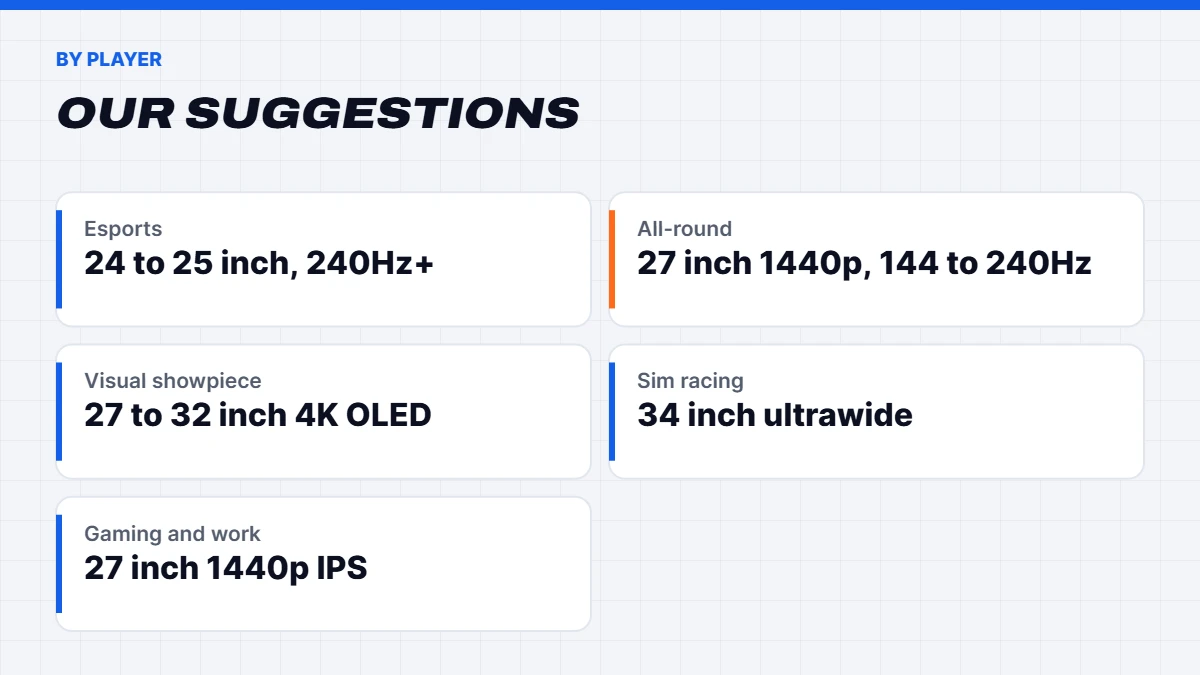
Competitive esports players. A 24 or 25-inch 1080p or 1440p screen at 240Hz or higher, with a fast IPS or OLED panel. Smaller screens keep the whole view in your eyeline, and high refresh rates make fast motion clearer.
All-round gamers. A 27-inch 1440p screen at 144 to 240Hz is the best gaming monitor for most people. It’s sharp, smooth and easy for a mid-range PC to drive.
Single-player and visual showpieces. A 27 or 32-inch 4K OLED or mini-LED with good HDR. Paired with an RTX 5080 or RTX 5090, it’s the most impressive way to play.
Sim racing and flight sims. A 34-inch ultrawide at 3440 x 1440 wraps around your view. It needs around a third more graphics power than standard 1440p.
Mixed gaming and work. A 27-inch 1440p IPS monitor with good colours and a height-adjustable stand works well for both.
OLED burn-in: how worried should you be?
OLED is the panel type people ask about most, and burn-in is the usual worry. Burn-in happens when static elements, like a taskbar or a game’s health bar, stay on screen for very long periods and leave a faint permanent image. Modern OLED gaming monitors include features to reduce the risk, such as pixel refresh routines, subtle pixel shifting and dimming of static areas, and many come with warranties that cover burn-in.
For most players, sensible habits are enough: use a dark theme or auto-hide the taskbar, let the monitor run its maintenance cycles, and avoid leaving the same static image on screen for hours. If your PC doubles as a work machine showing spreadsheets all day, an IPS or mini-LED screen may be the more relaxing choice, and in that case it could be the best gaming monitor for your situation.
Refresh rate and response time
Refresh rate is how many times per second the screen updates, in hertz. Going from 60Hz to 144Hz is a huge step that everyone notices. Going from 144Hz to 240Hz or beyond is a smaller step, most valuable in fast competitive games and only if your PC can produce enough frames.
Response time is how quickly pixels change colour. Faster response reduces blur and ghosting in motion. Be a little wary of headline figures like 1ms, as they’re often measured in ideal conditions. Independent reviews give a better picture of real motion clarity.
G-SYNC and FreeSync
Adaptive sync matches the monitor’s refresh rate to the number of frames your graphics card produces, so you don’t get tearing or stutter when frame rates vary. It’s one of the most important features on any gaming computer monitor.
- FreeSync works with AMD cards, and most FreeSync monitors also work with NVIDIA cards as “G-SYNC Compatible”.
- G-SYNC monitors are certified by NVIDIA, with some models including NVIDIA’s own module for the widest range.
In practice, almost every modern gaming monitor supports adaptive sync with both brands. Just make sure it’s switched on in your graphics driver and the monitor’s menu.
HDR on gaming monitors
HDR can look spectacular, but only on monitors bright enough and with enough contrast to show it properly. Many basic monitors accept an HDR signal without the hardware to do it justice, and the result can look washed out. VESA’s DisplayHDR certification helps separate genuine HDR monitors from the rest. As a rough guide, OLED monitors with DisplayHDR True Black ratings, and bright mini-LED monitors with DisplayHDR 1000, give the most convincing HDR.
Settings worth checking on a new monitor
Even the best monitor for gaming can look worse than it should out of the box. A few settings to check:
- Picture mode. Standard or sRGB modes usually look more natural than vivid or gaming presets.
- Overdrive. Most monitors have a response time setting. The middle option is often best, as the highest setting can cause bright halos behind moving objects.
- Brightness. Set it to suit your room. Too bright in a dark room causes eye strain.
- Adaptive sync. Turn it on in the monitor’s menu as well as in your graphics driver.
- Windows HDR. If your monitor supports HDR well, turn it on in Settings > System > Display, and run the Windows HDR Calibration app.
Size, curve and desk space
- 24 to 25 inches: ideal for esports and smaller desks.
- 27 inches: the sweet spot for 1440p and most players.
- 32 inches: best for 4K, but needs a deeper desk.
- 34-inch ultrawide: immersive for racing, flight and strategy games, plus great for work.
Curved screens help larger and ultrawide monitors feel more even across your view, while flat screens are fine at 27 inches and below. Measure your desk depth before buying a big screen, as sitting too close to a 32-inch monitor can be tiring.
Connections and setup
Use DisplayPort or HDMI 2.1 for high refresh rates, especially at 1440p and 4K. Always plug the monitor into the graphics card, not the motherboard. Once connected, go to Settings > System > Display > Advanced display and set the refresh rate to the highest option, as Windows doesn’t always do this automatically.
A height-adjustable stand, or a VESA mount for a monitor arm, makes a big difference to comfort over long sessions. Our guide to gaming accessories covers the rest of your setup.
Dual monitor setups
Many PC gamers use two screens: a high refresh gaming PC monitor in front, and a second, cheaper screen to the side for Discord, guides, music or work. The second monitor barely affects gaming performance. For the cleanest setup, choose two monitors of similar size and height, or mount them on a dual monitor arm, and plug both into the graphics card.
Gaming on a monitor with a console too
If you also own a PlayStation 5 or Xbox Series X, look for a monitor with HDMI 2.1 to get the best from both. HDMI 2.1 supports high refresh rates at 4K and 1440p from consoles, and variable refresh rate. A gaming computer monitor with both DisplayPort for your PC and HDMI 2.1 for a console lets you switch between them easily.
Features you can skip
Some features look good on the box but rarely matter:
- Built-in speakers, which are usually thin and quiet. A headset or desktop speakers sound far better.
- Basic HDR on dim monitors. HDR400 monitors often look better with HDR turned off.
- Headline response time numbers without independent testing.
- Crosshair overlays and gimmick modes that you’ll rarely use.
How long does a gaming monitor last?
A good gaming PC monitor often outlasts the PC it’s plugged into. Many people keep a quality monitor through two or more PC upgrades, which is why it’s worth spending a little more on the screen. LCD monitors can last many years, and modern OLED monitors are designed with care features to stay looking good for years of normal use.
Gaming laptops and external monitors
If you game on a laptop at a desk, an external monitor makes a huge difference to comfort, and often to image quality too. Check which port on your laptop connects directly to the dedicated graphics chip, often an HDMI port or a USB-C port with DisplayPort support, for the best performance. Match the monitor’s resolution to the laptop’s graphics: an RTX 5060 laptop pairs well with a 1080p or 1440p screen, while RTX 5070 laptops and above handle 1440p comfortably.
Gaming monitors on a budget
You don’t need to spend a fortune for a big upgrade. A 24 or 27-inch IPS monitor at 144Hz to 180Hz with adaptive sync is affordable and transforms the experience compared with a 60Hz screen. Spend a little more on refresh rate and panel quality before reaching for a higher resolution your PC may struggle to drive.
Monitor buying tips
- Read reviews of the exact model, as panels and quality vary within the same brand.
- Check the return policy and dead pixel policy before you buy.
- Watch for sales. Our guide to matching a monitor to your new PC covers what to look for during Black Friday.
- Don’t overspend on specs your PC can’t use, such as 4K at very high refresh on a mid-range card.
Gaming PCs to match
If you’re upgrading your monitor, make sure your PC can keep up. Our budget gaming PC range suits 1080p screens, our 1440p gaming PC range suits the most popular monitors, and our 4K gaming PC range drives 4K screens beautifully.
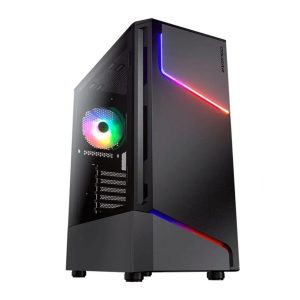 Vision Budget RTX 5060 PC – Ryzen 5 7500F, 16GB, 1TB Original price was: $1,950.00.$1,462.00Current price is: $1,462.00.See the build
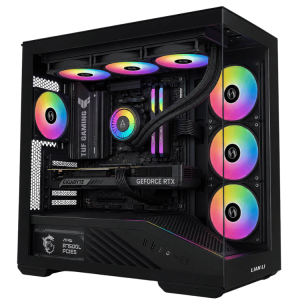 Vision Vector – 7800X3D PC with RTX 5070, 32GB DDR5 Original price was: $4,399.00.$3,299.00Current price is: $3,299.00.See the build
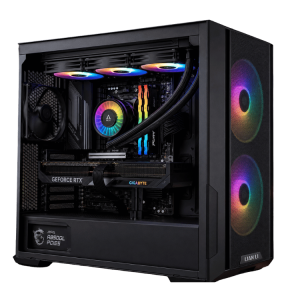 Best Value RTX 5080 Gaming PC – Ryzen 7 7800X3D, 32GB DDR5 Original price was: $5,999.00.$4,499.00Current price is: $4,499.00.See the build
Not sure which monitor suits your PC? Message us on live chat with your graphics card, and we’ll suggest the right resolution and refresh rate.
Our verdict
The best gaming monitor is the one matched to your PC and your games. For most players, that’s a 27-inch 1440p screen at 144 to 240Hz with adaptive sync, using an IPS or OLED panel. Competitive players should look at fast 24 to 25-inch screens, while 4K OLED is the best monitor for gaming visuals if your PC can drive it. Choose the monitor carefully and it’ll likely serve you through more than one PC.
Gaming monitor FAQs
How much should I spend on a gaming monitor?
As a rough guide, many people spend around 15 to 25% of their PC’s price on the monitor. Because a good monitor often outlasts the PC, it’s a sensible place to invest.
What is the best gaming monitor size?
27 inches suits most players at 1440p. 24 to 25 inches is popular for esports, and 32 inches suits 4K.
What’s the best gaming monitor for esports?
A 24 or 25-inch screen at 240Hz or higher with a fast IPS or OLED panel. Pair it with a PC that can produce high frame rates.
What’s the best monitor for gaming at 1440p?
A 27-inch 1440p IPS or OLED monitor at 144 to 240Hz with adaptive sync suits most players.
Is OLED worth it for a gaming PC monitor?
For many players, yes. OLED’s perfect blacks, contrast and response time look stunning. Follow the care settings to reduce burn-in risk.
Do I need G-SYNC or FreeSync?
Yes, adaptive sync is one of the most valuable gaming monitor features. Most modern monitors work with both NVIDIA and AMD cards.
Is a 4K gaming computer monitor worth it?
If you have an RTX 5080 or RTX 5090 and love visually rich games, yes. Otherwise, 1440p is better value.