1080p vs 1440p is the question that shapes almost every gaming PC we build, because the resolution you play at decides how much graphics card you need. Add 4K and refresh rates like 144Hz and 240Hz into the mix and it’s easy to overspend on the wrong thing, or end up with a screen your PC can’t really drive.
This guide explains the difference between 1080p, 1440p and 4K in plain terms, what refresh rate means, whether 144Hz vs 240Hz matters for you, and how to match your screen to your PC so neither is wasted.
Quick answer
1080p is the most affordable and easiest to run, great for esports and budget PCs. 1440p is the sweet spot for most gamers in 2026, noticeably sharper than 1080p without the huge cost of 4K. 4K looks stunning but needs a high-end graphics card. For refresh rate, 144Hz is a big step up from 60Hz, and 240Hz mostly benefits fast competitive games.
In this guide
What do 1080p, 1440p and 4K mean?
Resolution is the number of pixels on the screen. More pixels means a sharper, more detailed image, but your graphics card has to draw every one of them, many times a second.
| Resolution | Pixels | Compared with 1080p |
|---|---|---|
| — | — | — |
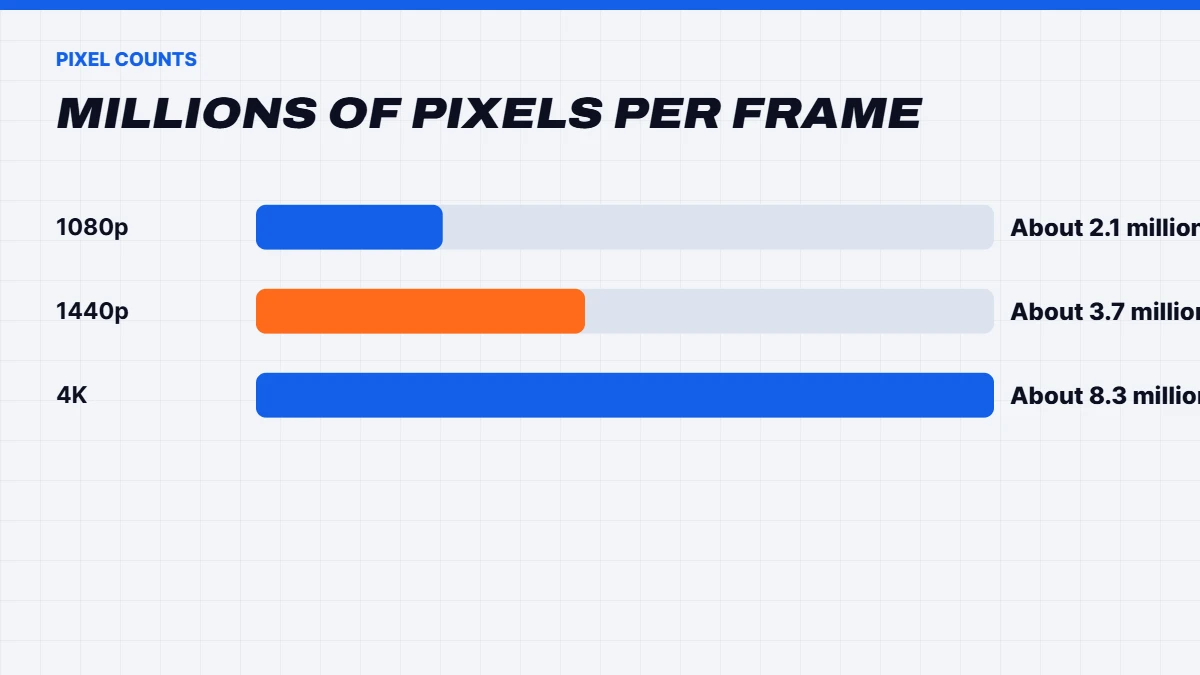
| 1080p (Full HD) | 1920 x 1080, about 2.1 million | Baseline |
| 1440p (QHD) | 2560 x 1440, about 3.7 million | About 78% more |
| 4K (UHD) | 3840 x 2160, about 8.3 million | Four times as many |
That last column is the key to the whole decision. Moving from 1080p to 1440p asks your graphics card to draw almost twice as many pixels. Moving to 4K asks for four times as many.
1080p vs 1440p: is the upgrade worth it?
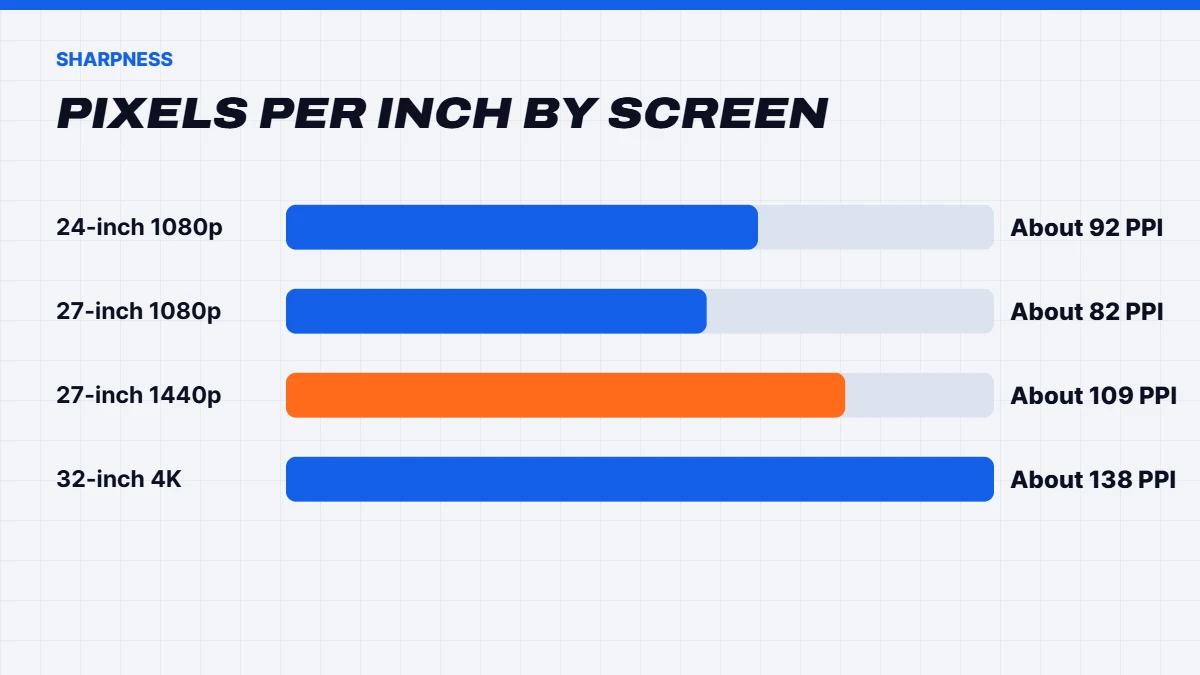
For most people, yes. The jump from 1080p vs 1440p is the most noticeable step for the money. On a 27-inch monitor, 1080p looks a little soft and you can often see individual pixels at normal viewing distance. 1440p on the same size screen looks crisp, text is sharper, and you get more space on the desktop for work too.
The cost is graphics power. A 1440p screen needs a stronger card to run at the same settings and smoothness. In 2026, that means something like an RTX 5070, RTX 5070 Ti or RX 9070 XT for high settings, often with DLSS or FSR upscaling helping out. A card that’s comfortable at 1080p, like an RTX 5060, can run 1440p in lighter games but will need settings turned down in demanding ones.
1080p still makes sense if:
- You play mainly esports games and want the highest refresh rate for the money.
- You’re on a tight budget, as both the monitor and the PC cost less.
- You use a 24-inch monitor, where 1080p still looks reasonably sharp.
1080p vs 1440p for different kinds of games
The type of games you play changes the 1080p vs 1440p answer:
- Competitive shooters and esports. Many keen players stay at 1080p with a 240Hz or faster screen, because high frame rates and clarity in motion matter more than sharpness. That said, 1440p at high refresh is increasingly popular as graphics cards get faster.
- Open-world and story games. 1440p shines here. The extra detail makes landscapes and cities look far better, and these games rarely need extreme refresh rates.
- Strategy and simulation games. 1440p gives you more screen space for maps, menus and dashboards, which is genuinely useful.
- MMOs. 1440p helps fit interface elements on screen without clutter.
If you play a mix, 1440p at 144Hz to 180Hz is the most versatile choice.
1440p vs 4K: is 4K worth it?
The 1440p vs 4K decision is more about budget and priorities. 4K looks fantastic, especially on 32-inch monitors and big TVs, and it’s wonderful for slower, cinematic single-player games. But it’s very demanding. Running modern games well at 4K calls for an RTX 5080 or RTX 5090, and even those lean on DLSS in the most demanding titles.
1440p gives you most of the visual benefit at a far lower cost, and it’s easier to run at high refresh rates. For that reason, we think 1440p is the best choice for most gamers, with 4K for those who want the best visuals and have the budget to match.
4K makes sense if:
- You play mainly single-player, visually rich games.
- You use a 32-inch or larger monitor, or a TV.
- You have, or plan to buy, an RTX 5080 or RTX 5090 class graphics card.
- You also do photo or video work, where the extra detail helps.
1440p vs 4K for creators and work
If your PC is also for work, the 1440p vs 4K choice changes a little. 4K on a 27 or 32-inch monitor makes text extremely sharp and gives photo and video editors far more detail to work with. Windows scales the interface so text isn’t tiny. For spreadsheets and multitasking, though, a 1440p screen, or two of them, can be just as productive, and much easier for your graphics card when you switch to gaming.
What is refresh rate?
What is refresh rate, and why does every gaming monitor advertise it? Refresh rate is how many times per second the screen updates the image, measured in hertz (Hz). A 60Hz screen updates 60 times a second, a 144Hz screen 144 times, and so on.
A higher refresh rate makes motion look smoother and clearer, and makes the game feel more responsive, as long as your PC can produce enough frames to keep up. Moving the mouse on a 144Hz screen after years on 60Hz is one of those upgrades you notice instantly.
Most gaming monitors today are 144Hz or higher. Common options include 144Hz, 165Hz, 180Hz, 240Hz, and very high refresh esports monitors beyond that.
144Hz vs 240Hz: can you tell the difference?
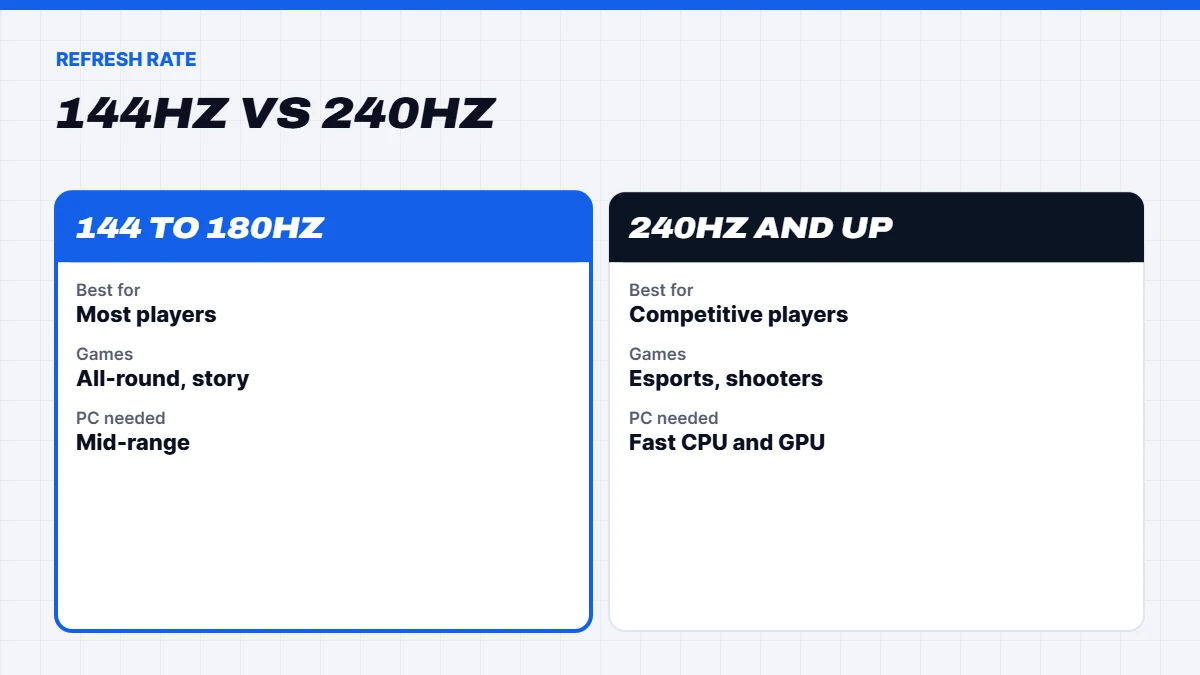
The step from 60Hz to 144Hz is huge for everyone. The step from 144Hz vs 240Hz is smaller and more noticeable for some players than others.
- For competitive shooters and esports, 240Hz makes fast motion clearer and can feel a little more responsive, which keen players appreciate.
- For single-player and slower games, most people find 144Hz to 165Hz more than enough.
- Your PC has to keep up. A 240Hz screen only shows its benefit if your PC can produce enough frames, which is easier in lighter esports titles than demanding new releases.
Our rule of thumb: 144Hz to 180Hz suits most players, and 240Hz suits competitive players with a PC that can drive it.
Set your refresh rate in Windows
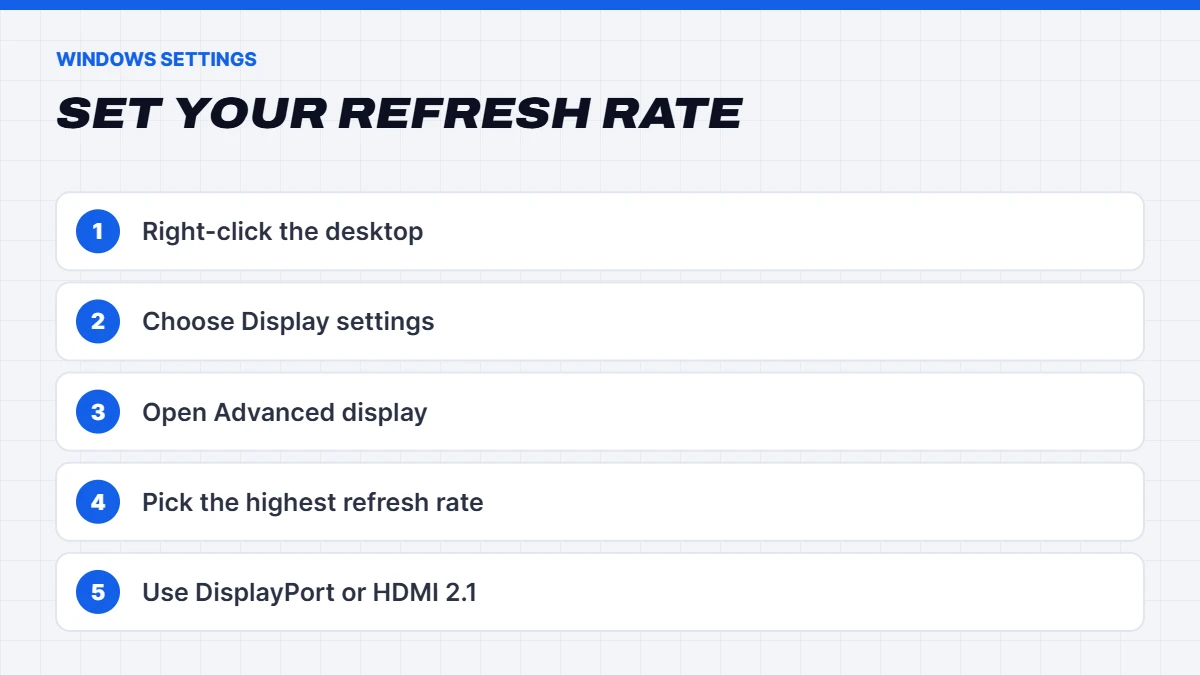
This is the most common mistake we see. Plenty of people buy a 144Hz or 240Hz monitor and run it at 60Hz for months without realising. If you’re asking what is refresh rate doing for you, check it’s actually turned on:
- Right-click the desktop and choose Display settings.
- Select Advanced display.
- Under Choose a refresh rate, pick the highest option your monitor supports.
If the higher options don’t appear, check your cable. Use DisplayPort, or an HDMI 2.1 cable for high refresh rates at 1440p and 4K, and plug it into the graphics card rather than the motherboard.
Matching your PC to your screen
The best setup is one where your monitor and PC are balanced. Here’s how we match them:
| Monitor | Graphics card tier | Our PC range |
|---|---|---|
| — | — | — |
| 1080p, 144 to 240Hz | RTX 5050, RTX 5060 or similar | Budget 1080p |
| 1440p, 144 to 240Hz | RTX 5070, RTX 5070 Ti, RX 9070 XT | Mid-tier 1440p |
| 4K, 120 to 240Hz | RTX 5080 or RTX 5090 | High-end 4K |
You’ll find matching builds in our budget gaming PC, 1440p gaming PC and 4K gaming PC ranges.
Do you need a new PC for a new monitor?
Not always, but it’s worth checking. Moving from 1080p at 60Hz to 1080p at 144Hz works well with most gaming PCs from the last few years. Moving to 1440p, or from 144Hz vs 240Hz at higher resolutions, asks a lot more of your graphics card. If your card is a few generations old, a GPU upgrade or new PC may be needed to get the most from a new screen.
A good test is to look at how your PC runs your favourite games now. If you’re comfortably above 60Hz at 1080p with high settings, a 1080p high refresh or 1440p monitor is a sensible next step. If you’re struggling at 1080p, upgrade the PC first.
How DLSS and FSR change the picture
Upscaling has blurred the lines between resolutions. With DLSS or FSR, your graphics card renders the game at a lower resolution and AI rebuilds a sharp image at your screen’s resolution. That means a mid-range card can play at 1440p, and a high-end card can play at 4K, far more comfortably than the raw pixel counts suggest.
It also means a 1440p or 4K monitor is less of a gamble than it used to be. Our guide to what ray tracing, DLSS and frame generation are explains how it works.
Screen size and viewing distance
Resolution and screen size go together. As a guide:
- 24-inch: 1080p is fine, 1440p is a nice bonus.
- 27-inch: 1440p is the sweet spot. 1080p looks soft at this size.
- 32-inch: 4K looks best. 1440p works but is less sharp.
- Ultrawide 34-inch: usually 3440 x 1440, great for immersion and productivity, but more demanding than standard 1440p.
Sit roughly an arm’s length from a desktop monitor. If you game on a TV from the couch, 4K looks great because the screen is large, even though you’re further away.
Gaming laptops: which resolution?
On gaming laptops, the 1080p vs 1440p choice works a little differently. Laptop screens are small, so 1080p or 1920 x 1200 looks sharp on a 15 or 16-inch screen, and it’s easier for a laptop GPU to drive at high refresh rates. 1440p and 2560 x 1600 laptop screens look sharper still and suit RTX 5070 laptops and above. Our guide to the best gaming laptop for every budget explains how to match the screen to the GPU.
Other monitor features worth knowing
- Panel type. IPS panels have good colours and viewing angles. VA panels have deeper blacks. OLED panels have perfect blacks, incredible contrast and very fast response, at a higher price.
- Variable refresh rate. G-SYNC and FreeSync match the screen’s refresh to your PC’s frame output, preventing tearing and stutter. It’s a must-have on any gaming monitor.
- HDR. Proper HDR needs high brightness and good contrast. Certifications from VESA’s DisplayHDR program help separate genuine HDR monitors from ones that only accept an HDR signal.
- Response time. Faster response reduces blur in motion, especially on high refresh monitors.
If you’re buying a monitor now, our guide to matching a monitor to your new PC covers what to look for during the sales.
Gaming on a TV
Plenty of PC gamers play on a TV from the couch. Most modern TVs are 4K, so the 1440p vs 4K question is partly decided for you. Look for a TV with HDMI 2.1, a 120Hz panel and variable refresh rate support, and turn on its game mode to reduce input lag. With DLSS or FSR, a high-end gaming PC can drive a 4K TV beautifully, while a mid-range PC can upscale from a lower resolution and still look great at couch distance.
Ultrawide and dual monitors
Ultrawide monitors, usually 3440 x 1440, wrap around your view and are fantastic for racing, flight sims and productivity. They need around a third more graphics power than a standard 1440p screen, so plan your graphics card accordingly. A dual monitor setup, with a high refresh screen for gaming and a second for Discord, browsers or work, is another popular choice. The second screen adds very little load when you’re gaming.
Common mistakes
- Leaving the monitor at 60Hz. Always check the Windows refresh rate setting.
- Plugging into the motherboard instead of the graphics card.
- Buying a 4K monitor for a 1080p-class PC. The PC will struggle, and the screen will be wasted.
- Chasing 240Hz in demanding games your PC can’t run that fast. 144Hz to 165Hz would serve you better.
- Using an old HDMI cable that can’t carry high refresh rates.
- Forgetting about desk space. A 32-inch monitor needs a deep desk to view comfortably.
Our recommendation
For most gamers, a 27-inch 1440p monitor at 144Hz to 180Hz, paired with an RTX 5070 or RTX 5070 Ti class PC, is the sweet spot in 2026. Choose 1080p at 240Hz if you mainly play competitive esports or you’re on a tight budget. Choose 4K if visuals come first and your budget stretches to an RTX 5080 or above.
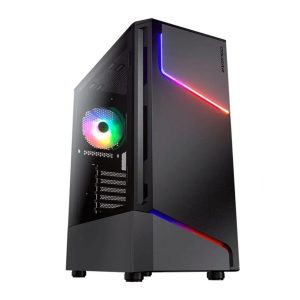 Vision Budget RTX 5060 PC – Ryzen 5 7500F, 16GB, 1TB Original price was: $1,950.00.$1,462.00Current price is: $1,462.00.See the build
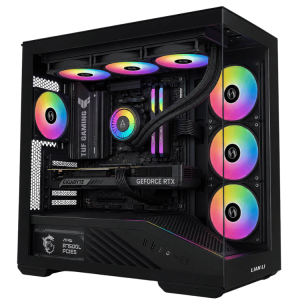 Vision Vector – 7800X3D PC with RTX 5070, 32GB DDR5 Original price was: $4,399.00.$3,299.00Current price is: $3,299.00.See the build
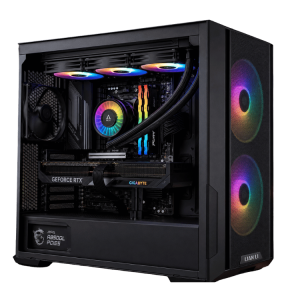 Best Value RTX 5080 Gaming PC – Ryzen 7 7800X3D, 32GB DDR5 Original price was: $5,999.00.$4,499.00Current price is: $4,499.00.See the build
Still deciding? Message us on live chat with the games you play and the monitor you have, and we’ll suggest a balanced setup.
Resolution and refresh rate FAQs
1080p vs 1440p: which is better for gaming?
1440p looks noticeably sharper, especially on 27-inch screens, but needs a stronger graphics card. 1080p is cheaper and better for maximum refresh rates in esports.
Is 1440p vs 4K a big difference?
On a 27-inch monitor, it’s noticeable but not dramatic. On 32-inch screens and TVs, 4K stands out more. 4K is much more demanding to run.
What is refresh rate in a monitor?
How many times per second the screen updates the image, measured in hertz. Higher refresh rates make motion smoother and more responsive.
Is 144Hz vs 240Hz worth upgrading for?
For competitive players with a fast PC, yes. For most others, 144Hz to 180Hz is plenty.
Can I play at 1080p on a 1440p monitor?
You can, but it looks soft because the pixels don’t map evenly. It’s better to stay at 1440p and use DLSS or FSR upscaling to boost performance.
Does a higher resolution add input lag?
Not directly. But a higher resolution lowers how many frames your PC can produce, which can make the game feel less responsive. Upscaling and a stronger graphics card help.
Is an OLED monitor worth it for gaming?
For many players, yes. OLED gives perfect blacks, superb contrast and very fast response. The trade-offs are a higher price and the need to follow the maker’s care settings to avoid burn-in.
Is 1080p still good in 2026?
Yes, especially for esports, 24-inch monitors and budget builds.