Description
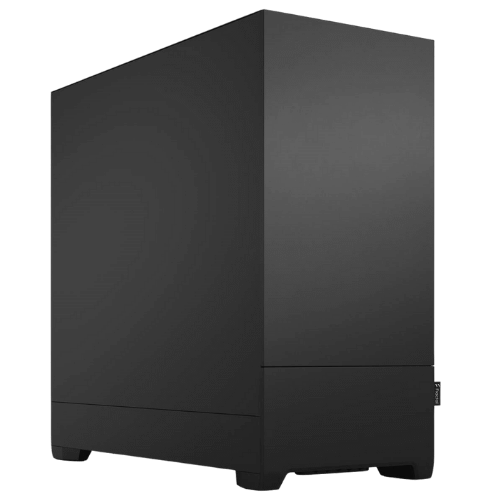
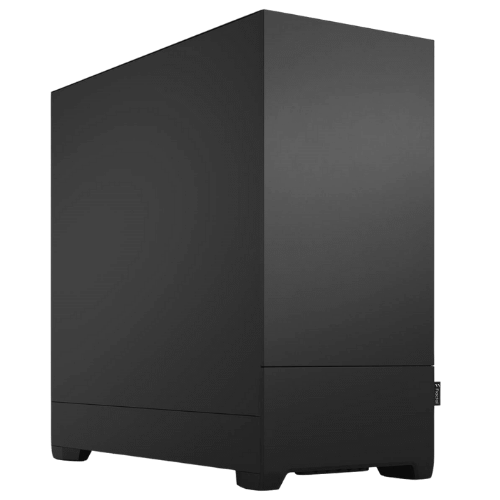
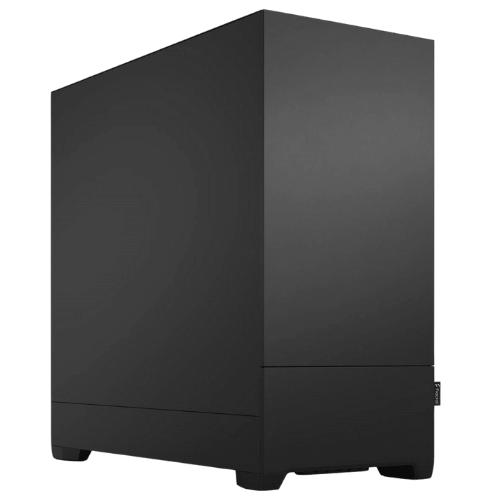
The Vision Local AI Creator is a PC for AI that gets you running models on your own desk without spending workstation money. It pairs a PNY GeForce RTX 5070 12GB, with full CUDA support, with AMD’s 12-core Ryzen 9 9900X and 32GB of DDR5-6000. A 360mm ARCTIC liquid cooler and Fractal Design’s quiet Pop XL Silent case keep it calm during long jobs, and it ships with Ubuntu Linux installed, ready for development.
It’s currently $3,599, down from $3,999. Every system is assembled and stress tested by our team in Sydney.
Who this local AI PC is for
- developers learning to build with large language models
- students taking machine learning and data science courses
- creators getting into Stable Diffusion, Flux and ComfyUI
- small businesses trying out private AI tools before investing more
- hobbyists who want to experiment without monthly cloud bills
If you already know you’ll work with bigger models, our AI workstation with an RTX 5070 Ti 16GB gives you more video memory and 64GB of system memory. For research-scale work, see our Threadripper PC with an RTX 5080.
What the RTX 5070 can run
For AI, the graphics card’s memory decides what fits. With 12GB on this PC for AI, you can comfortably run:
- quantised 7B and 8B language models with plenty of room for context, and some 12B to 14B models with tighter quantisation
- SDXL image generation, plus Flux using its quantised versions
- Whisper speech-to-text and other audio models
- training and fine-tuning smaller models for learning and prototypes
The RTX 5070 also has NVIDIA’s latest Tensor Cores with FP4 support, which newer frameworks use to run models faster and in less memory. NVIDIA covers the card on its RTX 5070 family page.
The honest trade-off: 12GB is the limit to plan around. If you want to run larger models fully on the GPU, a 16GB card is the better choice, and we’re happy to quote this build with one.
Why NVIDIA is the safe choice for local AI
Almost every AI tool supports NVIDIA’s CUDA first. Ollama, LM Studio, llama.cpp, ComfyUI, PyTorch and Hugging Face all work out of the box. For a first local AI PC, that means far less time fixing compatibility problems and more time actually using the models.
What makes the best PC for AI on a budget?
When you’re spending your own money, it pays to put it in the right places. In our experience, the best PC for AI at this price gets these priorities right:
- An NVIDIA graphics card with as much video memory as you can afford. It decides which models you can run.
- Enough system memory. 32GB is a good starting point, with room to grow.
- A fast NVMe SSD. Models load from storage every time you switch between them.
- A capable processor. It feeds the GPU and handles data preparation.
- Cooling that stays quiet under long loads.
This build balances all five without overspending on parts that won’t make your models run faster.
Popular software
Customers typically run Ollama, LM Studio and llama.cpp for language models, Open WebUI for a ChatGPT-style interface, ComfyUI for image generation, Whisper for transcription, and PyTorch, Hugging Face and Jupyter for learning and development. All of them run well on this PC for AI.
PC for AI specifications
| Processor | AMD Ryzen 9 9900X (12 cores, 24 threads) |
|---|---|
| CPU cooler | ARCTIC Liquid Freezer III Pro 360 |
| Motherboard | MSI B650M Gaming Plus WiFi |
| Graphics card | PNY GeForce RTX 5070 12GB |
| Memory | 32GB Crucial Pro DDR5-6000 (2 x 16GB) |
| Storage | 1TB PNY CS1031 NVMe SSD |
| Power supply | MSI MAG 650W |
| Case | Fractal Design Pop XL Silent |
| Operating system | Ubuntu Linux, installed |
Processor, memory and storage in this local AI PC
The Ryzen 9 9900X’s 12 cores and 24 threads keep data loading, preprocessing and everything else running smoothly alongside the GPU. The 32GB of DDR5-6000 is enough for most beginner and intermediate AI work, and the motherboard has room to grow if you start working with bigger datasets or splitting larger models across GPU and system memory.
The 1TB NVMe SSD is fast, but model files are big. If you plan to collect a library of models, we’d suggest adding a 2TB SSD, which we can fit before shipping.
Ubuntu, ready for development
We install Ubuntu because it’s the standard for AI work. Most guides, containers and tools assume it. From there you can install the NVIDIA driver, the CUDA toolkit, Python and Docker, then pull your first model with Ollama in minutes. If you’d prefer Windows, message us before you order.
A quiet local AI PC
The ARCTIC Liquid Freezer III Pro 360 keeps the Ryzen 9 cool with slow, quiet fans, and the Pop XL Silent’s sound-dampening panels keep noise down. Under full GPU load the graphics card fans are audible, but it’s comfortable to sit beside.
Your first week with a local AI PC
- Install Ollama and chat with an open model such as Llama, Qwen or Gemma.
- Add Open WebUI for a friendly, browser-based chat interface.
- Set up ComfyUI and generate your first images with SDXL.
- Transcribe a meeting or podcast with Whisper.
- Connect a model to your own documents and ask it questions about them.
Local AI or a ChatGPT subscription?
Online AI services are convenient, and the biggest cloud models are still more capable at some tasks. A local AI PC gives you something different: your prompts and files stay on your own hardware, there are no per-message or per-token costs, it works offline, and you can customise and fine-tune models however you like. Many people end up using both, with local models for private or repetitive work and cloud services for the occasional hard problem.
Keeping your data private
If you work with client files, health records or anything commercially sensitive, a local AI PC lets you use AI without uploading that data to someone else’s servers. Prompts, documents and outputs stay on your machine. Pair it with disk encryption and regular updates and you’ve got a private AI setup you control.
Monitors and remote access
The RTX 5070 drives several displays for local work. You can also run it headless and connect from a laptop over SSH or remote desktop, which works well on Ubuntu.
Why buy a prebuilt PC for AI?
We handle the BIOS, memory setup, operating system and stress testing before it ships, so you can start learning instead of troubleshooting. If anything goes wrong, you deal with one team in Australia.
Upgrading your PC for AI
- Memory: step up to 64GB or more for bigger datasets.
- Storage: add a larger NVMe SSD for models.
- Processor: AM5 supports 16-core Ryzen processors and future chips AMD has committed to the platform.
- Graphics: a card with more memory later. A high-end card may need a larger power supply.
When it arrives
- Remove any packing material from inside the case.
- Connect your monitor to the RTX 5070.
- Log in to Ubuntu and run system updates.
- Install the NVIDIA driver and CUDA toolkit.
- Install Ollama or LM Studio and download your first model.
How it compares with our other AI PCs
- Vision AI Pro: the same Ryzen 9 with an RTX 5070 Ti 16GB and 64GB of memory.
- Vision AI Powerhouse: a Threadripper 9960X, RTX 5080 and ECC memory for research workloads.
- Vision Performance Workstation: the same Ryzen 9 and RTX 5070 with Windows 11, set up for content creation.
Browse all of our AI computers and workstations.
Support after you buy
You deal directly with the people who built and tested your machine. Questions about drivers, CUDA, Ubuntu setup, upgrades or a problem after delivery go straight to our team on live chat.
Built and tested in Sydney
- assembled by our team with tidy cable management
- BIOS updated and the memory profile enabled
- stress tested for stability and temperatures
- packed carefully and shipped Australia-wide
PC for AI FAQs
Can it run ChatGPT-style models locally?
Yes. Open models such as Llama, Qwen, Mistral and Gemma run locally through Ollama or LM Studio.
Is 12GB of video memory enough?
For learning, 7B to 8B models and image generation, yes. For bigger models, choose a 16GB card.
Is this the best PC for AI beginners?
For most beginners, it’s a great balance of price and capability. It runs the popular open models and image tools, and it can be upgraded as you learn.
Can I add more memory later?
Yes. The motherboard has room for more memory, and 64GB is a popular upgrade.
Can you build several for a classroom or team?
Yes. Tell us how many you need and we’ll quote matching systems.
Can I play games on it?
Yes. Steam runs many games on Ubuntu through Proton, or we can install Windows instead if gaming matters to you.
Does it come with Windows?
It ships with Ubuntu. If you’d prefer Windows, message us before you order.
Do you deliver Australia-wide?
Yes, to every state and territory, including regional areas.