
Should you build a PC yourself or buy one ready to go? It’s one of the oldest debates in PC gaming, and the honest answer has shifted over the last couple of years. Building used to be the clear way to save money. In 2026, with memory and storage prices up and parts prices moving week to week, the gap is often smaller than people expect, and sometimes it runs the other way.
We build gaming PCs for a living, so we’re obviously not neutral. But we also build our own personal rigs and love the process, so this guide tries to be fair to both sides. We’ll break down where the money goes, the hidden costs most comparisons skip, and how to build a gaming PC if you decide to go DIY.
Quick answer
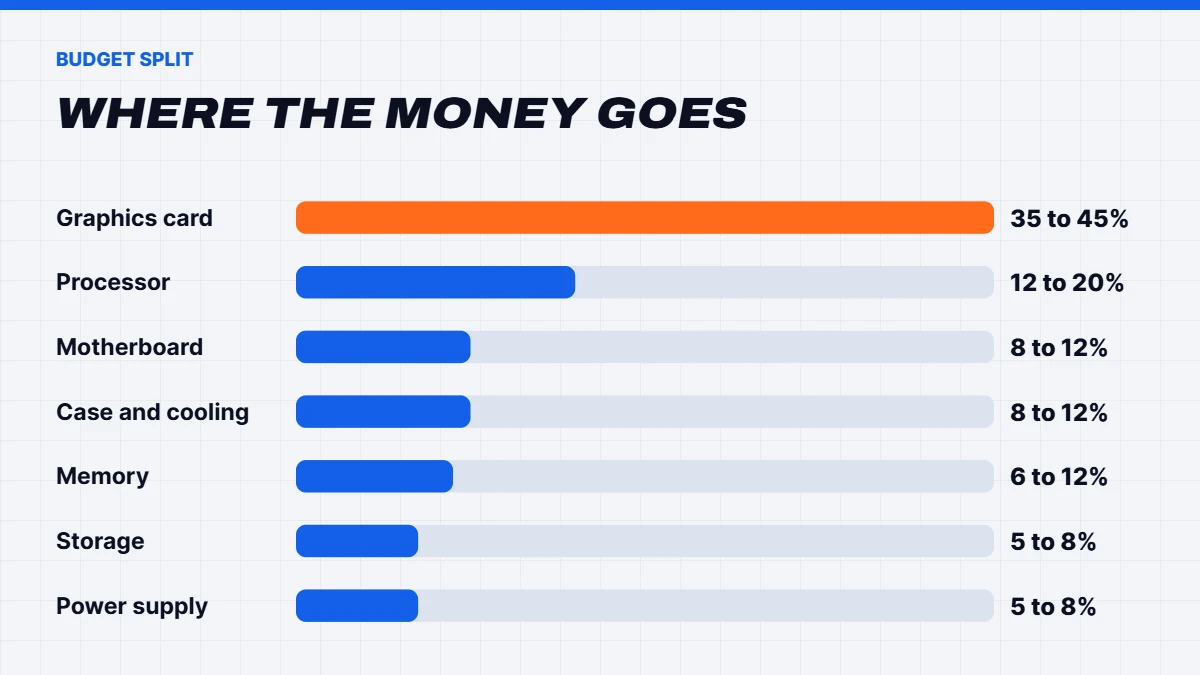
Build a PC if you enjoy the process, want to reuse parts you already own, or want total control over every component. Buy prebuilt if you want a PC that works out of the box with one warranty and no troubleshooting. On parts cost alone, a DIY gaming PC build is often a little cheaper, but once you add Windows, your time and the risk of a faulty part, the difference is usually small.
In this guide
Where the money goes in a gaming PC build
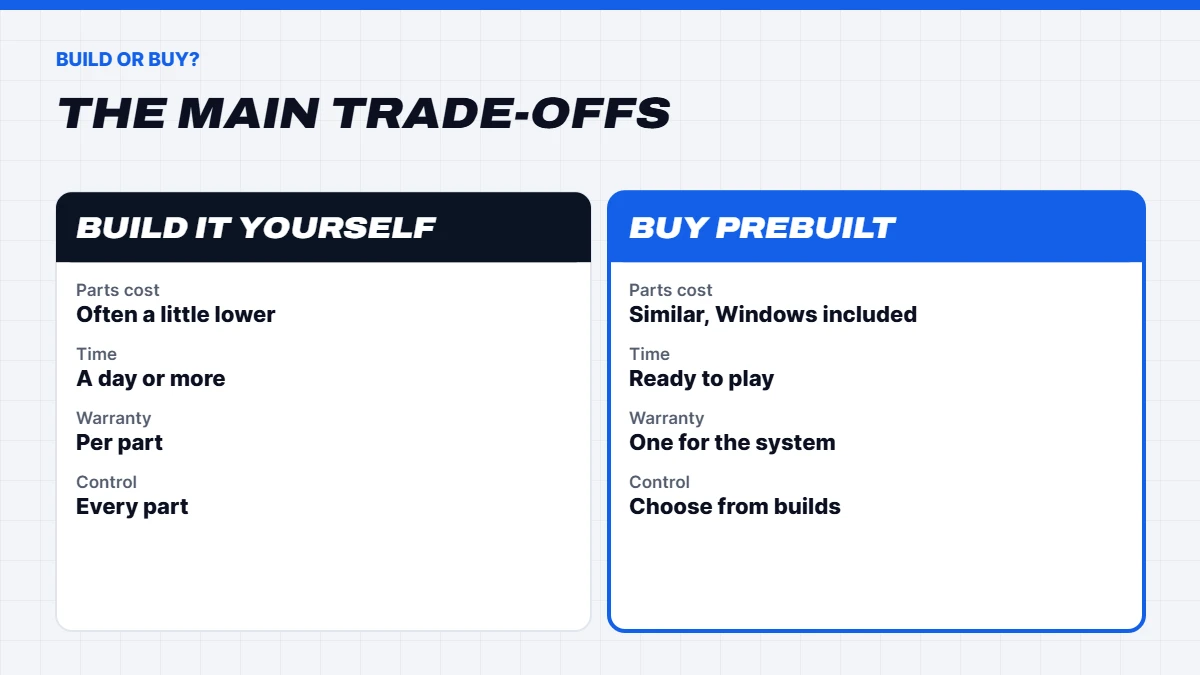
Every gaming PC build is made of the same core parts. Here’s roughly how a balanced budget splits between them for a gaming machine:
| Part | Typical share of budget | Notes |
|---|---|---|
| — | — | — |
| Graphics card | 35 to 45% | The biggest factor in gaming performance |
| Processor (CPU) | 12 to 20% | X3D chips cost more but game best |
| Motherboard | 8 to 12% | Don’t overspend, but avoid the cheapest boards |
| Memory (RAM) | 6 to 12% | Higher than usual due to the shortage |
| Storage (SSD) | 5 to 8% | 1TB minimum, 2TB is comfortable |
| Power supply | 5 to 8% | Quality matters more than wattage |
| Case and cooling | 8 to 12% | Airflow first, looks second |
These shares shift with your budget. At the entry level, the graphics card takes a smaller share because there’s a minimum cost for everything else. At the high end, a card like the RTX 5090 can be more than half the total.
The hidden costs of building your own
Parts lists online usually leave out a few things that add up:
- Windows. A genuine Windows 11 Home licence costs AU$249 as a download from Microsoft’s Australian store. Very cheap keys sold online are often grey-market and can be deactivated later. Prebuilts usually include Windows, already activated.
- Shipping and multiple orders. Buying parts from several stores to get the best prices often means several delivery fees and staggered arrival dates.
- Tools and extras. A magnetic screwdriver, cable ties, and sometimes extra fans or thermal paste.
- Your time. A first build, including research, building, installing Windows and drivers, and testing, usually takes a full day or more. Experienced builders are faster.
- Troubleshooting. If it doesn’t boot, working out whether it’s the RAM, the motherboard or a loose cable can take hours. If a part is faulty, you return that part to its retailer and wait.
Add those up honestly and a DIY build’s savings can shrink quickly, especially for a first-timer.
What you get when you buy prebuilt
A good prebuilt should save you all of the above. Ours, for example, use name-brand parts that we list in full, come with Windows 11 installed and activated, and are built and tested before they leave us. You get one warranty for the whole system, so if something goes wrong, you deal with one business rather than chasing individual part makers.
The honest downsides: you don’t pick every single part, some builders cut corners on the power supply or motherboard, and you miss out on the satisfaction of doing it yourself. Look for a builder that lists every part by brand and model, not just “16GB RAM” or “650W PSU”.
If you’d rather skip the build, every prebuilt gaming PC in our range lists its full parts list.
Build PC or buy: which is cheaper in 2026?
This is the question everyone asks, so here’s our honest view. If you buy every part new at regular retail prices, a DIY build is often a little cheaper than a well-built prebuilt with the same parts, but not dramatically. System builders buy parts in volume, which offsets some of their labour and testing costs.
Where building really saves money:
- Reusing parts. If you already own a good case, power supply, SSD or Windows licence, a new PC build only needs the rest.
- Patient sale hunting. Catching individual parts on sale over a few weeks can add up.
- Second-hand parts. Used graphics cards can be good value, with some risk.
Where a prebuilt can win:
- During shortages. With RAM and SSD prices high, as we explain in why RAM is so expensive, builders who bought stock earlier can sometimes price complete systems competitively.
- Sales events. Complete systems are often discounted as a whole during sales, which can sometimes beat the savings on individual parts. Our guide to Black Friday gaming PC deals explains what to look for.
- When you value your time. If a weekend is worth something to you, it counts.
Choosing parts that work well together
Whether you build or buy, the parts need to suit each other. The most common mistake we see in DIY parts lists isn’t an incompatible part, it’s an unbalanced one: a top-end graphics card paired with a budget power supply, or a powerful processor with a card that can’t keep up.
A few rules of thumb help. Match the graphics card to your monitor first: an RTX 5060 class card suits 1080p, an RTX 5070 or RX 9070 suits 1440p, and 4K really wants an RTX 5080 or above. Then pick a processor that won’t hold that card back, which for gaming means a modern 6 or 8-core chip. Give the power supply some headroom above what the parts need, and choose a case with good airflow so everything runs cool and quiet.
If you’re unsure, compare your parts list against a prebuilt at the same tier. It’s a quick way to sanity-check the balance, even if you end up building it yourself.
Warranty: the difference people forget
Warranty is where building and buying differ the most, and it’s rarely mentioned in price comparisons. When you build, each part has its own warranty with its own retailer or maker. If the PC starts crashing, it’s up to you to work out which part is at fault before you can claim, and you may be without your PC while that part is away.
With a prebuilt, you have one point of contact for the whole system. You describe the problem, and the builder diagnoses and sorts it out. Australian Consumer Law protections apply either way, but the day-to-day experience is very different. Whoever you buy from, it’s worth asking how warranty claims are handled and who pays for shipping.
Can you upgrade a prebuilt later?
You can, as long as it uses standard parts. Some big-brand desktops use custom motherboards, power supplies or cases that make upgrades awkward. A prebuilt from a system builder that uses standard retail parts upgrades exactly like a DIY build: you can add RAM, swap the graphics card or add another SSD down the track. Before buying any prebuilt, check that the parts list names a standard motherboard and power supply.
Tools you’ll need for a PC build
You don’t need much. A Phillips head screwdriver (magnetic makes life easier), cable ties or Velcro straps, a USB drive of 8GB or more for the Windows installer, and a torch or phone light for seeing into the corners of the case. An anti-static wrist strap is nice to have but not essential if you touch the case regularly. Keep the small bags of screws from each box, as you’ll need them.
Who should build a PC
Building is a great choice if you:
- Enjoy tinkering and want to learn how your PC works.
- Want a very specific setup, such as a particular case, a custom water loop or unusual parts.
- Already own some parts you can reuse.
- Are comfortable troubleshooting, or have a friend who is.
It’s also genuinely satisfying. The first time your own build powers on and boots into Windows is a great feeling.
Who should buy prebuilt
A prebuilt makes more sense if you:
- Want to play straight away without a weekend of building and setting up.
- Prefer one warranty and one place to go if something goes wrong.
- Are buying for someone else, such as a teenager’s first gaming PC.
- Aren’t confident with hardware and don’t want the stress of a PC that won’t boot.
There’s no wrong answer here. Plenty of experienced builders buy prebuilt simply because they’d rather spend the time gaming.
How to build a gaming PC: the basic steps
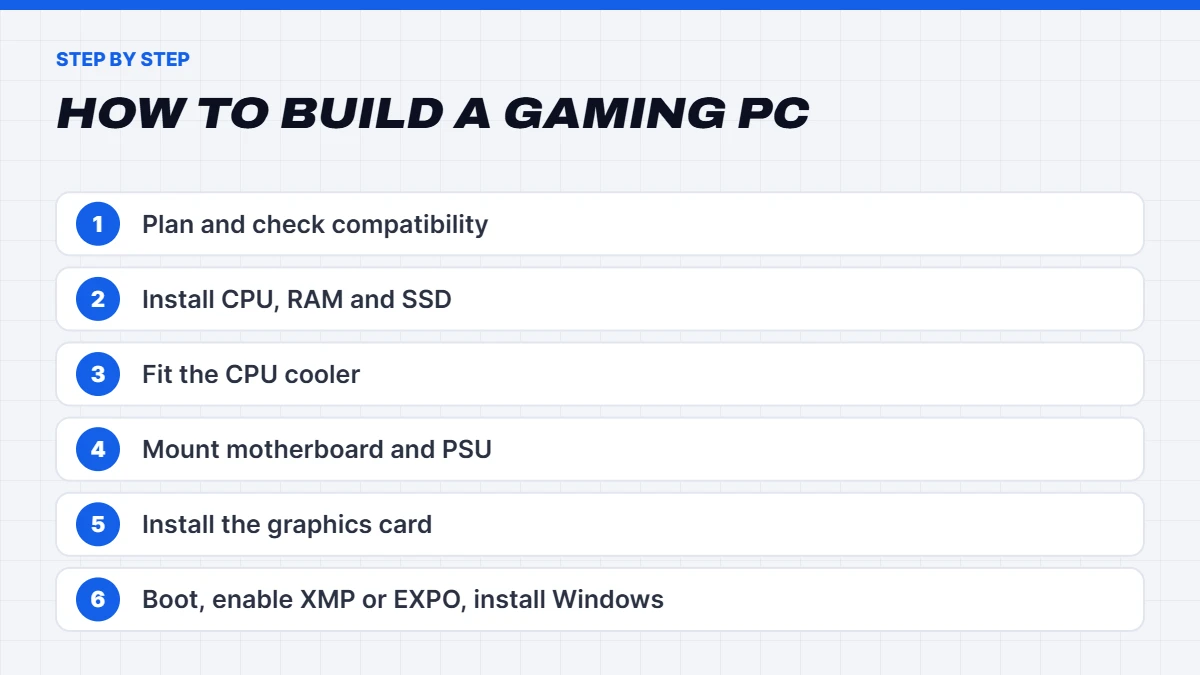
If you’ve decided to build a PC, here’s an overview of how to build a gaming PC from start to finish. Always follow your motherboard and case manuals, as layouts vary.
- Plan and check compatibility. Make sure the CPU socket matches the motherboard (AM5 or AM4 for AMD, LGA1700 or LGA1851 for Intel), the RAM type matches (DDR4 or DDR5), the graphics card fits the case, and the power supply has enough wattage and the right connectors.
- Set up your workspace. A large table, good light and a hard floor rather than carpet. Touch a metal part of the case now and then to discharge static.
- Install the CPU. Line up the marker on the chip with the marker on the socket. Never force it.
- Install the RAM. Use the slots the manual recommends for two sticks, usually A2 and B2, so it runs in dual channel.
- Install the M.2 SSD on the motherboard, under its heatsink if there is one.
- Fit the CPU cooler, with thermal paste if it isn’t pre-applied.
- Mount the motherboard and power supply in the case, and connect the main power, CPU power and front panel cables.
- Install the graphics card in the top full-length slot and connect its power cables firmly.
- First boot. Enter the BIOS, check that all RAM and storage are detected, and turn on XMP or EXPO for your RAM’s rated speed.
- Install Windows and drivers. Install Windows 11 from a USB drive, then the latest graphics and chipset drivers.
Our guide to what RAM is and how much you need helps with step 4, and our AMD vs Intel guide helps with choosing a platform.
Common first build mistakes
We see these all the time, and most are easy to avoid:
- Plugging the monitor into the motherboard instead of the graphics card, then wondering why games run poorly.
- Forgetting XMP or EXPO, which leaves RAM running well below its rated speed.
- RAM in the wrong slots, which can cost you dual-channel performance.
- Not removing the cooler’s plastic film, which leads to high temperatures.
- Loose power cables, especially the CPU power and graphics card connectors.
- Skimping on the power supply. A poor-quality unit can cause crashes or worse.
Gaming PC build examples by budget
To give you a feel for balanced builds, here are three typical gaming PC build tiers, using parts from our own range as examples.
Entry-level 1080p. An RTX 5060 or RTX 5050 class graphics card with a 6-core processor like the Ryzen 5 7500F, 16GB of RAM and a 1TB SSD. Our 5060 PC is a good example of this tier, and our entry level gaming PC shows how low you can go for esports.
Mid-range 1440p. An RTX 5070 or RX 9070 class card with a processor like the Ryzen 7 7800X3D, 32GB of DDR5 and a 1TB or 2TB SSD. Our 7800X3D PC is a popular example.
High-end 4K. An RTX 5080 or RTX 5090 with a Ryzen 7 9800X3D or 7800X3D, 32GB or more of DDR5, a 2TB SSD and a 360mm liquid cooler. Our RTX 5080 gaming PC is a well-balanced pick here.
Whichever way you go, these parts lists make a useful starting point for your own PC build.
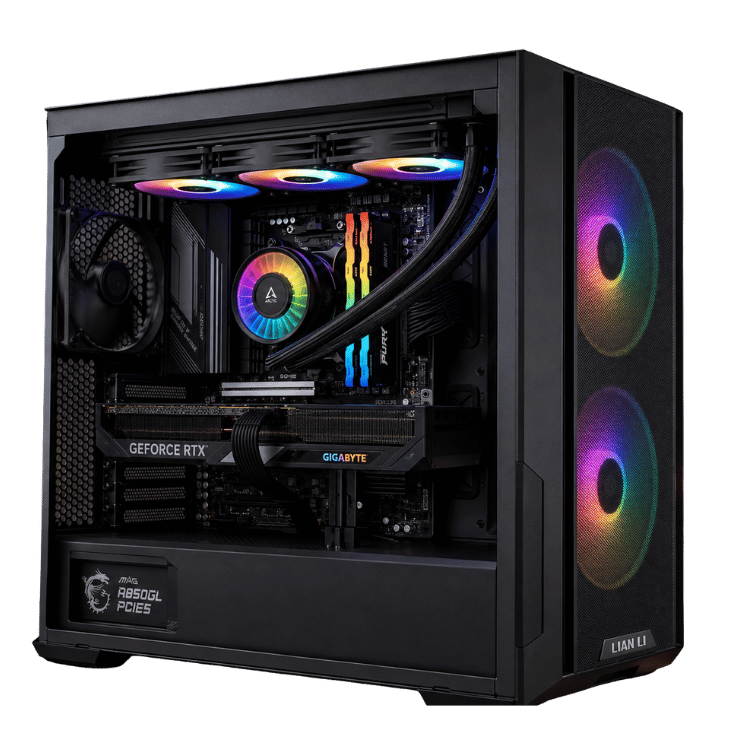
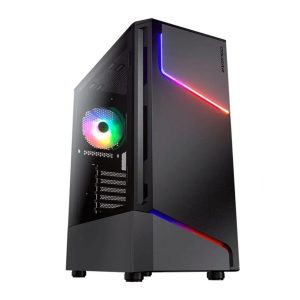 Vision Budget RTX 5060 PC – Ryzen 5 7500F, 16GB, 1TB Original price was: $1,950.00.$1,462.00Current price is: $1,462.00.See the build
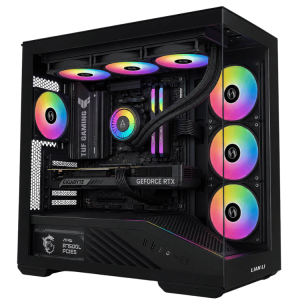 Vision Vector – 7800X3D PC with RTX 5070, 32GB DDR5 Original price was: $4,399.00.$3,299.00Current price is: $3,299.00.See the build
 Best Value RTX 5080 Gaming PC – Ryzen 7 7800X3D, 32GB DDR5 Original price was: $5,999.00.$4,499.00Current price is: $4,499.00.See the build
Build PC or buy: our honest verdict
If you love the idea of building, do it. You’ll learn a lot, you’ll know every part inside your case, and you may save a little money, especially if you reuse parts. If you just want a great gaming PC that works the day it arrives, buying prebuilt from a builder who lists every part is a perfectly smart choice, and in 2026 it’s often closer in price than people assume.
Either way, the most important thing is a balanced set of parts: a graphics card matched to your monitor, a decent processor, 32GB of RAM for most gamers, and a quality power supply. Not sure which way to go? Message us on live chat and we’ll give you a straight answer, even if that answer is to build it yourself.
Build a PC FAQs
Is it cheaper to build a PC in 2026?
Usually a little, if you count parts alone. Once you add Windows, shipping, your time and the risk of troubleshooting, the difference is often small, especially with memory prices high.
How long does it take to build a PC?
A first build usually takes a full day including installing Windows and drivers. Experienced builders can do it in a few hours.
Is building a PC hard?
Not really. If you can follow instructions carefully, you can build a PC. The tricky parts are checking compatibility and troubleshooting if it doesn’t boot.
What do I need to build a gaming PC?
A processor, motherboard, RAM, SSD, graphics card, power supply, case and CPU cooler, plus a Windows licence, a screwdriver and a USB drive to install Windows.
Should my first gaming PC be a DIY build?
It can be, if you’re keen to learn and have a free weekend. If you’re nervous about hardware or need the PC working by a certain date, a prebuilt takes the pressure off, and you can still learn by upgrading it later.
Can I build a PC and install Windows later?
Yes. You can install Windows 11 and use it unactivated for a while with a watermark and some personalisation settings locked, then activate it with a genuine licence when you’re ready.
Is a PC build worth it for a budget gaming PC?
Savings are smallest at the budget end, because fixed costs like Windows and a case take a bigger share. Compare a complete prebuilt carefully before deciding.
Do prebuilt PCs use worse parts?
Some do, which is why you should always check the full parts list. A good builder names every part by brand and model.