
Wondering how to connect PS5 controller to PC? Good news: it takes about a minute, with a cable or over Bluetooth, and the same goes for PS4 and Xbox controllers. The trickier part is getting every game to recognise it properly, because Windows treats PlayStation and Xbox controllers a little differently. That’s what this guide sorts out.
We’ll walk through how to connect PS5 controller to PC step by step, then cover PS4 and Xbox controllers, how to set them up in Steam, how to fix the common problems, and which is the best controller for PC if you’re buying one.
Quick answer
To connect a PS5 controller to a PC, plug it in with a USB-C cable, or hold the PS and Create buttons until the light bar flashes, then add it in Windows Settings under Bluetooth & devices. For PS4 controllers, hold PS and Share instead. Xbox controllers work in nearly every PC game straight away. For PlayStation controllers, turn on PlayStation Controller Support in Steam so games recognise the buttons correctly.
In this guide
What you’ll need
Before you start, check you have:
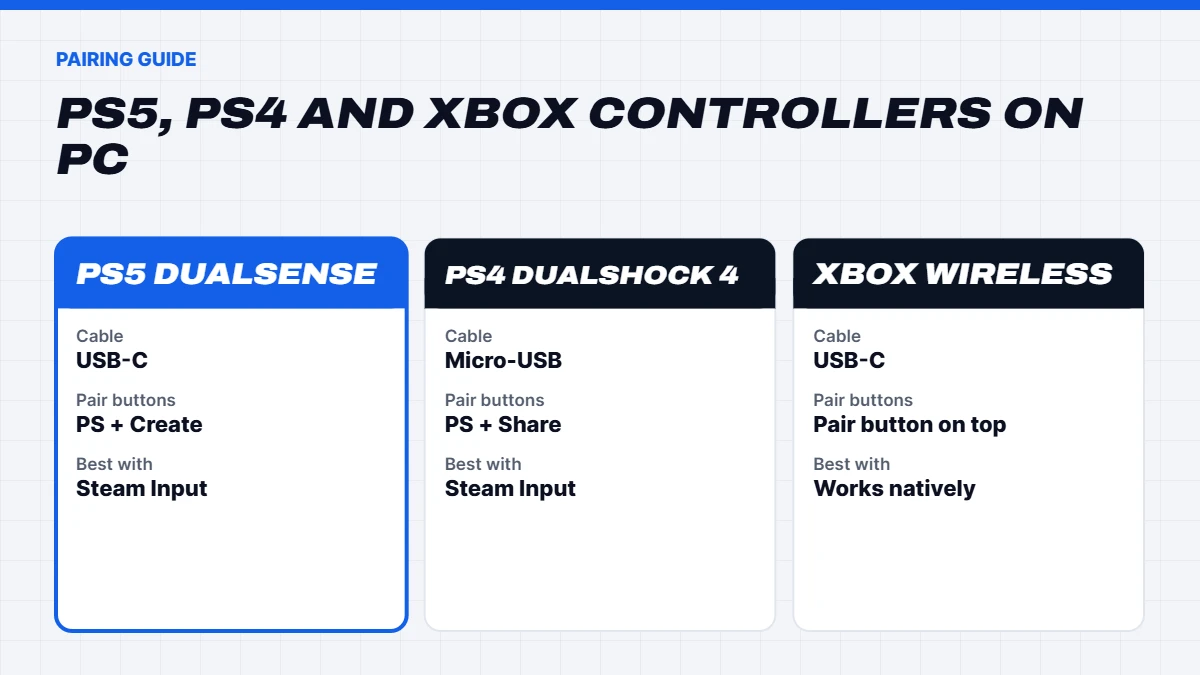
- A USB cable. USB-C for a PS5 DualSense or a current Xbox controller, micro-USB for a PS4 DualShock 4. A data cable, not a charge-only one.
- Bluetooth on your PC, if you want to go wireless. Most laptops have it built in. Many desktops do too, often through the motherboard’s Wi-Fi module, but not all. A small USB Bluetooth adapter fixes that cheaply.
- Windows 11 or Windows 10, fully updated.
- Steam, if you play Steam games. It handles PlayStation controllers far better than Windows does on its own.
How to connect PS5 controller to PC with a cable
The simplest method is a wired connection, and it’s also the one that unlocks the most features in games that support the DualSense’s haptics.
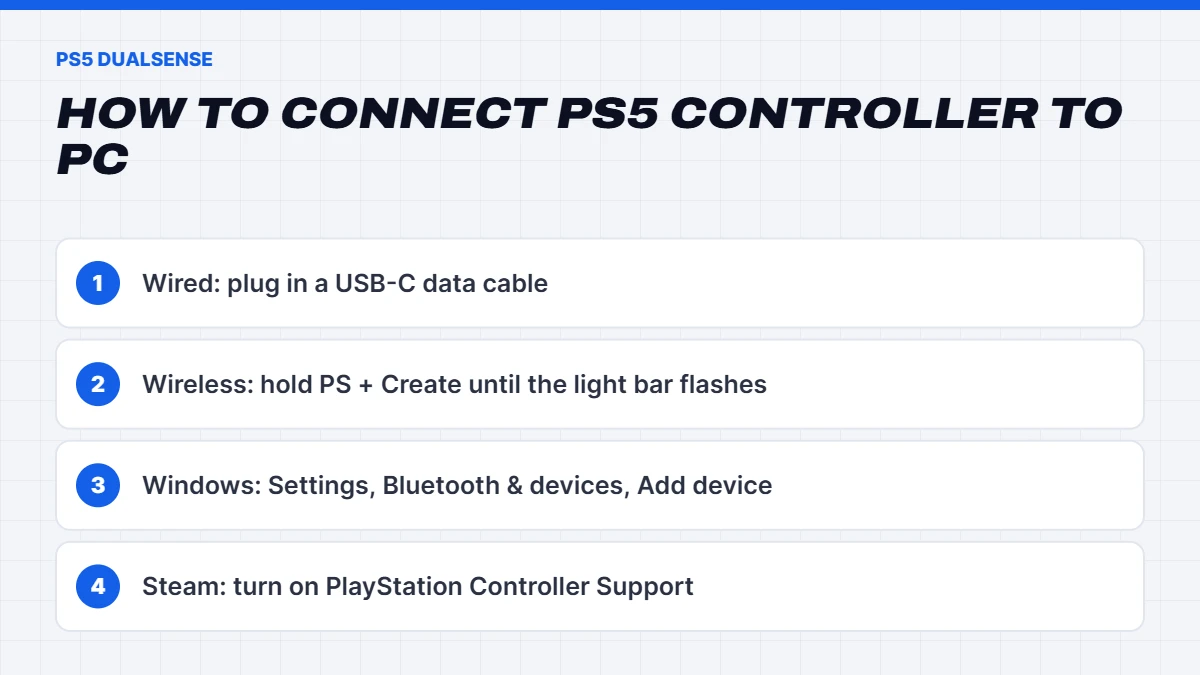
- Plug a USB-C cable into the top of the controller and into a USB port on your PC.
- Wait a few seconds while Windows sets it up. It appears as a “Wireless Controller” in Settings, under Bluetooth & devices.
- Open Steam, go to Settings, then Controller, and make sure PlayStation Controller Support is turned on.
- Launch a game and test the buttons.
That’s it. The light bar should glow and the controller charges while it’s plugged in.
How to pair PS5 controller to PC with Bluetooth
If you’d rather go wireless, here’s how to pair PS5 controller to PC over Bluetooth:
- Make sure the controller is off, or not connected to a PS5 nearby.
- Hold the PS button and the Create button (the small button left of the touchpad) together for about three seconds, until the light bar starts flashing quickly.
- On your PC, open Settings, then Bluetooth & devices, then Add device, then Bluetooth.
- Choose Wireless Controller from the list.
- Once it says connected, the light bar stops flashing.
After the first pairing, pressing the PS button reconnects the controller automatically. Just remember that if you then use it on your PS5, you’ll need to plug it into the console to pair it back.
How to connect PS4 controller to PC
How to connect PS4 controller to PC is almost identical. The DualShock 4 uses a micro-USB cable for wired play. For Bluetooth:
- Hold the PS button and the Share button together until the light bar flashes quickly.
- In Windows, go to Settings, Bluetooth & devices, Add device, Bluetooth.
- Select Wireless Controller.
As with the PS5 controller, turn on PlayStation Controller Support in Steam so games map the buttons correctly. Older DualShock 4 models can lose Bluetooth connection more easily at a distance, so a cable is the reliable option if you sit far from the PC.
How to connect Xbox controller to PC
How to connect Xbox controller to PC is the easiest of the lot, because Windows was built with Xbox controllers in mind. Nearly every PC game recognises them without any extra setup. There are three ways to connect:
- USB cable: plug a USB-C cable (or micro-USB on older models) into the controller and PC. It works instantly.
- Bluetooth: turn the controller on, hold the small pair button on the top edge until the Xbox button flashes quickly, then add it in Windows Settings under Bluetooth & devices. Most Xbox controllers made since 2016 support Bluetooth.
- Xbox Wireless Adapter for Windows: a small USB dongle that uses Microsoft’s own wireless connection. It supports more controllers at once and audio through the controller’s headset jack.
Microsoft’s guide to connecting an Xbox Wireless Controller to a Windows PC covers each method in detail.
Setting up PlayStation controllers in Steam
This step makes the biggest difference. Windows recognises PlayStation controllers, but many games expect an Xbox-style controller. Steam Input translates between them, so games see the right buttons and show PlayStation button prompts where supported.
- Open Steam and go to Settings, then Controller.
- Turn on PlayStation Controller Support.
- Click Begin Test or Calibrate to check every button, stick and trigger.
- For individual games, open the game in your Library, click the controller icon and adjust the layout if needed.
Steam can also adjust the light bar, enable gyro aiming for games that don’t support it, and remap buttons for each game. Big Picture mode makes all of this easier with a controller in hand.
What about games outside Steam?
Outside Steam, support varies. Many newer PC games, especially Sony’s own PC releases, support the DualSense directly, including its haptic feedback and adaptive triggers, and some only enable those features when the controller is plugged in with a cable. Other games only understand Xbox controllers.
If a non-Steam game ignores your PlayStation controller, you have two options. You can add the game to Steam as a non-Steam game, which lets Steam Input handle the controller. Or you can use a third-party tool such as DS4Windows, which makes Windows see a PlayStation controller as an Xbox one. Third-party tools work well for many people, but download them only from their official project pages.
Wired or wireless: which is better?
Whether you’re working out how to connect Xbox controller to PC or a PlayStation pad, the wired versus wireless choice is the same. A cable gives you the lowest delay, no battery worries and, for the DualSense, the full haptic and adaptive trigger features in supported games. Bluetooth gives you freedom to sit back or play from the couch, with a small amount of extra delay that most people never notice in single-player games.
Our suggestion: use Bluetooth for relaxed games and the couch, and keep a good-quality USB cable at your desk for competitive play or when the battery runs low.
Controller settings worth changing
Once your controller works, a few settings can make games feel much better. Most PC games let you adjust stick sensitivity and deadzones, which control how far you need to move a stick before it registers. A slightly smaller deadzone makes aiming feel more responsive, as long as your sticks don’t drift. You can also change vibration strength, invert the camera and swap button prompts between PlayStation and Xbox symbols in many games. In Steam, the controller settings for each game let you remap anything, add gyro aiming or create different layouts for different modes.
Fixing common problems
If your controller won’t connect or behaves oddly, try these fixes in order:
- It won’t pair over Bluetooth. Remove it from Windows’ Bluetooth list, reset the controller and pair again. The DualSense and DualShock 4 both have a small reset hole on the back. Press it with a straightened paper clip for a few seconds.
- No Bluetooth option on your PC. Your desktop may not have Bluetooth. A USB Bluetooth adapter solves it.
- Buttons are wrong in games. Turn on PlayStation Controller Support in Steam, or check the game’s own controller settings.
- The connection drops. Move closer to the PC, avoid USB 3 ports right next to the Bluetooth adapter, which can interfere, or use a cable.
- The controller is laggy. Bluetooth adds a little delay. For competitive games, use a cable.
- Firmware is out of date. Sony offers a firmware updater for the DualSense on Windows, and Microsoft’s Xbox Accessories app updates Xbox controllers.
Using the DualSense’s special features on PC
The PS5 controller has a few tricks the Xbox controller doesn’t, and some of them work on PC. Haptic feedback, which uses precise motors to create textured vibration, and adaptive triggers, which push back against your fingers, work in PC games that support them, and usually only with a USB cable. The touchpad can act as a mouse or extra buttons through Steam Input, and the motion sensor can be used for gyro aiming, which many players find more accurate than thumbsticks.
The built-in microphone and speaker are less reliable on PC, so a proper headset is the better choice for voice chat. If you love the DualSense’s features, choose games known for good PC support of them and keep a USB-C cable handy.
Connecting more than one controller
For local co-op and couch games, you can connect several controllers at once. Bluetooth handles a few controllers comfortably, though range and reliability drop as you add more, so cables or the Xbox Wireless Adapter are better for four-player sessions. Mixing PlayStation and Xbox controllers works fine in Steam, which assigns each one a player number. If a game only sees one controller, check its settings for a local multiplayer option, as some games need it switched on.
Battery life and charging
Wireless controllers need regular charging. The DualSense typically lasts several hours of play per charge, less if haptics and the light bar are at full strength, and it charges over USB-C while you play. Turning down the light bar brightness and haptic strength in Steam or in the game helps it last longer. Xbox controllers use AA batteries by default, which some people prefer because you can swap them instantly, or you can add a rechargeable battery pack.
How to connect PS5 controller to PC: quick checklist
If you just want the short version, here’s how to connect PS5 controller to PC in a nutshell:
- Wired: plug in a USB-C data cable. Done.
- Wireless: hold PS and Create until the light bar flashes, then add it in Windows Bluetooth settings.
- In Steam: turn on PlayStation Controller Support under Settings, then Controller.
- Outside Steam: check the game’s controller settings, add it to Steam, or use a tool like DS4Windows.
- Problems: remove and re-pair, press the reset hole, update the firmware, or use a cable.
Extras for Xbox controllers on PC
Microsoft’s Xbox Accessories app lets you remap buttons, adjust stick and trigger sensitivity, and update the controller’s firmware. The Xbox Game Bar, opened with the Xbox button or Windows key and G, gives quick access to capture, audio and performance overlays while you play. If you play PC Game Pass titles, the Xbox app on Windows recognises the controller automatically, which makes it a natural fit for anyone already in the Xbox ecosystem.
Which is the best controller for PC?
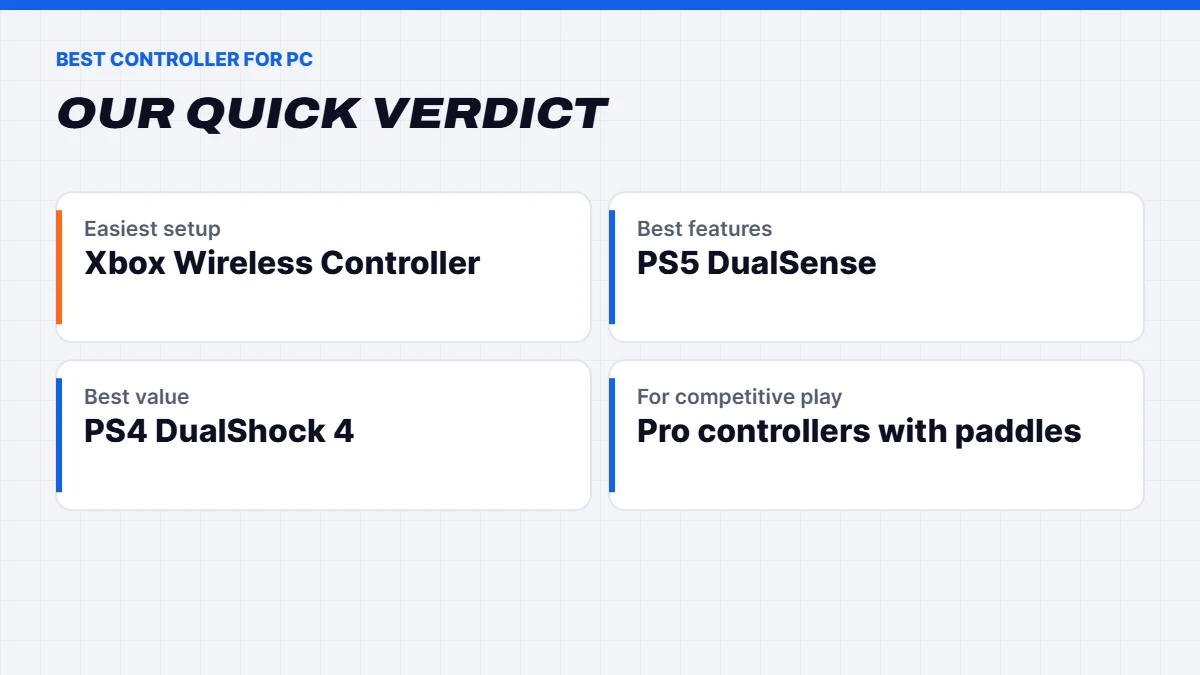
If you’re buying a controller just for PC, here’s our honest take on the best controller for PC gaming:
| Controller | Strengths | Trade-offs |
|---|---|---|
| Xbox Wireless Controller | Works in nearly every PC game with no setup | Uses AA batteries unless you add a rechargeable pack |
| PS5 DualSense | Great feel, haptics and adaptive triggers in supported games | Needs Steam Input or game support for best results |
| PS4 DualShock 4 | Comfortable and often cheaper second-hand | Older, shorter battery life |
| Pro controllers like the DualSense Edge or Xbox Elite | Back paddles, adjustable sticks, premium build | Expensive |
| Third-party controllers | Good value, often with extra features | Quality varies, so read reviews |
For most people, the Xbox Wireless Controller is the easiest choice, simply because it works everywhere. If you already own a PS5 or love the DualSense’s feel, it’s a fantastic PC controller once Steam is set up. We don’t sell controllers ourselves, so this is purely our experience from using them.
Which PC games play best with a controller?
Some games feel far better with a controller than a mouse and keyboard. Racing games, sports games like EA Sports FC and NBA 2K, platformers, fighting games, and third-person action games like Elden Ring or God of War are all designed around a controller. Shooters and strategy games usually play better with a mouse. Many players keep both on the desk and switch depending on the game.
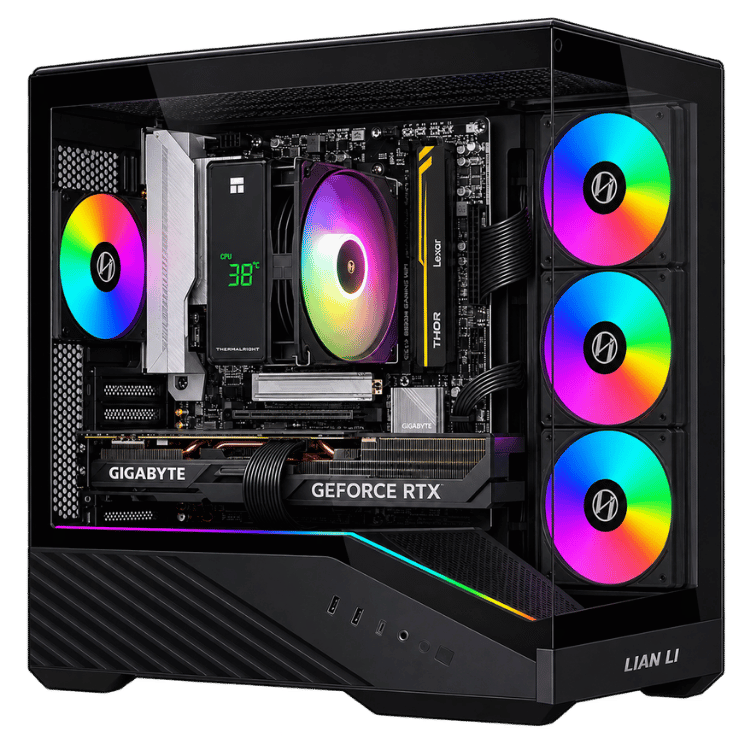
A good gaming PC makes the switch seamless. Any modern Windows PC with Steam handles controllers easily, and a decent 1080p or 1440p build runs controller-friendly games beautifully on a monitor or even your TV. Our gaming PCs all have plenty of USB ports, and many include Wi-Fi and Bluetooth on the motherboard.
Playing on the TV
If you’d like a console-style experience on the couch, connect your PC to the TV with an HDMI cable and launch Steam’s Big Picture mode. It’s built for controllers, with large menus you can navigate without a mouse. Pair your controller over Bluetooth or use a long USB cable, and you have a living-room gaming setup that plays your whole PC library.
Controller FAQs
How to connect PS5 controller to PC without Bluetooth?
Use a USB-C cable. It works straight away, and it’s the best way to get haptics and adaptive triggers in games that support them.
Why won’t my PS4 controller connect to my PC?
Remove it from Windows’ Bluetooth list, press the reset hole on the back, then hold PS and Share until the light bar flashes and pair again. If your PC has no Bluetooth, use a micro-USB cable.
How to connect Xbox controller to PC with Bluetooth?
Turn the controller on, hold the pair button on its top edge until the Xbox button flashes quickly, then add it in Windows Settings under Bluetooth & devices.
Do Xbox controllers work on PC without extra software?
Yes. Windows supports Xbox controllers natively, and almost every PC game recognises them.
Can I use a PS5 controller on PC without Steam?
Yes, in games that support the DualSense directly. For other games, Steam Input or a tool like DS4Windows helps them recognise it.
What is the best controller for PC?
The Xbox Wireless Controller for the easiest setup, or the PS5 DualSense if you prefer Sony’s design and use Steam.