
Whether you’re checking if a new game will run, selling an old computer, asking for help with a problem or planning an upgrade, the first question is always the same: what’s actually inside this thing? The good news is that knowing how to check PC specs in Windows 11 takes about a minute, and you don’t need to open the case or install anything.
This guide shows you how to see PC specs using the tools built into Windows, including how to find out what graphics card you have and how much RAM you have, plus a few free tools for more detail.
Quick answer
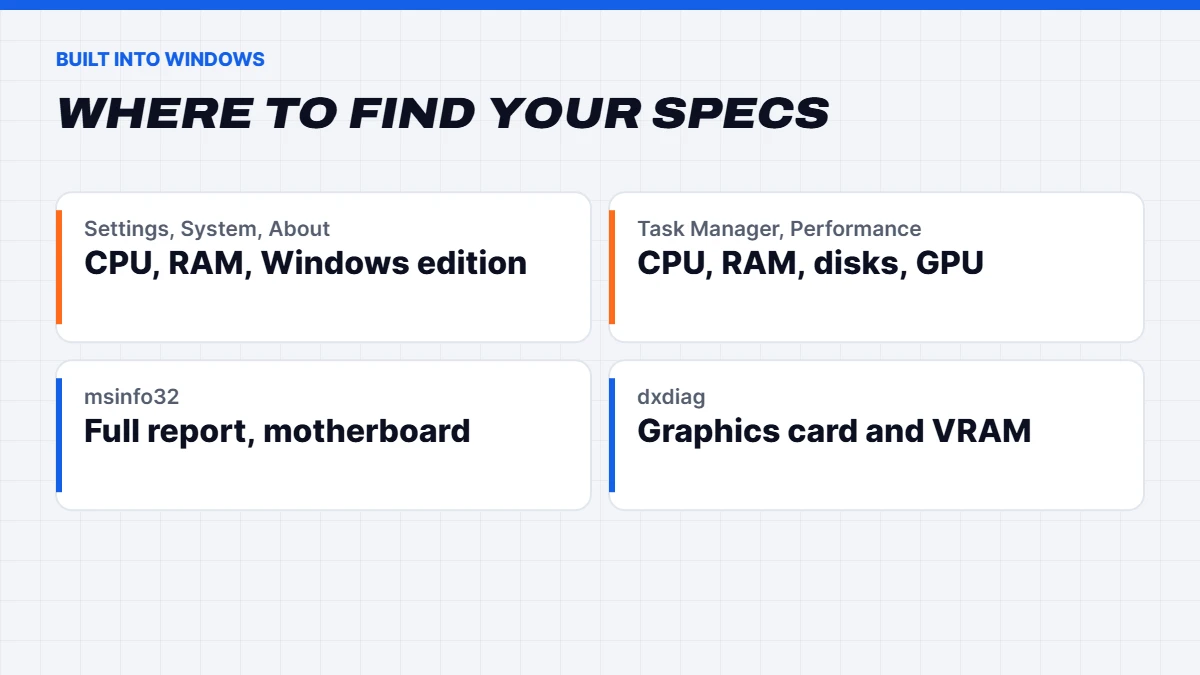
The fastest way to check PC specs is Settings > System > About, which shows your processor, RAM and Windows edition. For your graphics card, open Task Manager with Ctrl + Shift + Esc and go to Performance > GPU. Task Manager’s Memory page also shows how much RAM you have, its speed and how many slots are used. For a full report, type msinfo32 into the Start menu.
In this guide
Why it’s worth knowing your PC specs
Most people only look up their specs when something goes wrong or a new game comes out. But knowing how to check PC specs pays off in lots of everyday situations: deciding whether a game will run, checking whether a cheap upgrade will help, comparing your PC with a new one, or getting faster help from a support team. It also helps you spot problems, like RAM running slower than it should or a graphics card that isn’t being used at all.
How to check PC specs in Settings
The simplest way to check PC specs is the About page in Settings:
- Press Windows + I to open Settings, or right-click the Start button and choose System.
- Go to System > About.
- Under Device specifications, you’ll see your processor, installed RAM, device name and system type.
- Under Windows specifications, you’ll see your Windows edition and version.
This page doesn’t show your graphics card or storage in detail, but it’s the quickest way to see the basics.
How to see PC specs in Task Manager
Task Manager is the best all-in-one way to see PC specs, because it shows the main components and how hard they’re working:
- Press Ctrl + Shift + Esc to open Task Manager.
- Select the Performance tab.
- Click each item on the left: CPU, Memory, Disk and GPU.
Each page shows the model name in the top right, plus useful details. The CPU page shows cores, logical processors and speed. The Memory page shows the total, speed and slots used. The Disk pages show each drive and whether it’s an SSD or HDD. The GPU page shows your graphics card, its video memory and its temperature.
What graphics card do I have?
“What graphics card do I have?” is probably the most common question we’re asked before people buy a game. Here are three easy ways to find out:
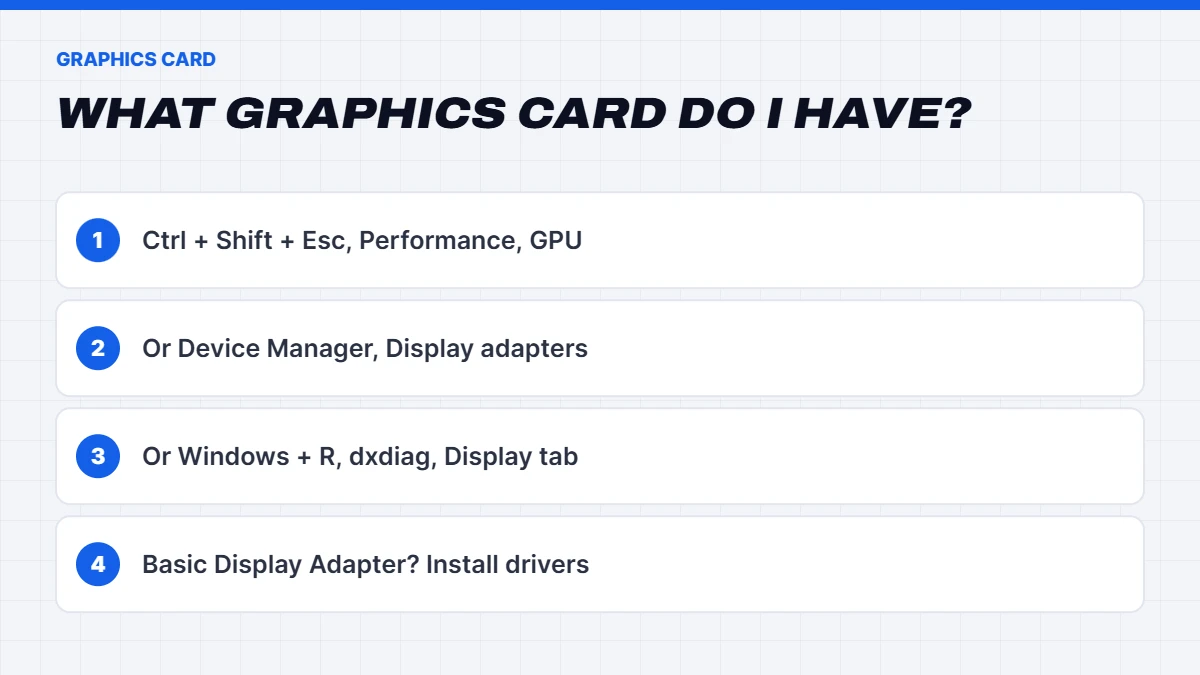
- Task Manager: Ctrl + Shift + Esc, then Performance > GPU. If you see two GPUs, GPU 0 is often the processor’s built-in graphics and GPU 1 is the dedicated card, especially on laptops.
- Device Manager: right-click the Start button, choose Device Manager, and expand Display adapters.
- DirectX Diagnostic Tool: press Windows + R, type dxdiag and press Enter. The Display tab shows the card’s name and its video memory.
If you see “Microsoft Basic Display Adapter”, Windows isn’t using the proper graphics driver. Install the latest driver from NVIDIA, AMD or Intel.
How much RAM do I have?
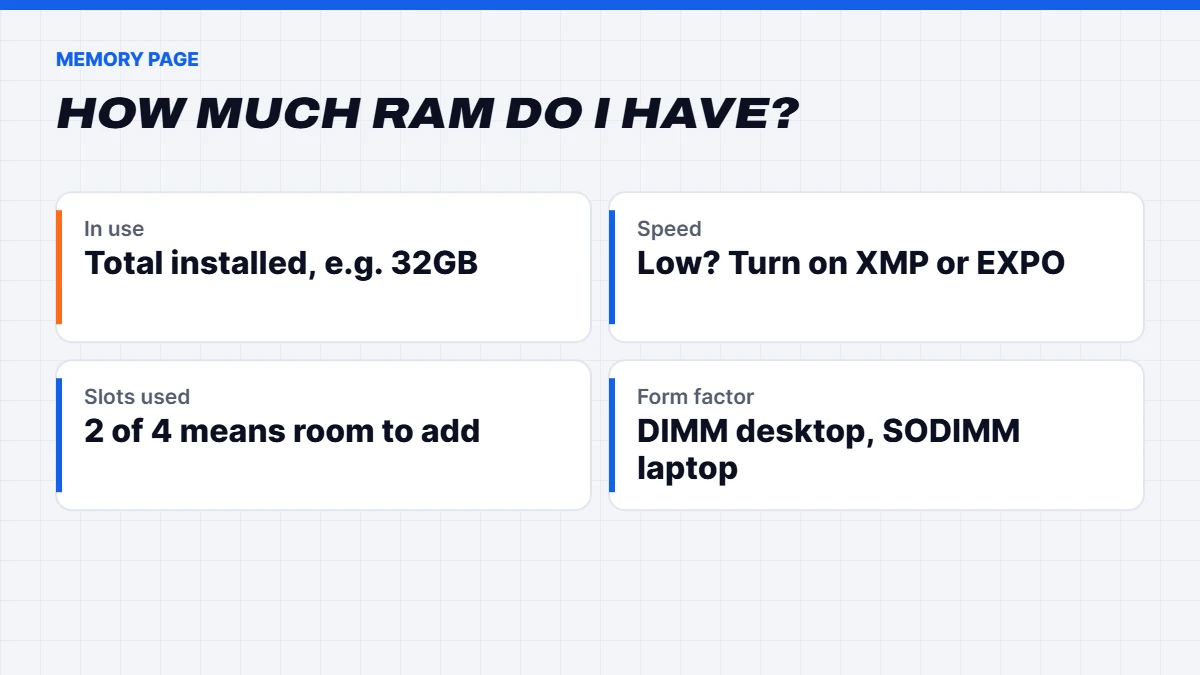
To answer “how much RAM do I have?”, open Task Manager and go to Performance > Memory. You’ll see:
- The total amount, such as 16GB or 32GB.
- Speed, shown in MT/s, which tells you whether XMP or EXPO is turned on.
- Slots used, such as 2 of 4, which tells you whether you can add more.
- Form factor, such as DIMM for desktops or SODIMM for laptops.
If the speed is much lower than your memory’s rating, for example 4800MT/s on a DDR5-6000 kit, you may need to enable XMP or EXPO in the BIOS. Our guide to what RAM is and how much you need explains how much is enough for gaming and work.
How much RAM do I have, and is it enough?
Once you’ve answered “how much RAM do I have?”, the next question is usually whether it’s enough. As a rough guide in 2026: 8GB is the bare minimum for Windows 11 and light use, 16GB is comfortable for everyday use and 1080p gaming, and 32GB is the sweet spot for modern games with Discord and a browser open, streaming, or creative work.
Check the Memory page in Task Manager while you’re doing your usual tasks. If it regularly shows 80 to 90% in use, more RAM will help. If there’s a free slot, adding a matching stick is often a simple upgrade, but memory prices are high right now, as we explain in why RAM is so expensive.
Full details with System Information
For a complete report, use System Information:
- Press the Start button, type msinfo32 and press Enter.
- System Summary lists the processor, motherboard maker and model (shown as BaseBoard), BIOS version, installed memory and much more.
- Expand Components for details on display, storage and other hardware.
This is especially useful if you need your motherboard model, for example before upgrading the processor or memory.
Understanding what your specs mean
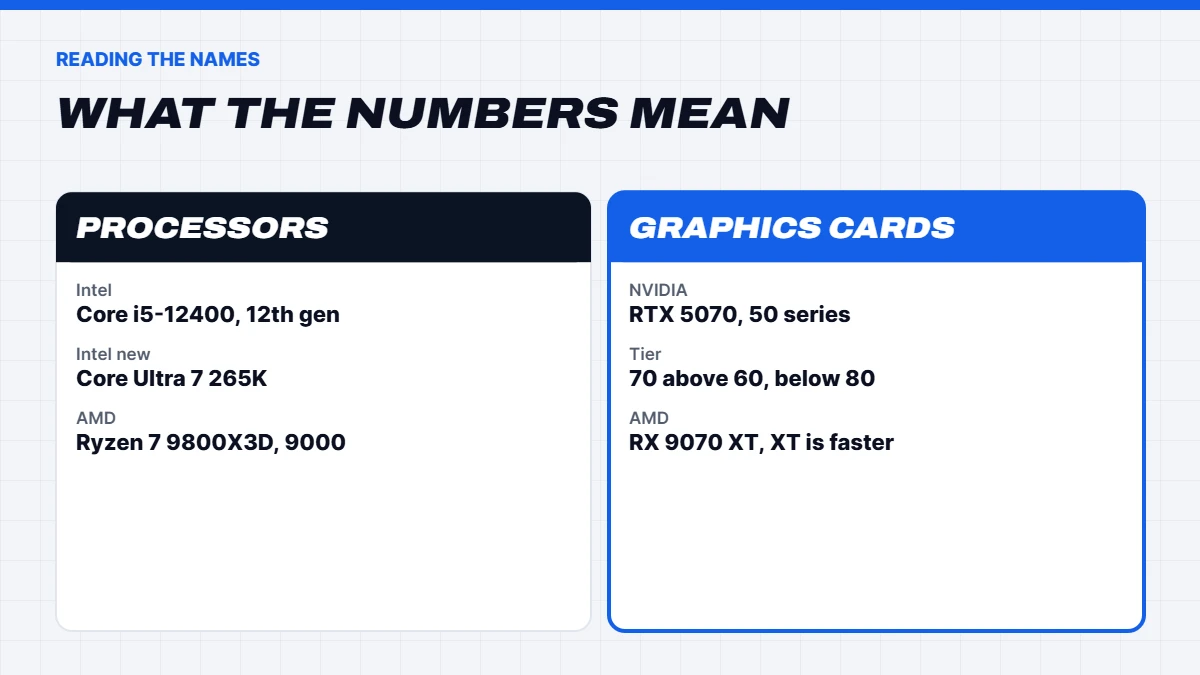
Once you know how to see PC specs, the names can still be confusing. Here’s a quick decoder:
- Intel processors look like Core i5-12400 or Core Ultra 7 265K. The first number after the dash usually shows the generation (12 means 12th gen), and i3, i5, i7, i9 or Ultra 5, 7, 9 show the tier.
- AMD processors look like Ryzen 5 5600 or Ryzen 7 9800X3D. The first digit is the series, so 5000, 7000 and 9000 are successive generations. X3D means extra cache for gaming.
- NVIDIA graphics cards look like RTX 5070. The first two digits are the generation (50 series) and the last two are the tier (70). Ti versions sit a step above the standard card.
- AMD graphics cards look like RX 9070 XT. XT models are faster than non-XT versions.
- Memory shows as DDR4 or DDR5 with a speed in MT/s, such as DDR5-6000.
- Storage shows as NVMe or SATA SSD, or HDD.
So if you’re wondering what graphics card do I have and whether it’s any good, an RTX 4060 is a previous-generation mid-range card, while an RTX 5080 is a current high-end one.
Checking your graphics driver
While you’re checking what graphics card do I have, also check its driver. In Device Manager, right-click the card under Display adapters and choose Properties, then the Driver tab for the version and date. A driver more than a few months old may cause problems with new games. Update it through the NVIDIA app, AMD Software or Intel’s driver tool.
Checking your power supply
Windows can’t tell you which power supply you have. If you’re planning a graphics card upgrade, you’ll need to check the label on the power supply itself, usually visible through the side panel or on the bottom of the case. Note the brand, model and wattage. If your PC came from a builder, the parts list should include it.
Checking your monitor
Go to Settings > System > Display > Advanced display to see your monitor’s resolution and refresh rate. It’s worth checking that the refresh rate is set to the highest your monitor supports, as many people run 144Hz monitors at 60Hz without realising.
Checking storage
To see your drives and how much space you have, go to Settings > System > Storage. Under Advanced storage settings > Disks & volumes, you’ll see each drive’s size and type. Task Manager’s Disk pages also show whether each drive is an SSD or HDD. Our guide to SSD vs HDD vs NVMe explains the difference and how to check SSD health.
Command line options
If you prefer typing commands:
- systeminfo in Command Prompt or PowerShell lists the processor, memory, Windows version, BIOS and more.
- Get-ComputerInfo in PowerShell gives a very detailed list.
- dxdiag /t specs.txt saves the DirectX Diagnostic report to a text file, which is handy for sharing.
Free tools for more detail
For even more information, free tools from CPUID such as CPU-Z show your processor, motherboard, memory timings and graphics card in detail. They’re popular with enthusiasts and support teams alike. Only download them from the official website.
Checking laptop specs
Everything above works on laptops too. It’s also worth noting the exact model, which is usually on a sticker underneath, on the original box, or in Settings > System > About under the device name. The model number is the fastest way to find drivers, check whether the RAM is upgradeable, or look up repair guides.
On laptops with two GPUs, Windows usually uses the built-in graphics for everyday tasks to save battery, and the dedicated card for games. Both appear in Task Manager.
Will my PC run a game?
Once you know your specs, compare them with the game’s minimum and recommended requirements, usually listed on its store page. The graphics card and its video memory matter most, followed by the processor and RAM. Make sure you have enough free SSD space, as many games now need 100GB or more.
If your PC falls short, the graphics card is usually the most effective single upgrade. Our guide to 1080p vs 1440p vs 4K explains which graphics card suits which resolution.
Checking a new PC matches what you paid for
When a new PC or laptop arrives, it’s worth taking two minutes to confirm everything is as described. Here’s how to check PC specs on a new machine:
- Processor and RAM: Settings > System > About.
- Graphics card and video memory: Task Manager > Performance > GPU.
- RAM speed and slots: Task Manager > Performance > Memory. Two slots used means dual channel.
- Storage: Settings > System > Storage, and Task Manager’s Disk pages.
- Windows activation: Settings > System > Activation.
Every PC we build is checked against its parts list before it ships, but it’s good practice with any new computer.
Spotting problems from your specs
Your specs can also reveal common problems:
- RAM running slow. If Task Manager shows a speed well below your kit’s rating, turn on XMP or EXPO.
- Only one RAM slot used. Single-channel memory can hold back performance, especially on integrated graphics.
- Less RAM than expected. If you’re asking how much RAM do I have and the answer is less than you paid for, a stick may not be seated properly.
- The graphics card isn’t being used. If games run poorly and the GPU page shows little activity, check the monitor is plugged into the graphics card, not the motherboard.
- A nearly full drive. Windows slows down when storage is almost full.
Upgrade ideas based on your specs
Once you see PC specs laid out, upgrade options often become obvious:
- A hard drive as the main drive: upgrade to an SSD first. It’s the biggest single improvement.
- 8GB of RAM with a free slot: add a matching stick to reach 16GB.
- An older graphics card with a modern processor: a GPU upgrade will help games the most.
- An old processor that can’t run Windows 11: a new PC is usually better value than piecemeal upgrades.
If you know how to see PC specs and you’re still unsure what to upgrade, our guide on how to fix a slow laptop covers the most effective fixes for both laptops and desktops.
Saving and sharing your specs
If you’re asking for help, it’s useful to save your specs in one place. A quick way to see PC specs in a shareable format is to run dxdiag, click Save All Information, and attach the text file. Or take a screenshot of Settings > System > About and the Task Manager GPU page with Windows + Shift + S. That’s usually all a support team needs.
What to do with your specs
- Asking for help? Share your processor, graphics card, RAM amount and Windows version. It speeds things up enormously.
- Selling a PC? List the full specs, including the motherboard and storage.
- Planning an upgrade? Note your motherboard model, power supply and free RAM slots.
- Checking Windows 11 compatibility? Our guide on how to upgrade to Windows 11 explains the requirements.
If you’d like a second opinion on whether to upgrade or replace, message us on live chat with your specs and we’ll give you an honest answer.
The short version
You don’t need to open your PC or install anything to learn what’s inside. Settings > System > About covers the basics, Task Manager’s Performance tab shows your processor, memory, storage and graphics card in detail, and msinfo32 fills in the rest, including your motherboard. Knowing how to check PC specs makes it easier to choose games, plan upgrades and get help quickly when something goes wrong.
PC specs FAQs
How do I check PC specs quickly?
Go to Settings > System > About for the basics, or open Task Manager’s Performance tab for processor, memory, storage and graphics card details.
What graphics card do I have on a laptop?
Open Task Manager and go to Performance. Laptops often show two GPUs: the built-in graphics and a dedicated card.
How much RAM do I have and can I add more?
Task Manager’s Memory page shows your total RAM and slots used. If there’s a free slot, you can usually add more.
Can I check PC specs without installing anything?
Yes. Everything you need is built into Windows: Settings, Task Manager, System Information (msinfo32) and the DirectX Diagnostic Tool (dxdiag).
How to check PC specs on Windows 10?
The same steps work: Settings > System > About, Task Manager’s Performance tab, msinfo32 and dxdiag are all available in Windows 10.
How to see PC specs on a work laptop?
Settings > System > About and Task Manager work on most work laptops. Some managed laptops restrict admin tools, so ask your IT team if something is locked.
How do I find my motherboard model?
Type msinfo32 into the Start menu and look for BaseBoard Manufacturer and BaseBoard Product in System Summary.
How to see PC specs without logging in?
Enter the BIOS by pressing Delete or F2 at start-up. Most BIOS screens show the processor, memory and storage.