
Every laptop battery wears out eventually. The question is whether yours is just getting older or genuinely needs attention. If your laptop doesn’t last as long as it used to, or the percentage drops suddenly, knowing how to check laptop battery health tells you exactly where it stands in a couple of minutes, using a tool already built into Windows.
This guide shows you how to create and read a Windows battery report, what the numbers mean, how to make a battery last longer, and what to do if you’re wondering why is my laptop not charging properly.
Quick answer
Open Command Prompt or PowerShell, type powercfg /batteryreport and press Enter. Windows saves a battery report in your user folder. Open it and compare Design Capacity with Full Charge Capacity: the closer they are, the healthier the battery. Below about 80% of the original capacity, you’ll notice shorter battery life, and below about 60%, a replacement is usually worth it.
In this guide
How to check laptop battery health in Windows
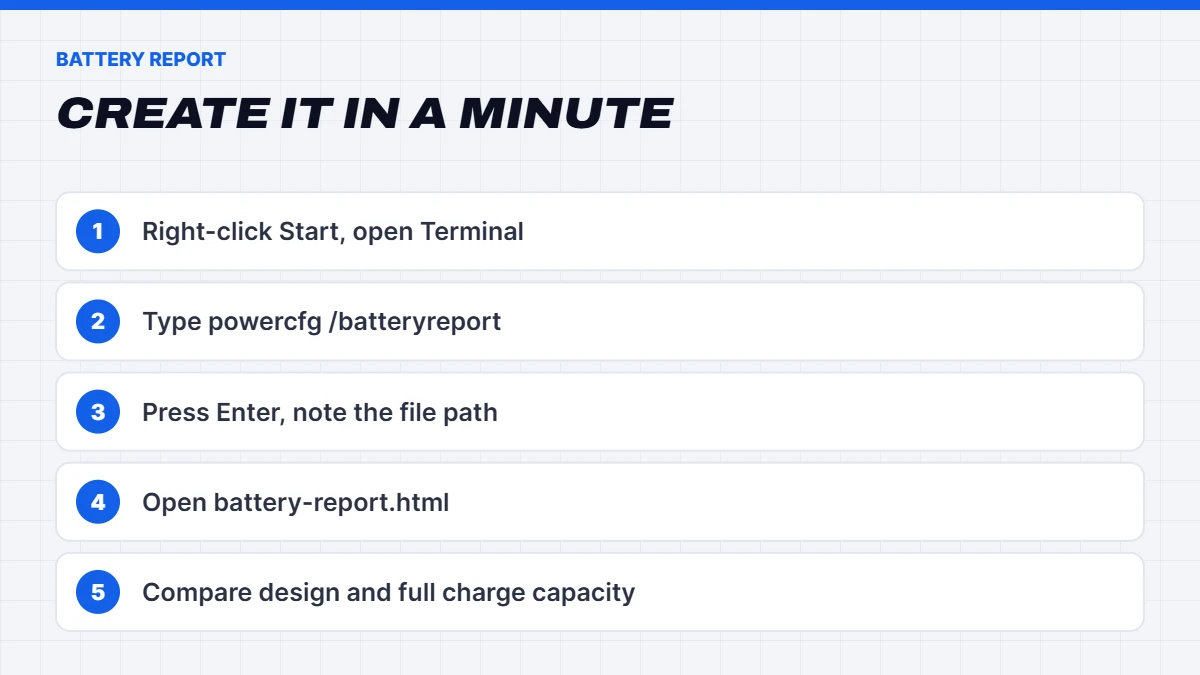
Here’s how to check laptop battery health with Windows’ built-in battery report:
- Open Command Prompt or PowerShell. Right-click the Start button and choose Terminal.
- Type powercfg /batteryreport and press Enter.
- Note the file location Windows shows, usually C:\Users\YourName\battery-report.html.
- Open the report by pasting that location into File Explorer or your browser.
The report covers your battery’s original capacity, current capacity, charge cycles and recent usage. Microsoft’s documentation on powercfg command-line options lists the other reports this tool can create.
Reading your battery report
The report has several sections. If you’ve just learned how to check laptop battery health, start with the Installed batteries section. These are the parts that matter:
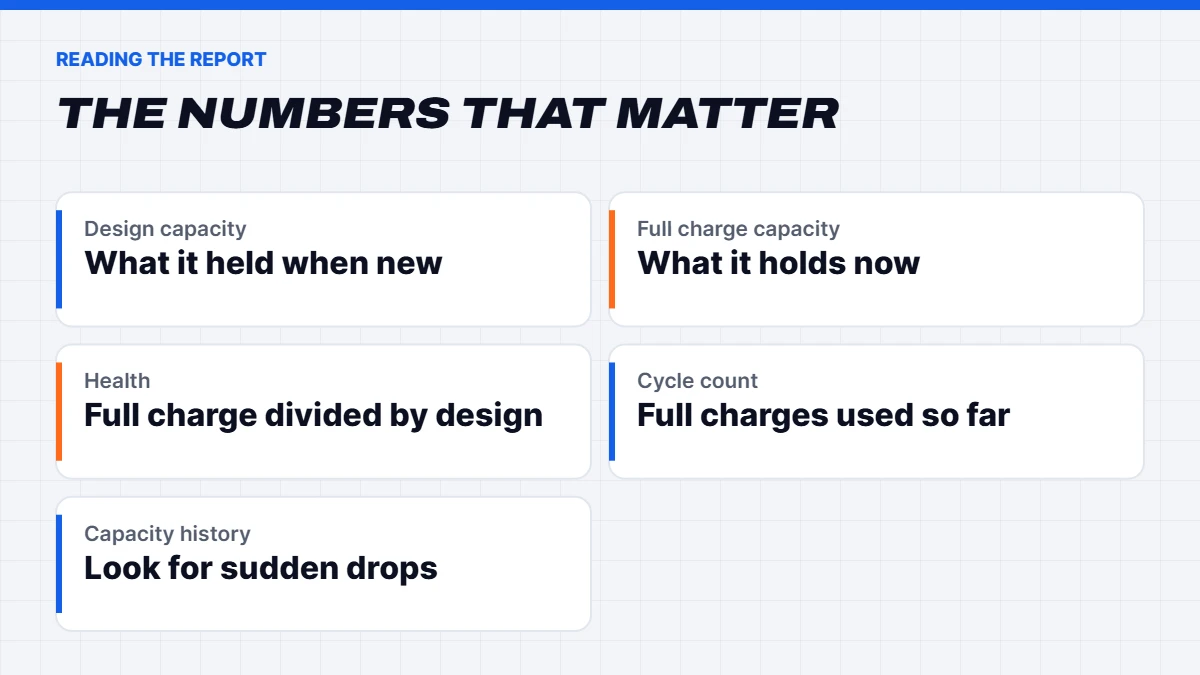
Installed batteries. This shows two key numbers:
- Design Capacity: how much energy the battery held when it was new, in mWh.
- Full Charge Capacity: how much it holds now when fully charged.
Divide Full Charge Capacity by Design Capacity to get your battery’s health as a percentage. For example, 42,000 mWh out of a design capacity of 50,000 mWh is 84% health.
Cycle Count. One cycle is a full 100% of charge used, whether in one go or across several partial charges. Many laptop batteries are designed to keep most of their capacity for several hundred cycles. Some laptops don’t report a cycle count, which is normal.
Battery capacity history. A table showing how full charge capacity has changed over time. A steady, gradual decline is normal. A sudden drop is worth investigating.
Battery life estimates. How long the battery lasts at full charge based on your actual use, compared with when it was new.
Battery health vs battery life
These two terms get mixed up a lot. Battery health is how much energy the battery can still hold compared with when it was new. Battery life is how long the laptop runs on a charge, which depends on battery health and also on screen brightness, what you’re doing, background apps and power settings.
That’s why it’s worth knowing how to check laptop battery health before blaming the battery. A healthy battery can still drain quickly if a background app is keeping the processor busy, while a worn battery can still last a decent time with light use and sensible settings.
What’s a healthy battery?
As a rough guide:
| Battery health | What it means |
|---|---|
| — | — |
| 90 to 100% | Excellent, like new |
| 80 to 90% | Good, normal wear |
| 60 to 80% | Noticeably shorter battery life |
| Below 60% | Consider a replacement |
Lithium-ion batteries lose capacity with age and use, so a two or three-year-old laptop at 80 to 85% is completely normal. What matters is whether the battery still lasts long enough for how you use it.
What wears a battery out fastest
Every lithium-ion battery loses capacity over time, but some things speed it up far more than others:
- Heat. High temperatures are the biggest cause of battery wear. Gaming on battery, blocked vents and hot cars all take a toll.
- Sitting at 100% for long periods, especially when warm. This is common with laptops that are always plugged in.
- Running it flat often. Deep discharges add more wear than shallow top-ups.
- Age. Batteries slowly lose capacity even when they’re not used much.
Charging habits matter less than most people think. Topping up whenever it’s convenient is fine, as long as the battery isn’t kept hot and full for weeks on end.
How often should you check?
There’s no need to check constantly. Knowing how to check laptop battery health is most useful once or twice a year, when you notice the battery draining faster than usual, or before buying or selling a used laptop. If you’re buying a second-hand laptop, ask the seller to run a battery report so you know what you’re getting.
Using the manufacturer’s tools
Most laptop makers include their own app that shows battery health in plain language, along with useful settings. Look for the pre-installed app from your laptop’s brand, such as Lenovo Vantage, MyASUS, HP Support Assistant, Dell’s power or support apps, or MSI Center. These often show:
- Battery health or condition, sometimes as Good, Fair or Poor.
- Charge limit settings, sometimes called battery conservation or care mode.
- Battery calibration tools on some models.
How to check laptop battery health on a gaming laptop
The steps are exactly the same, but expect different numbers in the battery life estimates. Gaming laptops have powerful components and high refresh screens, so even a healthy battery may only last a few hours of light use and around an hour or two while gaming. Gaming laptops also work hard on the battery when unplugged, which is why playing games plugged in is better for both performance and battery health.
Many gaming laptops also include a charge limit and battery care modes in their control software. If your gaming laptop lives on a desk, turning that on is one of the best things you can do for the battery.
How to make your battery last longer
A few habits slow down battery wear noticeably:
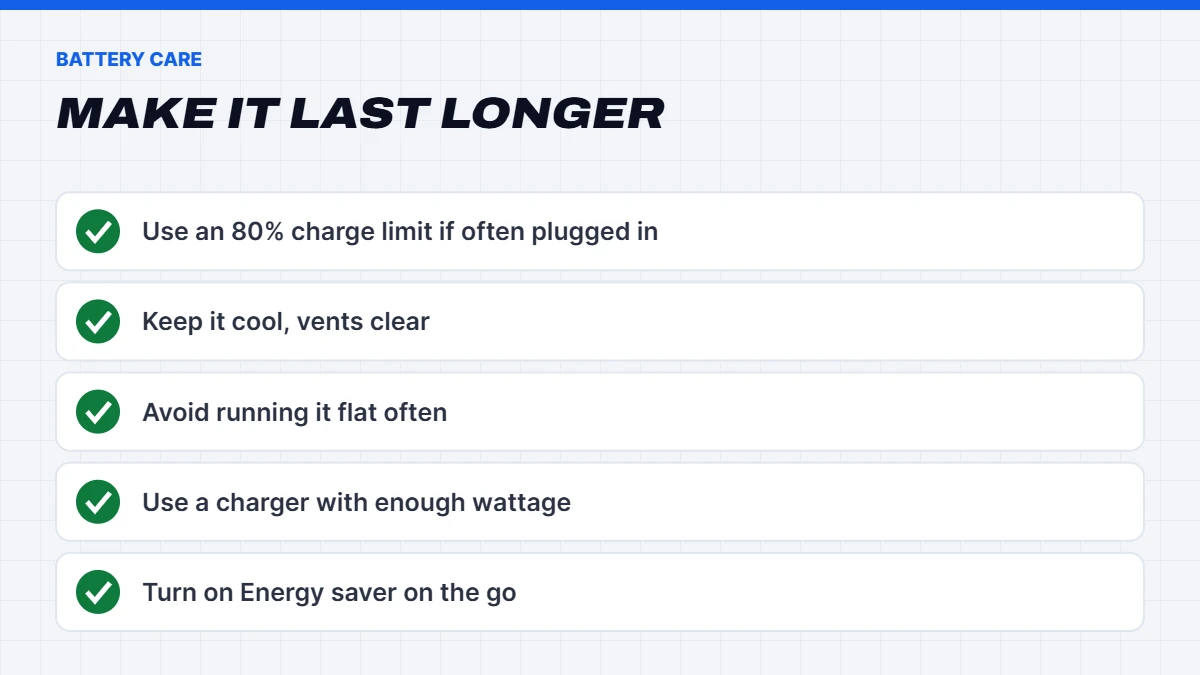
- Use a charge limit. If your laptop is plugged in most of the time, set a charge limit of around 80% in the maker’s app. Keeping a battery at 100% for long periods speeds up wear.
- Avoid heat. Heat is a battery’s worst enemy. Don’t leave a laptop in a hot car, and keep the vents clear when gaming or working hard.
- Avoid running it flat regularly. Occasional full discharges are fine, but frequent ones add wear.
- Use the right charger. The original charger, or a quality USB-C charger with enough wattage, is best.
- Store it at about half charge if you won’t use it for weeks.
Keeping the cooling system clean helps too, as a hot laptop is hard on its battery. Our guide on how to clean a laptop fan shows you how.
Why is my laptop not charging?
If you’re asking why is my laptop not charging, work through these common causes:
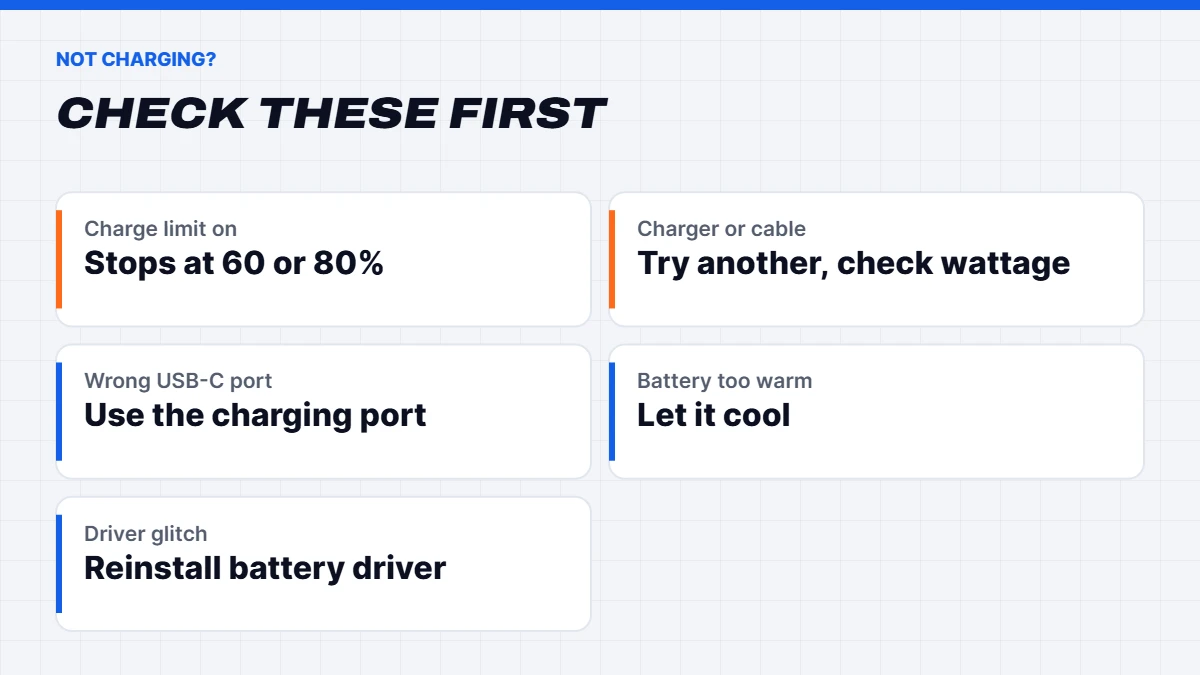
- A charge limit is on. “Plugged in, not charging” often just means the battery has reached a limit you, or the maker’s app, set. Check for battery conservation or care mode.
- The charger or cable is faulty. Try another power point, check the cable for damage, and check the charger’s light if it has one.
- The charger isn’t powerful enough. A low-wattage USB-C charger may slow or stop charging under load. Use the original or one with enough wattage.
- The port is dirty or damaged. Look for lint in the charging port and check the plug fits snugly.
- The laptop is too hot. Many laptops pause charging when the battery is warm. Let it cool down.
- A driver glitch. In Device Manager, expand Batteries, right-click Microsoft ACPI-Compliant Control Method Battery, choose Uninstall device, then restart. Windows reinstalls it automatically.
- The BIOS needs an update. Check the manufacturer’s support site for your model.
- The battery has failed. If the battery report shows very low capacity, or the laptop only works when plugged in, it may need replacing.
Why is my laptop not charging with USB-C?
USB-C charging adds a few extra possibilities. If you’re wondering why is my laptop not charging over USB-C:
- Not every USB-C port charges. Many laptops only accept power through one or two specific ports, often marked with a small power or lightning icon.
- The charger needs enough wattage. A phone charger may keep a laptop alive at idle but won’t charge it under load.
- The cable matters. Some cables only carry 60W, while higher-powered laptops need cables rated for 100W or more.
- Docks and hubs may not pass through enough power. Try charging directly from the charger.
Why is my laptop not charging past a certain percentage?
If your laptop always stops at the same level, such as 60% or 80%, a charge limit is almost certainly turned on. That’s a feature, not a fault: it’s designed to protect the battery when the laptop is plugged in most of the time. Turn it off in the maker’s app when you need a full charge for a day away from power, then turn it back on.
Windows settings that help battery life
A few Windows settings make a real difference to how long your battery lasts:
- Energy saver (called Battery saver on older versions) lowers background activity and screen brightness. Turn it on automatically at a set percentage in Settings > System > Power & battery.
- Power mode. Choose Best power efficiency when on battery.
- Screen brightness has a big impact. Lower it a little.
- Dynamic refresh rate. On high refresh screens, a dynamic or lower refresh rate saves power on battery.
- Background apps. Check Settings > System > Power & battery > Battery usage to see which apps use the most power.
Battery calibration
If the battery percentage jumps around, such as dropping from 30% to 5% suddenly, the battery’s gauge may be out of sync. Some manufacturer apps include a calibration tool, which fully charges and drains the battery once to reset the gauge. Modern batteries rarely need this, so only do it if the percentage seems unreliable.
Warning: swollen batteries
If your laptop’s case is bulging, the touchpad has lifted, the keyboard is raised or the bottom panel won’t sit flat, the battery may be swelling. This is a safety issue. Stop using the laptop, don’t charge it, don’t press on the swelling, and get it looked at by a professional as soon as possible. Swollen lithium batteries can be a fire risk.
2-in-1 laptops and Windows tablets
The same battery report works on 2-in-1 laptops and Windows tablets, so how to check laptop battery health is exactly the same: open Terminal and run powercfg /batteryreport. These devices often have smaller batteries and are used on the go, so a charge limit matters less, while avoiding heat and keeping the software updated matters more. If the battery is built in and not user-replaceable, a manufacturer or authorised service centre is the best option when it wears out.
Replacing a laptop battery
Many laptops have replaceable internal batteries, although the job varies from simple to fiddly depending on the model. Use a genuine or reputable replacement battery for your exact model, as cheap unbranded batteries can be poor quality or unsafe. If your laptop is under warranty, check with the manufacturer or retailer first.
If the battery is worn and the laptop is also slow or ageing, it may be worth weighing a replacement battery against a new laptop. Our guide on how to fix a slow laptop covers how to decide.
Battery life when buying a new laptop
When choosing a new laptop, battery capacity in watt-hours (Wh) and an efficient processor matter more than headline battery claims. Real-world reviews are the best guide. If long battery life is important, see our guides to the best laptop for students and the best laptop for work, or browse our laptops range.
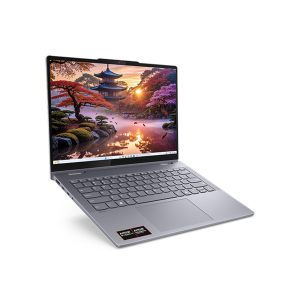 Lenovo IdeaPad 5 2 in 1 – 14-inch Touchscreen Laptop, Ryzen AI 7, 24GB RAM, 1TB SSD Original price was: $899.00.$674.00Current price is: $674.00.See the build
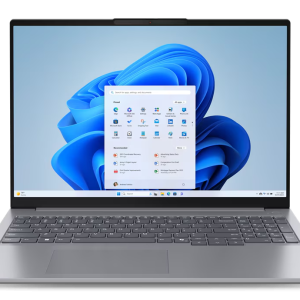 Lenovo ThinkBook 16 G7 – Core Ultra 7 155U, 16GB RAM, 512GB SSD, Windows 11 Pro Original price was: $2,149.00.$1,599.00Current price is: $1,599.00.See the build
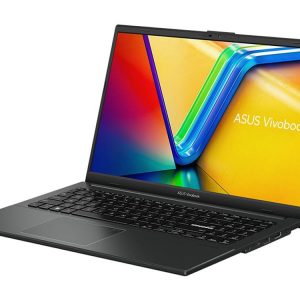 ASUS Vivobook Go 15 – Ryzen 5 7520U, 16GB RAM, 512GB SSD Original price was: $1,099.00.$824.00Current price is: $824.00.See the build
The short version
Learning how to check laptop battery health takes one command: powercfg /batteryreport. Compare Design Capacity with Full Charge Capacity to see your battery’s health, and keep an eye on how it changes over time. Use a charge limit if your laptop is usually plugged in, keep it cool, and use a charger with enough wattage. And if you’re asking why is my laptop not charging, check for a charge limit, the charger and cable, and the battery driver before assuming the battery has failed.
Laptop battery FAQs
How do I check laptop battery health without software?
Use the built-in battery report. Open Terminal, type powercfg /batteryreport, and open the file it creates.
How to check laptop battery health on Windows 10?
The same command works. Open Command Prompt, type powercfg /batteryreport, and open the report it creates.
Why is my laptop not charging even though it’s plugged in?
Usually a charge limit, an underpowered charger, a faulty cable or a warm battery. Check those before assuming the battery has failed.
Why is my laptop not charging after an update?
Occasionally a Windows or driver update causes a glitch. Restart, then reinstall the battery driver from Device Manager, and check for a BIOS update from your laptop’s maker.
What is a good battery health percentage?
80% or higher is good. Below about 60%, battery life is noticeably shorter and a replacement is worth considering.
Why is my laptop not charging to 100%?
Usually a charge limit is turned on in the maker’s app to protect the battery. Check for a battery conservation or care setting.
Should I keep my laptop plugged in all the time?
It’s fine if you use a charge limit around 80%. Without one, keeping it at 100% constantly can speed up battery wear.
How long do laptop batteries last?
Typically several years, depending on use, heat and charging habits. Many keep most of their capacity for several hundred charge cycles.