
If there’s one upgrade that makes an old computer feel new again, it’s swapping a hard drive for an SSD. SSD vs HDD isn’t a close contest for your main drive anymore, but the details still matter: there are several kinds of SSD, NVMe drives vary hugely in speed, and hard drives still have a place for bulk storage. And once you’ve got an SSD, it’s worth knowing how to keep an eye on its health.
This guide explains the difference between SSDs and hard drives, what NVMe means, which type you need for gaming and everyday use, and how to check SSD health in Windows.
Quick answer
An SSD (solid state drive) stores data on flash memory chips with no moving parts, so it’s many times faster, quieter and tougher than an HDD (hard disk drive), which uses spinning platters. NVMe is the fastest type of SSD, connecting directly over PCIe rather than the older SATA connection. For your main drive, always choose an SSD, ideally NVMe. HDDs still make sense for cheap bulk storage and backups.
In this guide
What is SSD storage?
So what is SSD storage, exactly? A solid state drive stores your files on flash memory chips, similar to a USB stick or a phone’s storage, but much faster and more durable. There are no moving parts. A controller chip manages where data is stored and keeps the flash memory healthy, and many drives also include a small cache to speed things up.
Because there’s nothing to spin up or move into position, an SSD can find and read data almost instantly. That’s why a PC with an SSD boots in seconds, opens apps immediately and loads games much faster than one with a hard drive.
What is an HDD?
A hard disk drive stores data magnetically on spinning metal platters, read by an arm that moves across the surface, a bit like a record player. Hard drives have been around for decades and they’re still the cheapest way to store a lot of data.
The downside is that moving parts are slow. Every time the drive needs data, the platter has to spin to the right place and the arm has to move. That’s fine for storing photos and videos, but it makes Windows and games feel sluggish when they run from a hard drive. Hard drives are also more fragile when knocked, and they make noise.
SSD vs HDD: the key differences
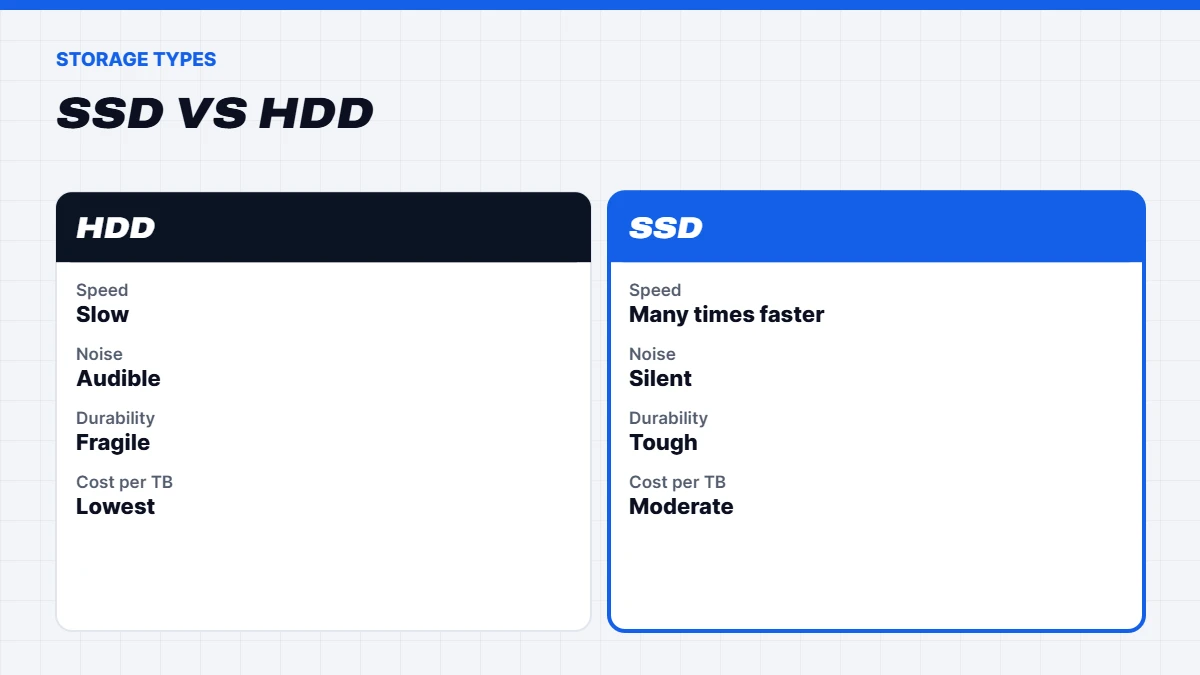
| HDD | SATA SSD | NVMe SSD | |
|---|---|---|---|
| — | — | — | — |
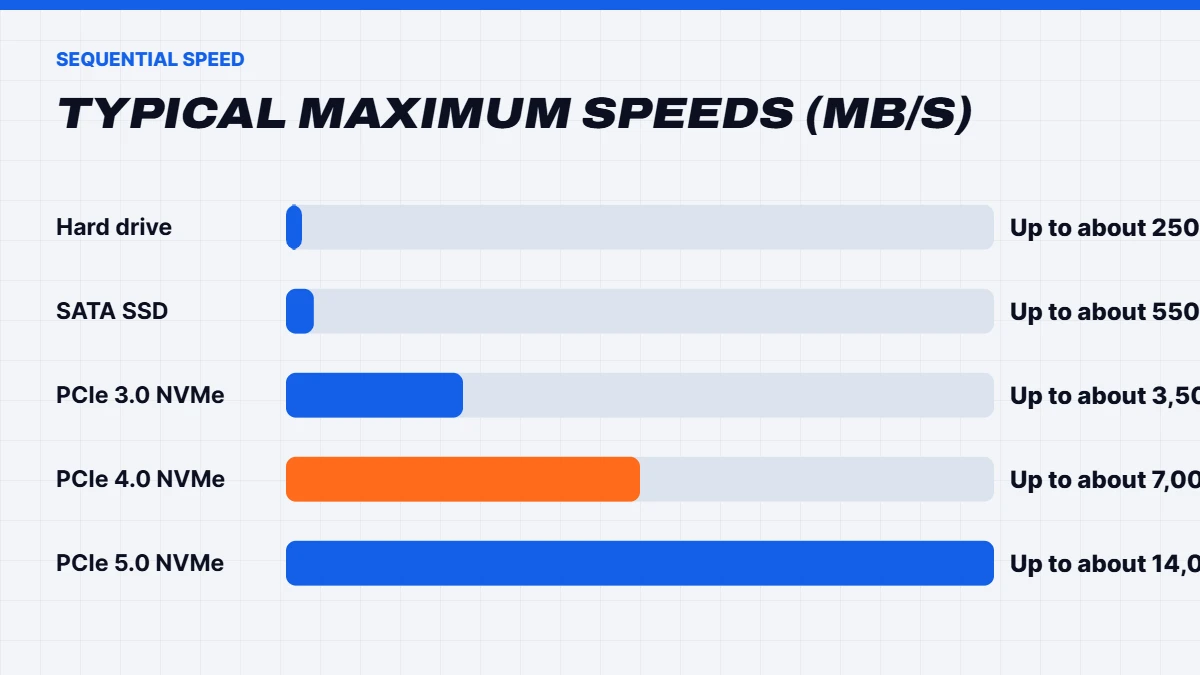
| Typical sequential speed | 100 to 250MB/s | Up to about 550MB/s | 3,500 to 14,000MB/s |
| Access time | Slow, milliseconds | Near instant | Near instant |
| Moving parts | Yes | No | No |
| Noise | Audible | Silent | Silent |
| Durability when knocked | Fragile | Tough | Tough |
| Cost per terabyte | Lowest | Moderate | Moderate |
The raw speed numbers only tell part of the story. The bigger difference in daily use is access time: an SSD can jump to any piece of data almost instantly, which is what makes Windows and apps feel snappy. That’s why the SSD vs HDD comparison is so lopsided for a main drive, even if you only move to a basic SATA SSD.
NVMe vs SSD: what’s the difference?
People often ask about NVMe vs SSD, but NVMe drives are SSDs. The difference is how they connect:
- SATA SSDs use the same connection as hard drives, which tops out at about 550MB/s. They come in the classic 2.5-inch shape, or as M.2 sticks.
- NVMe SSDs connect over PCIe, the same fast connection used by graphics cards. They come as small M.2 sticks that screw directly into the motherboard.
NVMe drives also come in generations:
- PCIe 3.0 NVMe: up to about 3,500MB/s.
- PCIe 4.0 NVMe: up to about 7,000MB/s, the sweet spot for most gaming PCs today.
- PCIe 5.0 NVMe: up to about 14,000MB/s, the fastest available, but they cost more and run hotter.
The NVM Express standard behind these drives is maintained by the NVM Express organisation, which is why you’ll see the name on almost every modern SSD.
Do faster NVMe drives make games faster?
Here’s the honest answer: moving from a hard drive to any SSD makes a dramatic difference to game loading times. Moving from a SATA SSD to a PCIe 4.0 NVMe drive makes a smaller but noticeable difference. Moving from PCIe 4.0 to PCIe 5.0 makes very little difference in most games today.
SSDs don’t increase frame rates directly, but they do help in two important ways. Games load faster, and open-world games that stream data as you move can have fewer stutters and less texture pop-in. Some newer games even list an SSD as a requirement, and features like Microsoft’s DirectStorage are designed around fast NVMe drives.
Games are also getting enormous. Big releases can need well over 100GB each, so capacity matters as much as speed for gamers. That’s one reason we recommend at least 1TB, and 2TB for anyone with a large game library.
Understanding SSD specs
Once you’ve settled NVMe vs SSD over SATA, the spec sheets can still be confusing. Here’s what the common terms mean:
- TLC and QLC describe how many bits each flash memory cell stores. TLC drives are generally faster under heavy writes and more durable. QLC drives store more per chip, so they’re cheaper per terabyte, but can slow down during very large file transfers.
- DRAM cache. Drives with their own DRAM handle heavy, mixed workloads better. DRAM-less drives borrow a little system memory instead, which is fine for most gaming and home use.
- TBW (terabytes written) is the endurance rating. Higher means the drive is rated for more writing over its life.
- Sequential vs random speed. Sequential speed is the big headline figure for large files. Random speed, for lots of small files, matters more for how responsive Windows feels.
- Heatsinks. Fast PCIe 4.0 and 5.0 drives can get warm. Many motherboards include M.2 heatsinks, and PCIe 5.0 drives often need one.
Which drive should you buy?
- Main drive for Windows and apps: an NVMe SSD, PCIe 4.0 for the best value. 1TB at minimum for gaming, 512GB for basic home and office use.
- Second drive for games: another NVMe SSD if your motherboard has a spare M.2 slot.
- Bulk storage for photos and videos: a large HDD is still the cheapest per terabyte.
- Backups: an external HDD or SSD, plus cloud backup for anything irreplaceable.
- Older PC without M.2: a 2.5-inch SATA SSD is a huge upgrade over a hard drive.
When comparing NVMe drives, look for a reputable brand, a decent endurance rating, and ideally a drive with DRAM cache for heavy use. Prices for SSDs have risen during the memory shortage, as we explain in why RAM is so expensive, so it’s worth buying the capacity you need up front.
How to check SSD health
SSDs wear out very slowly, but like any part, they don’t last forever. Here’s how to check SSD health in Windows 11:
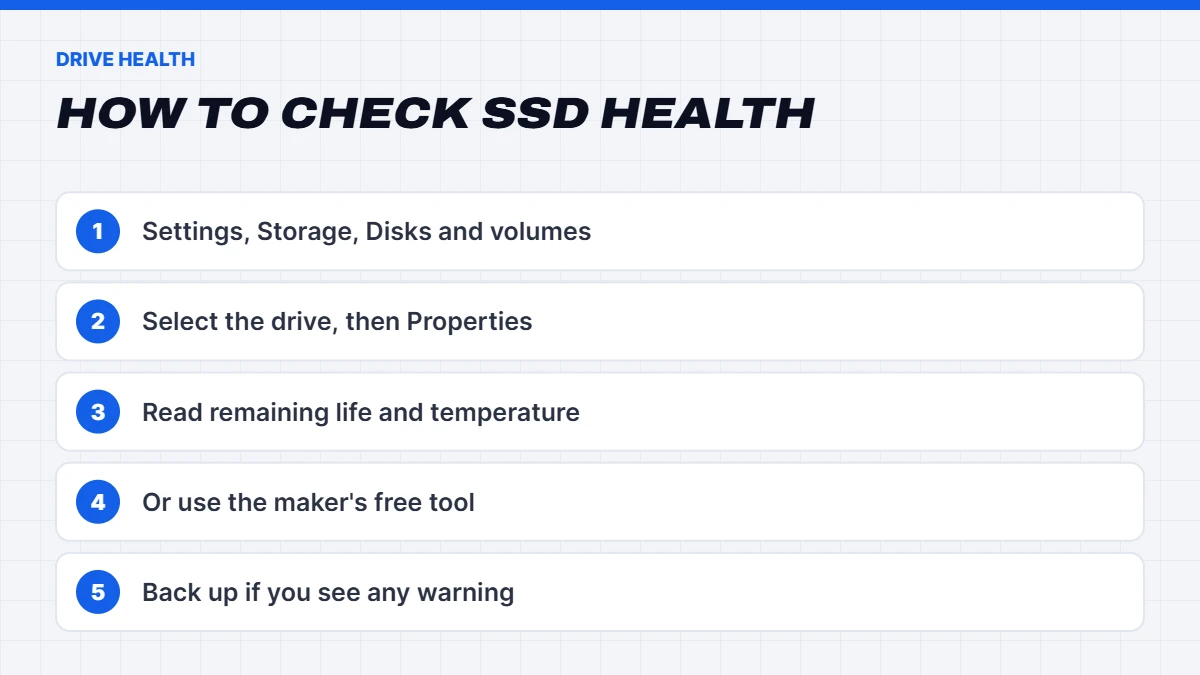
- Use Windows Settings. Go to Settings > System > Storage > Advanced storage settings > Disks & volumes, select your drive, and choose Properties. For NVMe drives, Windows shows Drive health, including estimated remaining life, available spare and temperature.
- Use the manufacturer’s tool. Most SSD makers offer free software that shows health, temperature and firmware updates.
- Use PowerShell. Open PowerShell as administrator and run Get-PhysicalDisk | Get-StorageReliabilityCounter | Select Wear, Temperature for a quick summary of wear and temperature.
- Use a reputable free utility that reads SMART data, the self-monitoring information built into drives.
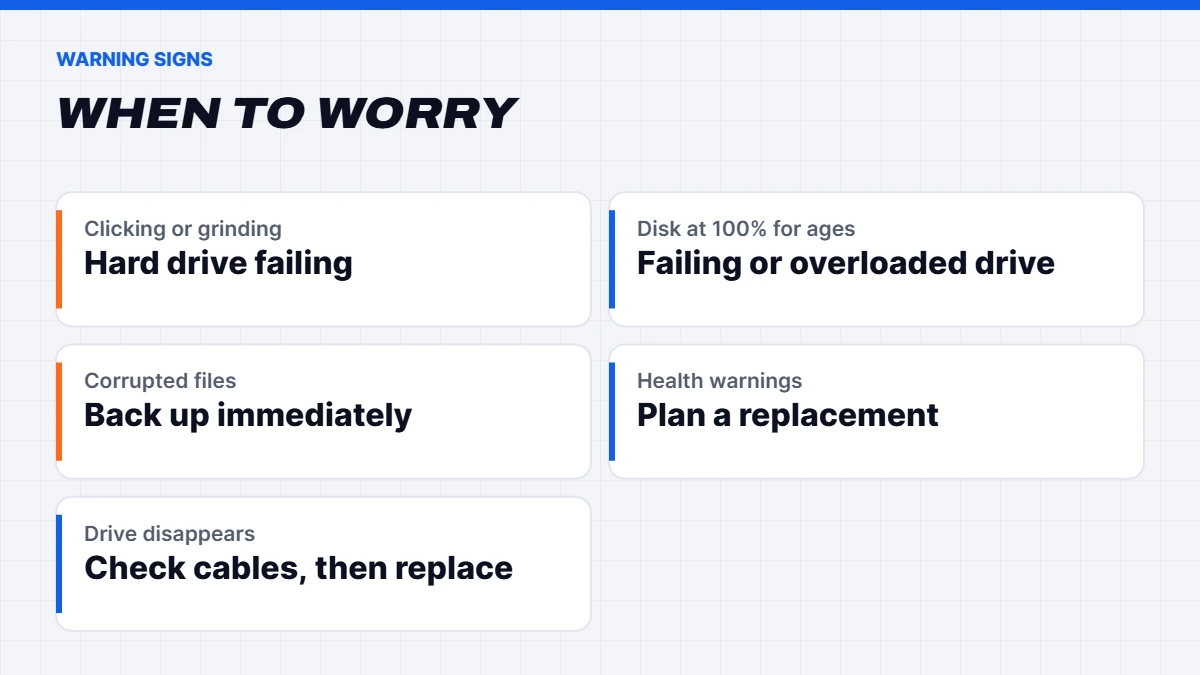
Look at the remaining life or wear percentage, any warnings, and the temperature. If a drive reports a warning, or remaining life is getting low, back up straight away and plan a replacement.
Signs your drive may be failing
Whether it’s an SSD or a hard drive, these are the warning signs to watch for:
- Clicking, grinding or buzzing noises from a hard drive.
- Very slow performance, with the disk at or near 100% in Task Manager for long periods.
- Files that won’t open or come up corrupted.
- Frequent crashes or freezes, especially when saving or loading.
- Warnings in Windows or the manufacturer’s tool about drive health.
- The drive disappearing from File Explorer or the BIOS.
If you see any of these, knowing how to check SSD health quickly pays off: run the checks above, then back up everything important straight away before doing anything else.
Keeping your SSD healthy
SSDs need very little care, but a few habits help:
- Don’t defragment an SSD. Windows recognises SSDs and optimises them automatically with a command called TRIM, which is all they need.
- Leave some free space, ideally 10 to 20%. SSDs slow down when they’re almost full.
- Install firmware updates from the manufacturer’s tool when available.
- Keep it cool. Make sure M.2 drives have airflow or a heatsink, especially fast PCIe 4.0 and 5.0 models.
- Check its health once or twice a year. Learning how to check SSD health takes two minutes, and it gives you an early warning if something’s wrong.
How long do SSDs last?
Every SSD has an endurance rating, usually listed as TBW (terabytes written). A typical 1TB drive is rated for hundreds of terabytes, which would take most home users many years to reach. In practice, most SSDs are replaced because people want more space long before they wear out.
Hard drives fail differently. Because they have moving parts, they can fail suddenly from wear or a knock, often with warning signs like clicking noises or slow performance. Whichever you use, back up important files regularly.
SSD vs HDD in laptops
In laptops, the SSD vs HDD question is almost settled. Nearly every new laptop uses an SSD, because it’s lighter, uses less power, survives bumps and drops better, and makes the laptop feel much quicker. Older and very cheap laptops sometimes still use hard drives or slow eMMC storage, and both are worth avoiding. Our guide to the best budget laptop explains what to look for on a tight budget.
External drives: SSD or HDD?
For external drives, both have a place. A portable SSD is small, fast and tough, which makes it ideal for carrying files around or editing video on the go. A portable or desktop HDD is much cheaper per terabyte, which makes it the better choice for large backups that sit on a shelf. Whatever you use, follow the 3-2-1 rule for important files: three copies, on two different types of storage, with one kept off-site or in the cloud.
Upgrading from an HDD to an SSD
If your PC or laptop still boots from a hard drive, upgrading to an SSD is the single best upgrade you can make. You can clone your existing drive to the new SSD with free cloning software, so you don’t need to reinstall anything. Many laptops have a 2.5-inch bay or an M.2 slot, and most desktops have both. Our guide on how to fix a slow laptop covers this upgrade along with other free and cheap fixes.
If your PC is old enough to still have a hard drive, check whether it can run Windows 11 too. Our guide on how to upgrade to Windows 11 explains the requirements.
Adding a second drive
Adding a second SSD for games is one of the easiest upgrades there is. Once it’s installed, right-click the Start button, open Disk Management, and Windows will ask you to initialise the new drive. Choose GPT, then create a new simple volume, format it as NTFS and give it a drive letter. In Steam or other launchers, add the new drive as a library folder, and you can move installed games across without downloading them again.
If you’re adding a hard drive for bulk storage, the steps are the same. Just keep your games and Windows on the SSD, and use the hard drive for photos, videos and backups.
Storage in our PCs
Every PC and laptop we sell uses an SSD as its main drive. Our gaming PCs use NVMe SSDs from brands like Samsung, WD and Crucial, typically 1TB or 2TB, with spare M.2 slots on most motherboards for adding more later. For example, our 5070 Ti PC includes a 2TB Samsung 990 Pro, and our 5090 PC includes a 4TB Samsung NVMe drive for big libraries and creative work.
If you’re shopping for an everyday computer, our desktop computer range lists the storage type and size on every model.
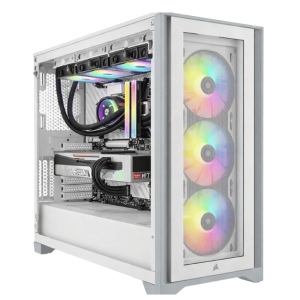 Extreme Mid Tier – RTX 5070 Ti PC, Intel Core i5-14600KF Original price was: $4,999.00.$3,749.00Current price is: $3,749.00.See the build
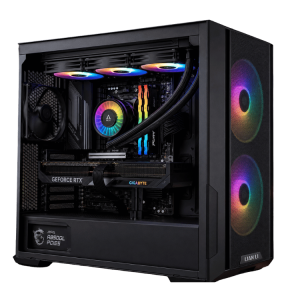 Best Value RTX 5080 Gaming PC – Ryzen 7 7800X3D, 32GB DDR5 Original price was: $5,999.00.$4,499.00Current price is: $4,499.00.See the build
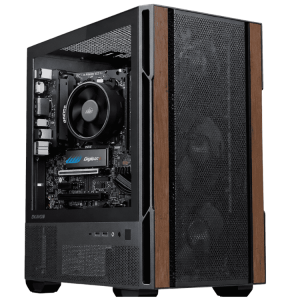 Home Office Desktop PC – Home Office Computer, Intel Core Ultra 5 225 Original price was: $1,299.00.$974.00Current price is: $974.00.See the build
Our verdict on SSD vs HDD
For your main drive, the SSD vs HDD debate is over: an SSD is the clear winner, and an NVMe drive is the best choice for any PC that supports it. In the NVMe vs SSD over SATA comparison, NVMe wins on speed for a similar price, while SATA SSDs remain a great upgrade for older PCs. Hard drives still earn their place for affordable bulk storage and backups.
SSD vs HDD FAQs
Is an SSD better than an HDD?
For your main drive, yes. SSDs are many times faster, silent and more durable. HDDs are still useful for cheap bulk storage and backups.
What is SSD storage used for?
An SSD stores Windows, apps, games and files. Using one as your main drive makes your PC boot and load much faster.
NVMe vs SSD: which should I buy?
An NVMe SSD if your PC has an M.2 slot that supports it. A SATA SSD is a good upgrade for older PCs without NVMe support.
How do I check SSD health in Windows 11?
Go to Settings > System > Storage > Advanced storage settings > Disks & volumes, select the drive and choose Properties to see its health.
How much storage do I need for gaming?
1TB is a sensible minimum, as big games can take well over 100GB each. 2TB is comfortable for a larger library, and you can add a second NVMe drive later.
Is a PCIe 5.0 SSD worth it?
For most gamers, not yet. PCIe 4.0 drives are fast enough for games and cost less. PCIe 5.0 drives suit people who move very large files, such as video editors.
Is an SSD good for long-term archive storage?
For files you’ll leave unplugged for years, keep more than one copy, such as an HDD backup plus cloud storage. SSDs are best used as active drives.
Can I use an SSD and an HDD together?
Yes. A common setup is an SSD for Windows, apps and games, with a large HDD for photos, videos and backups.