
A good gaming setup isn’t about having the most RGB or the biggest screen. It’s about a desk where everything is within reach, a chair you can sit in for hours, a monitor at the right height, cables that don’t drive you mad, and lighting that’s easy on the eyes after dark. Get those right and the flashy extras become a bonus rather than a distraction.
We see a lot of setups, from first gaming PCs on a bedroom desk to full streaming stations, and the best ones share the same basics. This guide covers the desk, chair, monitor position, lighting, cable management and layout ideas, with honest advice on what’s worth the money.
Quick answer
Start with a sturdy desk at least 70cm deep, a supportive chair, and a monitor with its top edge at or just below eye level about an arm’s length away. Keep the PC off the carpet with good airflow, tidy cables with a tray and Velcro straps, and add bias lighting behind the monitor. Then personalise it with lighting, colours and accessories that suit you.
In this guide
Start with the right gaming computer desk
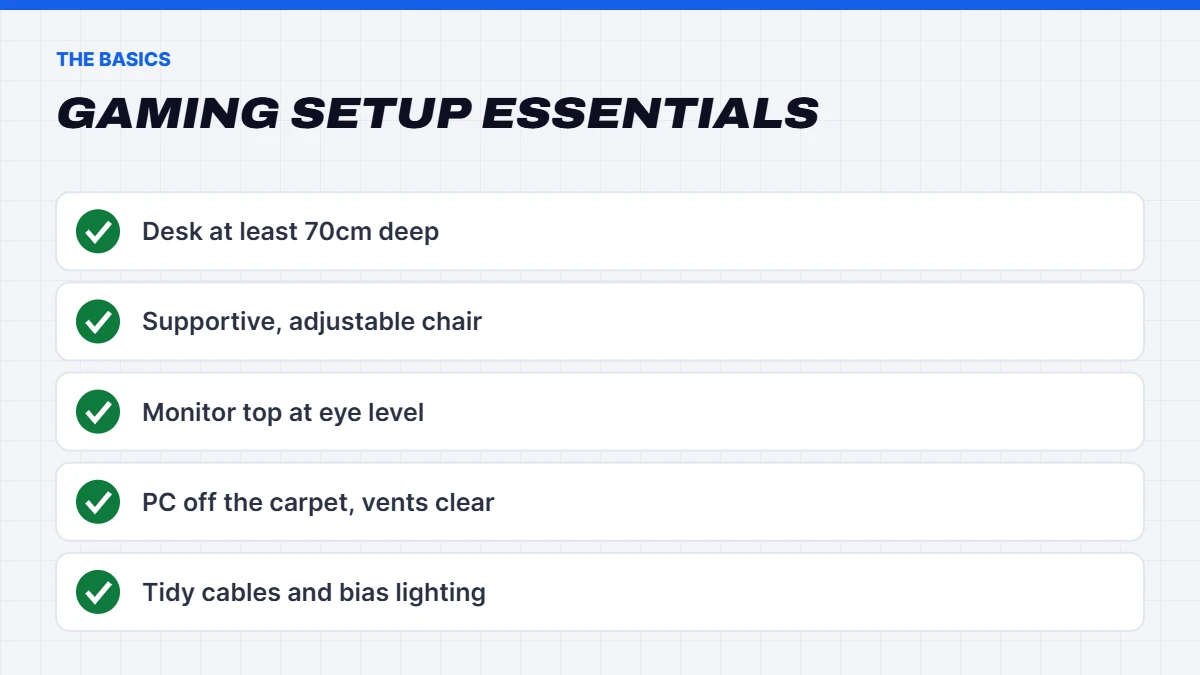
The desk is the foundation of any gaming setup, and it’s the piece most people underestimate. A good gaming computer desk should be:
- Deep enough. At least 70cm, ideally 75 to 80cm, so the monitor sits at a comfortable distance and there’s room for a keyboard and a large mousepad.
- Wide enough for your monitor, speakers and a mouse that needs room to move. 120cm suits a single monitor, while 140 to 160cm suits dual monitors.
- Sturdy. A wobbly desk makes the monitor shake every time you move the mouse.
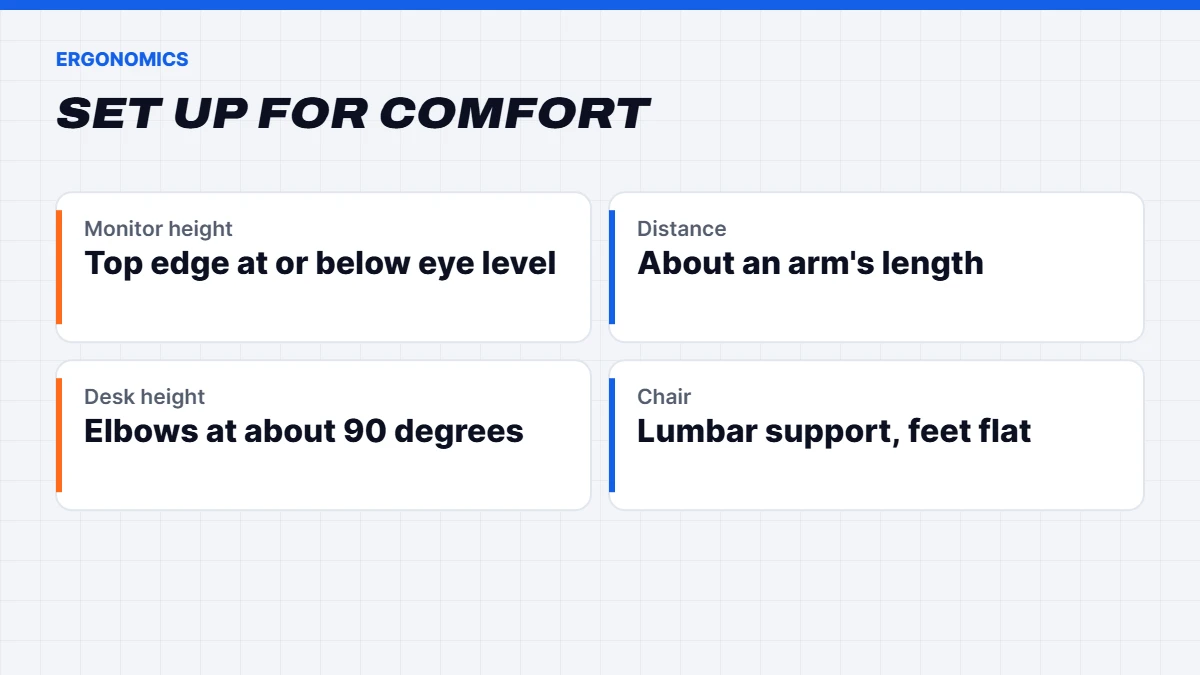
- The right height. Your elbows should sit at roughly 90 degrees with your hands on the keyboard. A height-adjustable desk solves this for everyone and lets you stand occasionally.
You don’t need a desk sold as a gaming desk. A plain, solid desk with the right dimensions often does a better job than one with gimmicky cup holders and headset hooks. If you want those, clip-on accessories add them later.
Choosing a chair
You’ll spend more time in your chair than with any other part of your setup. Look for adjustable seat height, good lumbar support, adjustable armrests that let your shoulders relax, and a seat depth that suits your legs. A quality office-style chair is often more comfortable for long sessions than a racing-style gaming chair, and usually cheaper.
Monitor position and height
Monitor position makes a big difference to comfort:
- Height: the top edge of the screen at or slightly below eye level.
- Distance: about an arm’s length away for a 24 to 27-inch screen, a little further for 32 inches and up.
- Angle: tilted back slightly, directly in front of you.
- Dual monitors: the main screen centred in front of you, the second angled beside it.
A monitor arm frees up desk space and makes adjustment easy. Safe Work Australia’s workstation guidance covers posture and screen positioning in more detail. If you’re still choosing a screen, our guide to the best gaming monitor explains how to match one to your PC.
Where to put the PC
Your PC needs air to stay cool and quiet. For the best gaming PC setup:
- Keep it off the carpet. Carpet blocks bottom intakes and feeds dust into the case. A desk, a small stand or a hard surface is best.
- Leave space around the vents, at least 10cm at the back and sides.
- On the desk or under it? On the desk shows off a glass case and keeps it cleaner. Under the desk saves space and noise. Either works if airflow is good.
- Away from heat sources, like heaters and direct sunlight through a window.
If you’re still choosing a PC, our gaming PCs are built with airflow in mind, and our guide on how to clean PC fans helps keep any PC running cool.
Gaming PC setup: first steps when your PC arrives
A new PC deserves a proper start. Here’s a quick gaming PC setup checklist for the first hour:
- Remove any foam or packing inserts from inside the case. Many builders pack foam around the graphics card for transit.
- Plug the monitor into the graphics card, not the motherboard’s video output.
- Connect to the internet and run Windows Update until there’s nothing left.
- Install the latest graphics driver from NVIDIA, AMD or Intel.
- Set your monitor’s refresh rate in Settings > System > Display > Advanced display.
- Check everything’s as expected using our guide on how to check PC specs.
That’s all it takes to get a gaming PC setup running at its best from day one.
Cable management
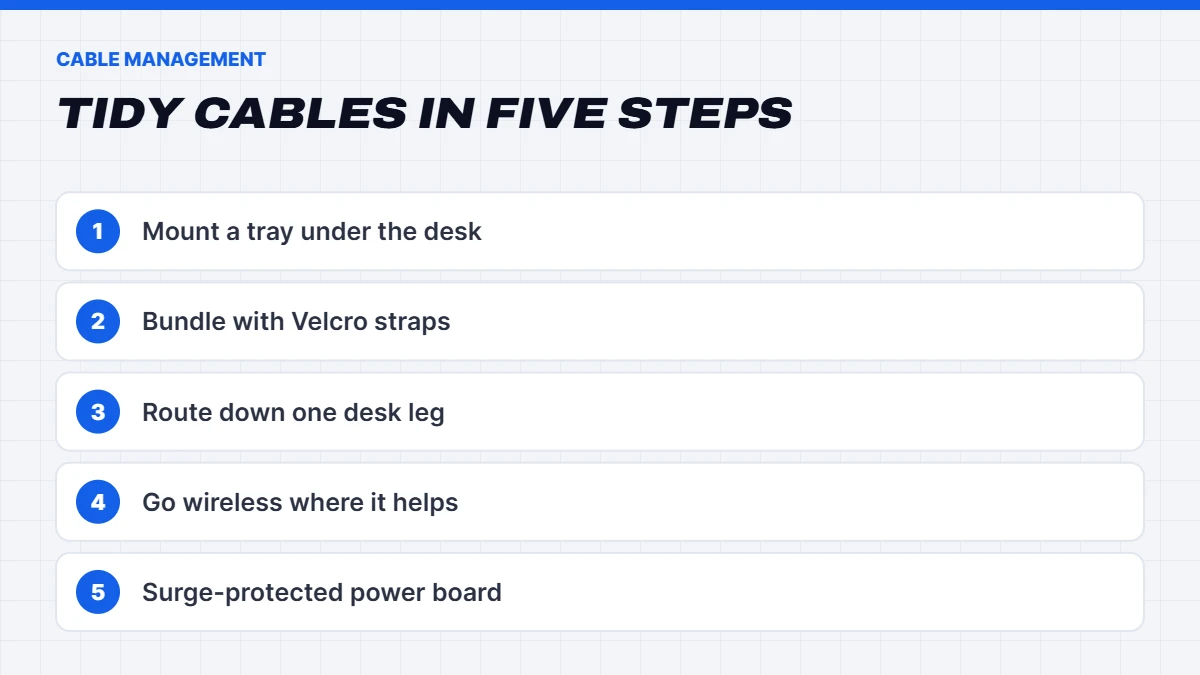
Nothing makes a setup look messier than a tangle of cables. A few simple steps make a big difference:
- Mount a cable tray under the back of the desk to hold power boards and spare cable length.
- Use Velcro straps to bundle cables together. They’re easy to undo when you add something new.
- Run cables down one desk leg using clips or a cable spine.
- Go wireless where it makes sense, like a 2.4GHz mouse and headset.
- Use a surge-protected power board, and keep it off the floor.
Lighting your gaming setup
Good lighting makes your setup more comfortable and better looking:
- Bias lighting behind the monitor reduces eye strain in a dark room and makes the screen look more contrasty.
- Ambient lighting like LED strips, light bars or lamps sets the mood without glare on the screen.
- Avoid lights reflecting on the screen, especially from windows and overhead lights behind you.
- Syncing lighting across your PC, keyboard, mouse and strips is possible with most brands’ software, though it often means using one brand or a third-party app.
A warm white lamp for everyday use and coloured lighting for gaming sessions is a combination that works well in most rooms.
A gaming setup for small spaces
Not everyone has a spare room. A compact gaming setup can still be comfortable and look great:
- Use a monitor arm to free up desk space and lift the screen to the right height.
- Choose a compact keyboard, such as tenkeyless or 75%, to give your mouse room on a smaller desk.
- Go vertical with shelves above the desk for speakers, decorations and storage.
- Pick a smaller case, like a compact mid-tower, that fits beside the monitor or under the desk.
- Use wall-mounted lighting rather than lamps that take desk space.
A corner desk can also make good use of awkward spaces, giving you a deep work area without blocking the room.
Gaming setup ideas by budget
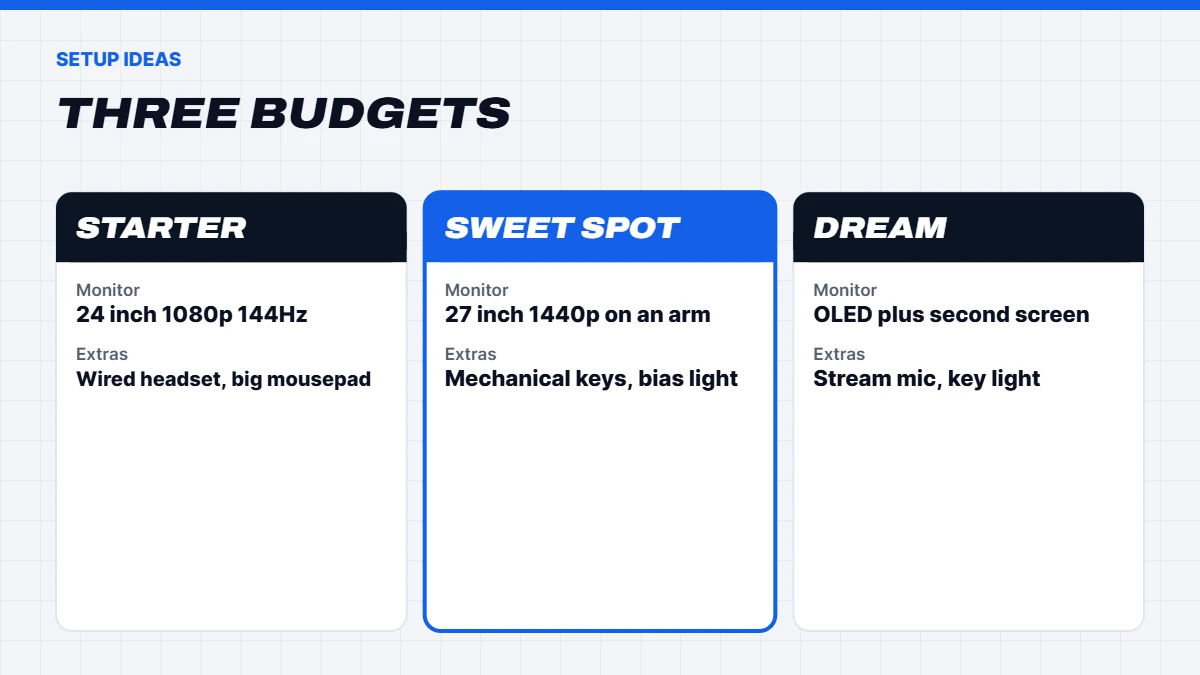
Here are a few gaming setup ideas to suit different budgets:
Starter setup. A solid desk, a comfortable chair, a 24-inch 1080p monitor at 144Hz or more, a wired headset, a good mouse and a large mousepad. Pair it with an entry-level or 1080p gaming PC.
The sweet spot. A deeper desk, a monitor arm, a 27-inch 1440p monitor, a mechanical keyboard, a wireless mouse and headset, a desk mat, bias lighting and tidy cable management. Pair it with a 1440p gaming PC.
The dream setup. A height-adjustable desk, a 27 or 32-inch OLED monitor plus a second screen, a quality chair, a stream microphone on a boom arm, a webcam with a key light, coordinated lighting, and a 4K gaming PC.
Peripherals that make the biggest difference
The things you touch every day matter most: a comfortable mouse that suits your grip, a keyboard you enjoy typing on, a headset that’s comfortable for hours, and a large mousepad. Our guide to gaming accessories covers how to choose each one and which upgrades aren’t worth the money.
Headset or speakers?
Audio matters as much as visuals in a PC gaming setup. A headset gives you precise positional audio and a microphone, and doesn’t disturb anyone else. Desktop speakers are more comfortable for long sessions and sound more natural for music and movies. Plenty of players use both: speakers for relaxed sessions and a headset for late nights and online matches. If you choose speakers, place them at ear height either side of the monitor, angled towards you.
Desk accessories worth adding
A few small additions make any gaming computer desk nicer to use:
- A large desk mat protects the desk and gives your mouse a consistent surface.
- A headset stand or hook keeps your headset off the desk.
- An under-desk drawer for controllers, cables and small bits.
- A footrest if your feet don’t sit flat on the floor.
- A monitor light bar that lights the desk without glare on the screen.
Streaming and content creation corner
If you stream or make videos, plan your setup around the camera:
- Light your face from the front with a key light or a soft lamp.
- Position the camera at eye level, just above or beside the main monitor.
- Use a boom arm for your microphone to keep it close without blocking the screen.
- Think about what’s behind you. A tidy background, a shelf or some lighting looks more professional.
Streaming while gaming also asks more of your PC, so an 8-core processor and 32GB of RAM make life easier.
Console and PC in one setup
Plenty of players have a console alongside their PC. If you want both on the same desk, choose a monitor with HDMI 2.1 for the console and DisplayPort for the PC, so you can switch inputs easily. A headset that connects to both, or a small audio switch, keeps things simple. It’s a great way to get the most out of a PC gaming setup without needing a second screen.
Keeping cool in summer
Australian summers are tough on gaming setups. A PC and monitor both put out heat, and a small room can warm up quickly during long sessions. Keep the PC away from windows with direct sun, make sure the room has some airflow, and clean dust from the PC before summer starts. A ceiling fan or air conditioning makes a noticeable difference to how hot your gaming setup feels, and to how hard your PC’s fans have to work.
Colour themes and style
Your setup is personal, and a colour theme can tie it all together. Matching the PC, keyboard, mouse, headset and lighting gives a clean, deliberate look. Popular themes include all-black stealth setups, bright pastel setups and bold colour accents. We build PCs to suit, such as our white gaming PC in a panoramic case and our pink gaming PC range. For ideas that cover the whole room, see our guide to gaming room ideas.
Setting up for kids and teens
For younger players, a few extra steps help. A height-adjustable chair and a footrest let the same desk suit a growing child. Keeping the PC in a shared space, rather than a bedroom, makes it easier to keep an eye on screen time and online chat. Windows’ Microsoft Family Safety lets you set time limits, filter content and approve purchases, and most games and platforms have their own parental controls too. A durable wired headset and mouse also tend to survive enthusiastic play better than wireless ones.
Comfort for long sessions
Even with perfect furniture, sitting still for hours takes a toll. Get up and move every hour or so, even just to grab a drink. Follow the 20-20-20 rule for your eyes: every 20 minutes, look at something about six metres away for 20 seconds. Keep your wrists straight rather than bent up on the keyboard, and let your shoulders relax with your forearms supported. Small habits like these make long weekends of play far more comfortable.
Upgrading over time
You don’t need to build the perfect setup all at once. A sensible order is: chair and desk first, because they affect comfort every day, then the monitor, then the mouse and headset, then the keyboard, then lighting and decoration. Upgrading in this order means every purchase makes a noticeable difference, and you avoid spending on looks before comfort.
Power and safety
A full setup can have a lot plugged in. Use a quality surge-protected power board rated for the load, avoid plugging power boards into other power boards, and keep cables away from where feet and chair wheels go. If you live somewhere with frequent outages or storms, a small uninterruptible power supply gives you time to save and shut down safely. Never cover a PC’s vents or stack things on top of a power brick.
Common gaming setup mistakes
- A desk that’s too shallow, forcing the monitor too close.
- The monitor too high, causing neck strain.
- The PC on carpet, choking airflow and collecting dust.
- Lights reflecting on the screen.
- Cheap power boards with no surge protection.
- Spending on RGB before comfort. A good chair and monitor height matter more.
The short version
Comfort first, looks second. A deep, sturdy desk, a supportive chair and a monitor at the right height do more for your enjoyment than any amount of lighting. Give your PC room to breathe, keep the cables tidy, and add bias lighting for your eyes. Then make it yours with colours, lighting and accessories that suit your style.
Gaming setup FAQs
What do I need for a gaming setup?
A gaming PC, a monitor, a keyboard, a mouse, a headset or speakers, a sturdy desk and a comfortable chair. Everything else is optional.
How deep should a gaming computer desk be?
At least 70cm, ideally 75 to 80cm, so the monitor sits at a comfortable distance.
Should my gaming PC be on the desk or the floor?
Either works if it has good airflow. Avoid carpet, which blocks intakes and adds dust.
What are some cheap gaming setup ideas?
Tidy cable management, bias lighting behind the monitor, a large desk mat and a monitor stand or arm all make a big difference for little cost.
What’s the best gaming PC setup for a beginner?
A 1080p or 1440p gaming PC, a matching monitor at 144Hz or more, a comfortable mouse and headset, a sturdy desk and a supportive chair. Start simple and add extras over time.
How do I make my PC gaming setup look clean?
Hide cables with a tray and Velcro straps, stick to a colour theme, go wireless where it makes sense, and keep the desk clear.