
Few things test your patience like a laptop that takes five minutes to boot, freezes when you open a second browser tab, or sounds like a hair dryer while doing nothing at all. The good news is that most slow laptops can be fixed, often for free and in under an hour. This guide covers how to fix slow laptop performance step by step, starting with the free fixes, moving on to cheap upgrades, and finishing with the honest signs that it’s time to replace it.
If you’ve been asking why is my laptop so slow lately, you’re far from alone. We build, fix and upgrade computers every week, and the same handful of causes come up again and again. Work through them in order and you’ll usually find the culprit.
Quick answer
The most common reasons a laptop slows down are too many startup apps, a nearly full drive, background updates, overheating from dusty fans, an old hard drive and not enough RAM. Start by restarting, disabling startup apps, freeing up space and checking Task Manager. If it’s still slow, swapping in an SSD or adding RAM often fixes it for far less than a new laptop.
In this guide
Why is my laptop so slow? The usual suspects
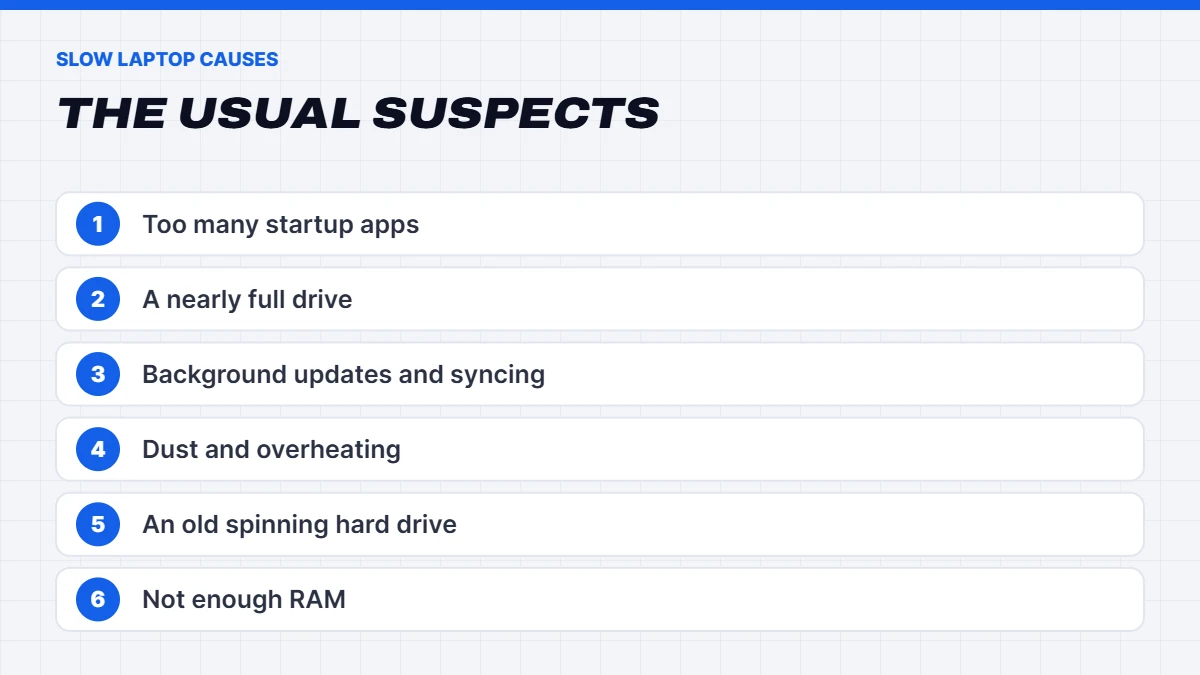
If you’re asking “why is my laptop so slow?”, the answer is almost always one or more of these:
- Too many apps starting with Windows. Every chat app, launcher and updater that starts at boot eats memory and slows startup.
- A nearly full drive. Windows needs free space for updates, temporary files and virtual memory. When the drive is close to full, everything drags.
- Background updates. Windows Update, OneDrive syncing or antivirus scans can tie up the processor and drive for a while, especially after a laptop has been off for weeks.
- Overheating. Dust clogs the fan and heatsink, the processor gets hot, and it slows itself down to stay safe. This is called thermal throttling.
- An old hard drive. Many older budget laptops have a spinning hard drive (HDD), which is many times slower than a modern SSD.
- Not enough RAM. With 4GB or 8GB, a modern browser and a couple of apps can fill memory, and Windows starts leaning on the much slower drive instead.
- Malware or bloatware. Unwanted software quietly running in the background.
- Ageing hardware. Sometimes the laptop is simply too old for today’s software.
First, find out what’s slowing it down
The quickest way to learn how to fix slow laptop problems is to see what’s actually happening. Before changing anything, spend two minutes in Task Manager, which shows you exactly what’s using your laptop’s resources.
- Press Ctrl + Shift + Esc to open Task Manager.
- Select Processes, then click the CPU, Memory and Disk column headings to sort by each.
- Look at what’s at the top of each list, and at the overall percentages.
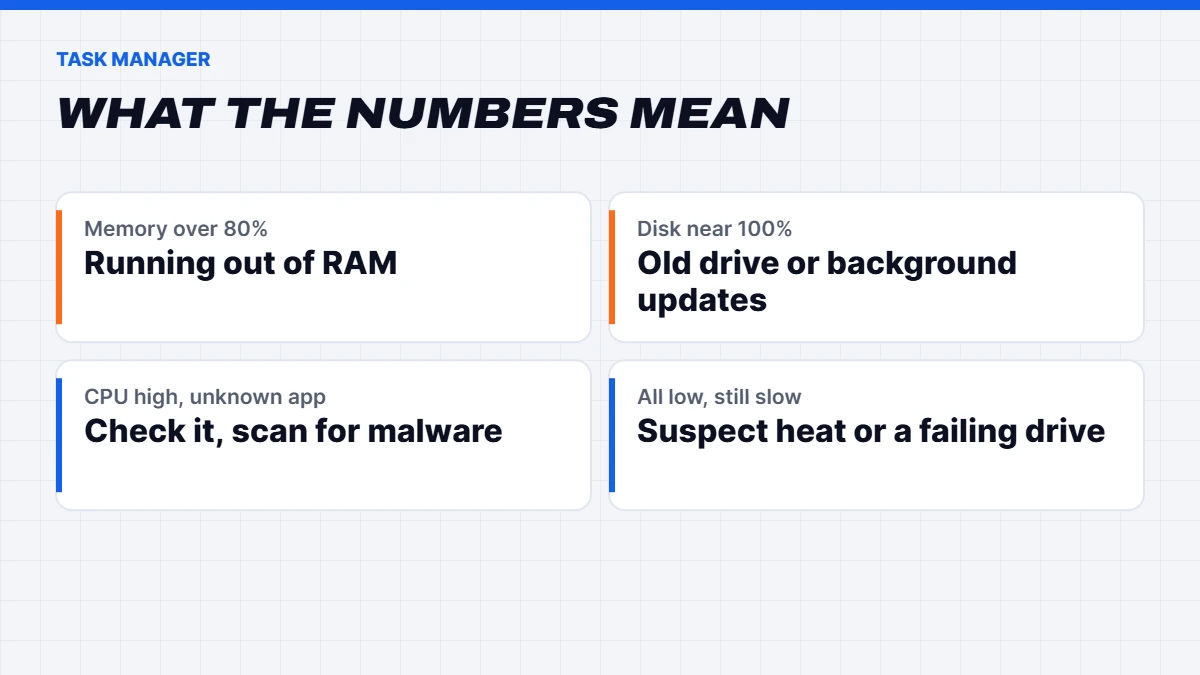
Here’s how to read what you see:
- Memory constantly above 80 to 90%: you’re running out of RAM. Close apps, or consider an upgrade.
- Disk sitting at or near 100%: often a sign of an old hard drive, or of updates and syncing running in the background.
- CPU high with an app you don’t recognise: search its name, and run a malware scan if it looks suspicious.
- Everything low but it still feels slow: suspect overheating or a failing drive.
How to fix slow laptop performance: 15 fixes
Here’s how to fix slow laptop performance one step at a time. Work through these roughly in order, testing as you go. The first ten cost nothing.
1. Restart it properly
It sounds too simple, but plenty of laptops haven’t truly restarted in weeks. With Fast Startup turned on, Shut down doesn’t fully clear everything, while Restart does. Select Start > Power > Restart and see if things improve.
2. Cut down startup apps
In Task Manager, select Startup apps, then right-click anything you don’t need straight away and choose Disable. Chat apps, game launchers, and printer and update helpers are common offenders. You can still open them yourself when you need them. This alone can make a big difference to boot times.
3. Free up storage space
Go to Settings > System > Storage and look at Cleanup recommendations. Clear temporary files, empty the Recycle Bin, and remove large files you no longer need. Turning on Storage Sense keeps things tidy automatically. As a rule of thumb, try to keep at least 15 to 20% of the drive free.
4. Remove bloatware and old programs
Open Settings > Apps > Installed apps and sort by size or install date. Uninstall trial software, old games and tools you don’t use. Many laptops arrive with extra apps from the manufacturer that run in the background.
5. Install Windows and driver updates
Updates often include performance fixes. Go to Settings > Windows Update > Check for updates, and check Advanced options > Optional updates for driver updates. If a laptop has been off for a long time, leave it plugged in and connected overnight to let updates finish. Microsoft’s own guide to improving PC performance in Windows lists this as an early step too.
6. Tame your browser
Modern browsers are memory hungry, and dozens of open tabs plus a handful of extensions can slow even a decent laptop. Close tabs you don’t need, remove extensions you don’t use, and turn on your browser’s memory or efficiency saver setting.
7. Run a malware scan
Go to Settings > Privacy & security > Windows Security > Virus & threat protection and run a Quick scan. If something still seems off, run a Microsoft Defender Offline scan from the scan options as well. Avoid “PC cleaner” apps advertised online, as many are bloatware themselves.
8. Change the power mode
Go to Settings > System > Power & battery and set Power mode to Best performance when plugged in. On battery, Windows favours battery life over speed, which is normal. If battery saver is on, it will slow things down too.
9. Check for overheating
If you’re wondering why is my laptop so slow after a few minutes of use, when it was fine at first, heat is the likely problem. A loud fan and a hot base are the giveaways. Use it on a hard, flat surface rather than a bed or couch, and keep the vents clear. Over time, dust builds up inside, and cleaning the fan is often the single best fix for an older laptop. Our guide on how to clean laptop fan vents shows you how.
10. Turn down visual effects
On older laptops, animations and transparency can make Windows feel sluggish. Search the Start menu for Adjust the appearance and performance of Windows, open it, and choose Adjust for best performance. You can also turn off Transparency effects and Animation effects in Settings > Accessibility > Visual effects.
11. Check the drive’s health
A failing drive can make a laptop painfully slow, and it’s a warning sign of data loss. If the drive is making clicking noises, or Task Manager shows the disk at 100% for long periods, back up your files straight away and check the drive’s health with the manufacturer’s tool or a reputable free utility.
12. Reset Windows as a last resort
If nothing else works, a reset gives you a clean copy of Windows. Go to Settings > System > Recovery > Reset this PC and choose Keep my files. Back up everything important first anyway, and expect to reinstall your apps afterwards.
13. Swap the hard drive for an SSD
If your laptop still has a spinning hard drive, this is the single biggest upgrade you can make. Boot times drop from minutes to seconds and apps open almost instantly. Most older laptops have a standard 2.5-inch bay or an M.2 slot, and you can clone your existing drive so nothing needs reinstalling. Our guide to SSD vs HDD explains the differences.
14. Add more RAM
If Task Manager shows memory constantly near full, more RAM helps. In Task Manager, select Performance > Memory and check Slots used. If there’s a free slot, adding a matching stick to reach 16GB is a great upgrade. If the RAM is soldered, you can’t add more. Our guide to what RAM is and how much you need explains how much is enough, and memory is pricey right now, as we explain in why RAM is so expensive.
15. Check the charger and battery
A worn battery or a lower-wattage charger can make a laptop limit its own performance. If your laptop came with a high-wattage charger and you’re using a smaller USB-C one, try the original. A swollen battery that lifts the keyboard or case is a safety issue: stop using the laptop and get it looked at.
Why is my computer so slow? Desktop differences
If you’re asking why is my computer so slow and it’s a desktop rather than a laptop, the same causes apply, with a couple of differences. Desktops are easier to clean and upgrade, so an SSD or extra RAM is usually a simple job. They also collect dust in the case and on the fans, so a careful clean with compressed air every year or so helps keep temperatures down.
If your desktop is more than seven or eight years old, has an older processor and can’t run Windows 11, upgrading a single part may not be enough. In that case a new desktop computer is often better long-term value, and you won’t be asking why is my computer so slow again for a good while.
Why is my laptop so slow when it’s brand new?
It’s frustrating when a new laptop feels slow, but there’s usually a simple reason. In the first day or two, Windows downloads and installs a pile of updates, indexes your files for search, and syncs anything stored in OneDrive. Manufacturer apps also run their own updates. Leave a new laptop plugged in and connected for a few hours, restart it a couple of times, and it normally settles down.
If it’s still sluggish after that, check the specs. Some very cheap laptops have 4GB or 8GB of RAM and slow eMMC storage, and they’ll never feel quick. That’s not a fault, but it’s worth knowing before the return period runs out.
How to fix slow laptop startup times
If the laptop runs fine once it’s going but takes ages to start, focus on startup. Disable startup apps in Task Manager first, as above. Then check how much free space you have, as a nearly full drive slows boot noticeably. If it still has a spinning hard drive, an SSD is the real cure: it’s the difference between a few minutes and a few seconds.
It’s also worth checking for a BIOS or firmware update on the manufacturer’s support site, as these sometimes improve boot times and stability. Only install updates for your exact model, and keep the laptop plugged in while it runs.
Keeping your laptop fast
Once you’ve worked out how to fix slow laptop issues, a little routine keeps them from coming back:
- Restart at least once a week rather than only closing the lid.
- Check startup apps every few months, as new installs often add themselves.
- Keep 15 to 20% of the drive free, and let Storage Sense clean up for you.
- Install updates when Windows asks, rather than putting them off for weeks.
- Keep it cool. Use it on a hard surface and clean the vents once a year.
- Be choosy about what you install. Fewer apps means less running in the background.
When it’s time to replace your laptop
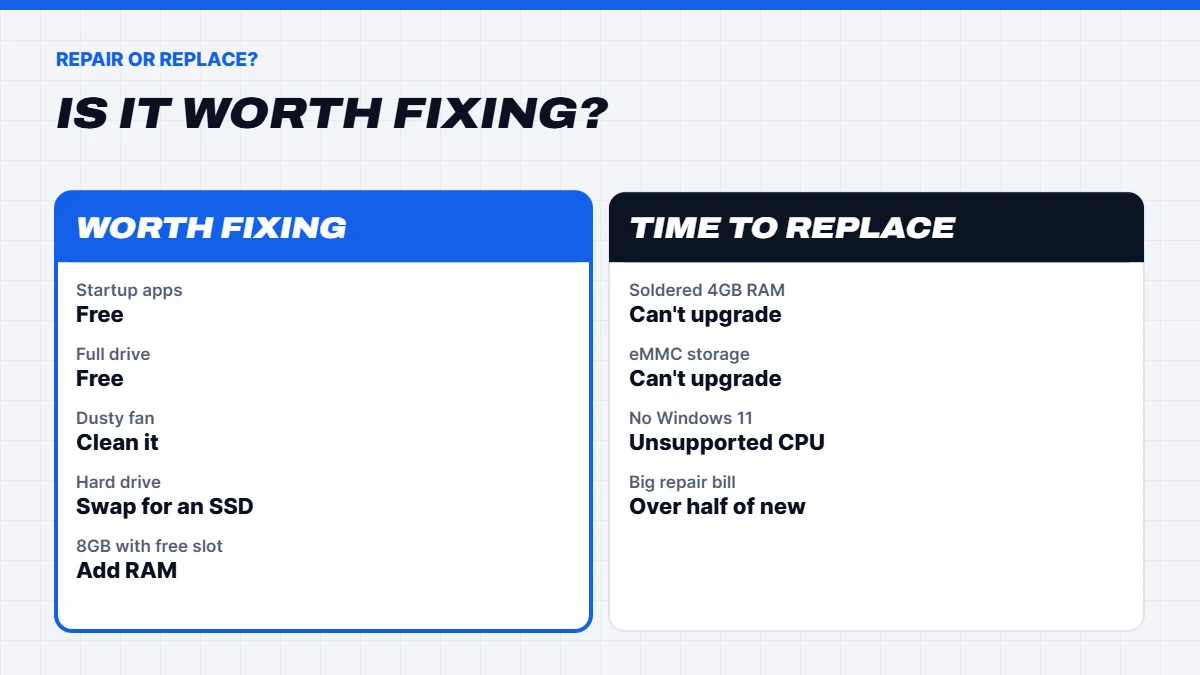
Sometimes the honest answer is that no amount of tweaking will make an old laptop feel fast. These are the signs we’d look for: If yours can’t run Windows 11, our guide on how to upgrade to Windows 11 explains your options.
- It can’t run Windows 11. Windows 10 support ended in October 2025. Microsoft has extended its consumer security update program to October 2027 for enrolled PCs, but apps will gradually stop supporting Windows 10.
- It has 4GB of soldered RAM or slow eMMC storage. Neither can be upgraded, and both struggle with modern software.
- It’s older than about six or seven years and already has an SSD and enough RAM.
- The repair costs more than half the price of a new laptop, such as a new screen plus a battery.
- It still overheats after a clean, or the hinges, keyboard or battery are failing.
Repair or replace: a quick guide
If you’ve tried the free fixes and you’re still asking why is my computer so slow, this table sums up which fixes are worth paying for:
| Problem | Typical fix | Worth doing? |
|---|---|---|
| — | — | — |
| Slow boot, lots of startup apps | Disable startup apps | Always |
| Old spinning hard drive | Upgrade to an SSD | Yes, if the rest is decent |
| 8GB RAM with a free slot | Add a stick to reach 16GB | Usually |
| Overheating, loud fan | Clean the fan and vents | Yes |
| Soldered 4GB RAM | None | Time to replace |
| Can’t run Windows 11 | None | Time to replace |
If you do decide to replace it
If it’s time for a new machine, a few specs make the biggest difference to how quick it feels for years to come:
- An SSD, ideally 512GB or more. Avoid eMMC storage.
- 16GB of RAM, especially if it’s soldered.
- A recent processor, such as an Intel Core Ultra, Core i5 or Ryzen 5 or better.
- Windows 11 out of the box.
Our laptops all use SSDs, and we list the RAM and storage clearly so you can compare. If you’re buying for study, our laptop for students range is a good starting point, and gamers can see our guide to the best gaming laptop for every budget.
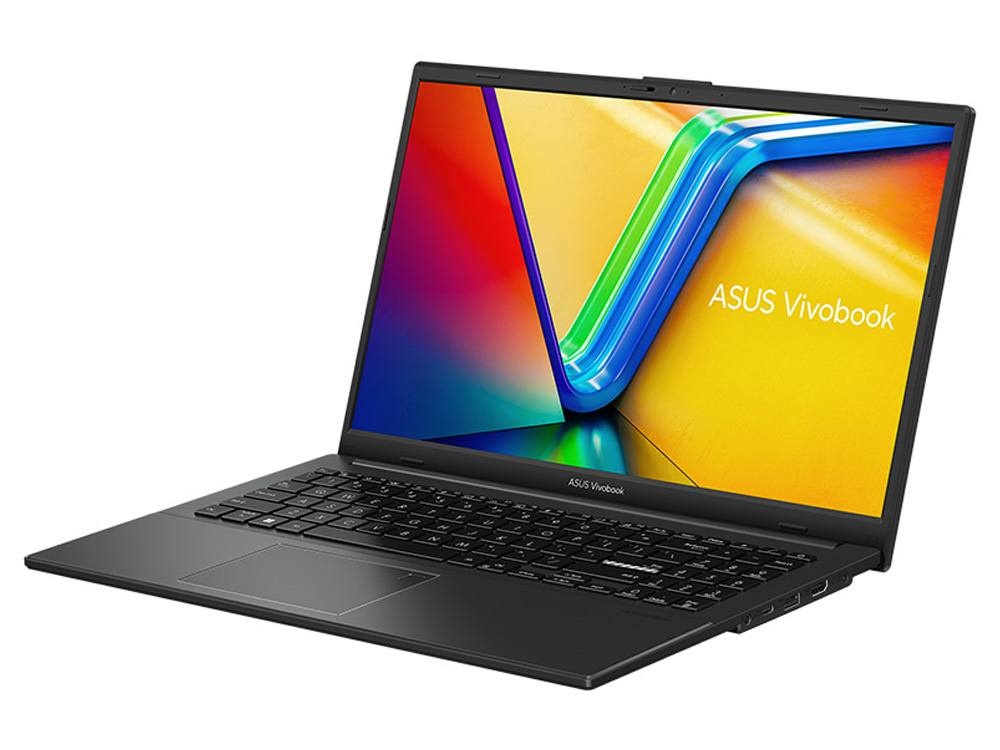
 ASUS Vivobook Go 15 – Ryzen 5 7520U, 16GB RAM, 512GB SSD Original price was: $1,099.00.$824.00Current price is: $824.00.See the build
 Lenovo ThinkBook 16 G7 – Core Ultra 7 155U, 16GB RAM, 512GB SSD, Windows 11 Pro Original price was: $2,149.00.$1,599.00Current price is: $1,599.00.See the build
 ASUS Vivobook 18 – 18-inch Laptop, Ryzen 7 260, 16GB RAM, 1TB SSD, Quiet Blue Original price was: $1,999.00.$1,499.00Current price is: $1,499.00.See the build
Not sure whether to fix or replace? Message us on live chat with your laptop’s model and what it’s doing, and we’ll give you an honest opinion.
The short version
If you remember one thing about how to fix slow laptop problems, make it this: check Task Manager first, then fix what it shows you. Startup apps, a full drive and dust cause most slowdowns, and they’re free to fix. An SSD or extra RAM sorts out most of the rest. And when a laptop is old, can’t run Windows 11 or has soldered 4GB of RAM, replacing it is usually smarter than pouring money into it.
Slow laptop FAQs
Why is my laptop so slow all of a sudden?
A sudden slowdown is usually caused by a large Windows update running in the background, a new startup app, a nearly full drive or overheating. Check Task Manager to see what’s using the processor, memory and disk.
Why is my computer so slow after an update?
After big updates, Windows often keeps indexing and optimising in the background for a while. Leave it plugged in for a few hours, then restart. If it’s still slow, check for driver updates.
Why is my computer so slow to start up?
Usually too many startup apps, a nearly full drive or an old hard drive. Disable startup apps in Task Manager, free up space, and consider an SSD if it still uses a hard drive.
Will more RAM speed up my laptop?
Only if you’re running out of memory. If Task Manager regularly shows memory usage above 80 to 90%, more RAM will help a lot.
Why is my laptop so slow on battery?
On battery, Windows favours battery life, so it lowers performance, especially with battery saver on. Plug in and set the power mode to Best performance for demanding work.
Will a factory reset make my laptop faster?
Often, yes, because it clears out years of clutter. It won’t fix a failing drive, overheating or too little RAM, though.
How do I fix a slow laptop for free?
Restart it, disable startup apps, free up storage, remove unused programs, install updates, run a malware scan and keep the vents clear. That’s how to fix slow laptop problems in most cases without spending a cent.