
Knowing how to check CPU temperature is one of those small skills that saves a lot of worry. When a PC gets loud, crashes in games or slows down after a while, temperature is one of the first things worth looking at. The tricky part is that Windows doesn’t make it obvious, and “normal” temperatures vary a lot between processors, desktops and laptops.
This guide shows you how to check CPU temp in Windows, what temperatures are normal for modern AMD and Intel processors, what to do if yours runs hot, and how to choose the best CPU cooler, including the AIO vs air cooler question.
Quick answer
Windows Task Manager doesn’t show CPU temperature, so use a free monitoring tool like HWiNFO, AMD Ryzen Master or Intel’s Extreme Tuning Utility, or check in the BIOS. As a rough guide, 30 to 50°C at idle and 60 to 85°C while gaming is normal for desktops. Many modern processors are designed to run up to around 95°C under heavy load, and laptops often run hotter than desktops.
In this guide
Why CPU temperature matters
Your processor is designed to protect itself. When it gets too hot, it lowers its speed to cool down, which is called thermal throttling. You won’t see a warning, just a PC that feels slower than it should, games that stutter after a while, or fans that roar. In extreme cases, the PC shuts down to avoid damage.
High temperatures over long periods can also shorten the life of parts around the processor. Learning how to check CPU temperature lets you spot problems like a clogged cooler or a failing fan before they cause crashes or slowdowns.
How to check CPU temperature in Windows
Here’s how to check CPU temperature using the most reliable methods.
Method 1: Use a free monitoring tool
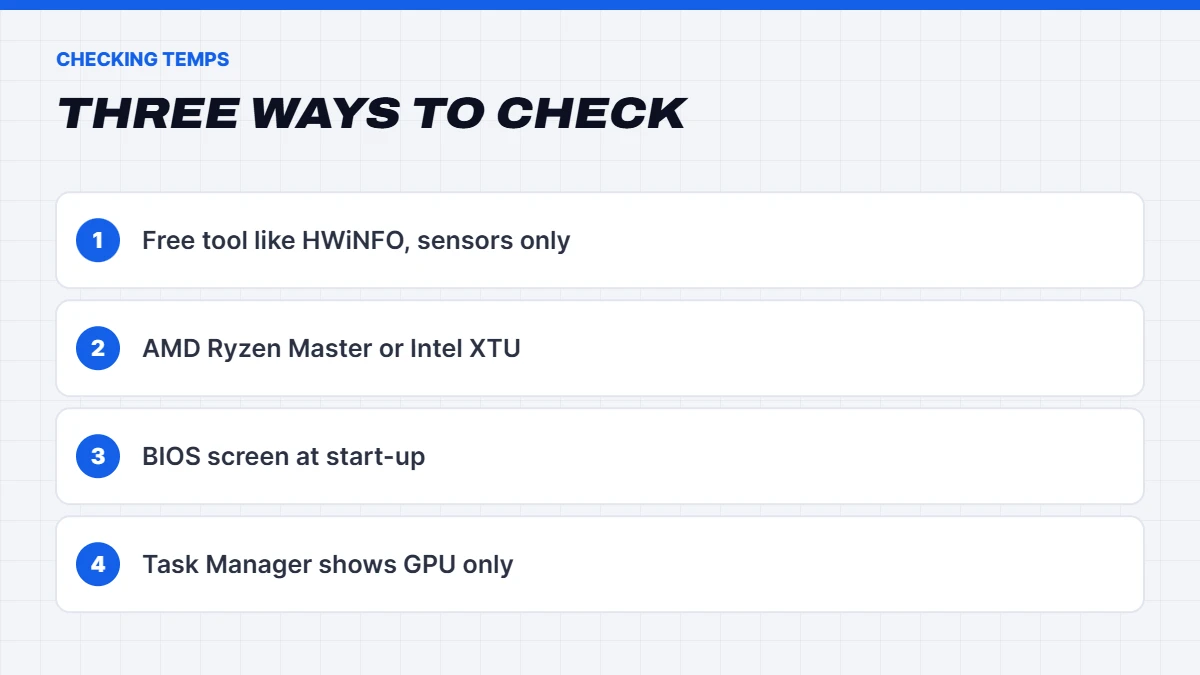
The easiest way is a free hardware monitoring app. HWiNFO is one of the most popular and detailed, and it works with almost any PC:
- Download HWiNFO from the official site and install it.
- Open it and choose Sensors-only mode.
- Look for your processor’s section. On AMD Ryzen, check CPU (Tctl/Tdie). On Intel, check CPU Package.
- Watch the Current and Maximum columns while you use the PC normally, then while gaming.
Other popular options include HWMonitor and Core Temp, which are simpler but show less detail. Only download these tools from their official websites.
Method 2: Use AMD or Intel’s own software
- AMD Ryzen Master shows temperature, clock speeds and usage for Ryzen processors.
- Intel Extreme Tuning Utility (XTU) shows temperature and performance data for supported Intel processors.
These are handy if you want a tool straight from the chip maker, though some features are aimed at overclocking, so leave the tuning settings alone unless you know what they do.
Method 3: Check in the BIOS
Restart your PC and press Delete or F2 during start-up to enter the BIOS. Most motherboards show the CPU temperature on the main screen or a hardware monitor page. This is fine for a quick check, but the processor is barely working in the BIOS, so it only tells you the idle temperature.
What about Task Manager?
Task Manager’s Performance tab shows the temperature of a dedicated graphics card, but not the CPU. That’s why most people need a separate tool to check CPU temp in Windows.
How to check CPU temp while gaming
Temperatures at the desktop don’t tell you much. To see what happens under load, you want to know how to check CPU temp while you’re actually playing:
- Open HWiNFO in Sensors-only mode before you start the game.
- Play for 20 to 30 minutes, long enough for temperatures to settle.
- Alt-tab out and check the Maximum column for your CPU temperature.
- For a live on-screen display, HWiNFO can feed its readings to an overlay tool like RivaTuner Statistics Server, so you can see temperatures in the corner of the screen as you play.
Write down the maximum and average figures. They’re the most useful numbers to compare against the ranges below, or to share if you’re asking for help.
What’s a normal CPU temperature?
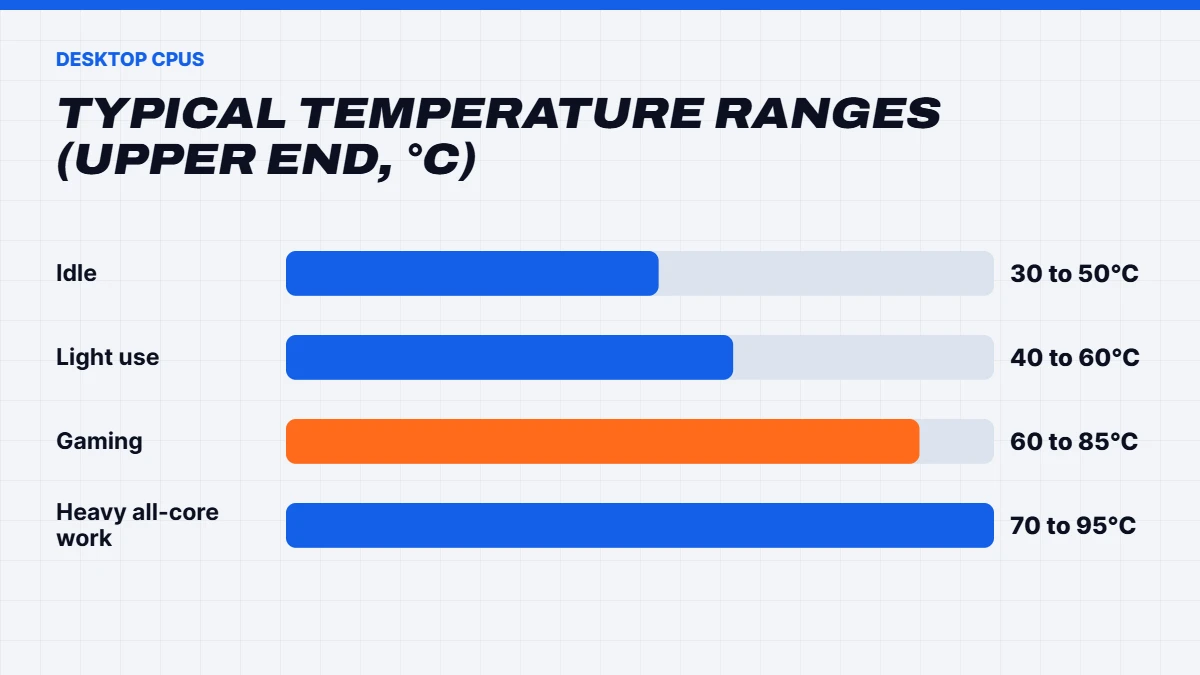
Normal temperatures depend on the processor, the cooler and what you’re doing. As a general guide for desktops:
| Situation | Typical range |
|---|---|
| — | — |
| Idle at the desktop | 30 to 50°C |
| Light use, browsing and video | 40 to 60°C |
| Gaming | 60 to 85°C |
| Heavy all-core work, like rendering | 70 to 95°C |
A few things that surprise people:
- Modern Ryzen processors are designed to run hot. Ryzen 7000 and 9000 series chips will boost until they reach around 95°C under heavy all-core loads. That’s normal and by design.
- X3D chips have lower limits. Processors like the Ryzen 7 7800X3D have a lower maximum temperature, so they boost a little more conservatively.
- Intel processors also run warm under heavy load, with limits around 100°C on recent desktop chips.
- Laptops run hotter. Laptop processors often sit in the 80s and 90s under load because they have much smaller coolers.
- Short spikes are normal. Temperatures jump briefly when you open an app or load a game, then settle.
When to worry
High numbers on their own aren’t always a problem. These are the signs that your CPU is running too hot:
- The PC shuts down or crashes during games or heavy work.
- Performance drops sharply after a few minutes, a sign of thermal throttling.
- Idle temperatures stay high, above about 60°C on a desktop doing nothing.
- Temperatures climb steadily over months, suggesting dust or a drying cooler.
Don’t forget the graphics card
While you’re checking, look at your graphics card too. Task Manager shows GPU temperature under Performance > GPU for most dedicated cards, and HWiNFO shows it alongside a “hot spot” reading. Most modern graphics cards run somewhere in the 60s to low 80s under gaming load, with the hot spot a little higher. Like processors, graphics cards slow down if they get too hot, so it’s worth knowing how to check CPU temperature and GPU temperature together when a PC feels slower in games.
Australian summers and room temperature
Your PC can only cool itself with the air around it. On a 35°C day in a room without air conditioning, every part of your PC will run hotter than in winter, often by ten degrees or more. That’s normal. If temperatures are only a problem in summer, improving room airflow, keeping the PC out of direct sun and away from walls, and cleaning dust before summer starts can make a big difference.
How to lower CPU temperature
If your CPU is running hotter than it should, try these in order:
- Clean out the dust. Dust on the cooler and case fans is the most common cause. Our guide on how to clean PC and laptop fans walks through it.
- Check airflow. Make sure case fans are spinning and set up with intake at the front and exhaust at the back and top.
- Check the cooler is seated properly, especially after moving the PC.
- Look for background apps using the CPU in Task Manager.
- Update the BIOS, which can improve fan control and power management.
- Replace thermal paste on an older PC, or if the cooler has been removed.
- Upgrade the cooler if it’s a basic stock cooler on a powerful processor.
Choosing the best CPU cooler
The best CPU cooler for you depends on your processor’s power, your case and your budget. Here’s how the main options compare:
- Stock coolers that come with some processors are fine for low-power chips and light use, but they’re often loud under load.
- Single-tower air coolers are the best value upgrade. A good one keeps most gaming processors cool and quiet.
- Dual-tower air coolers handle higher-power processors and run very quietly, but they’re big, so check case and RAM clearance.
- 240mm and 280mm AIO liquid coolers suit mid to high-end processors and smaller cases.
- 360mm AIO liquid coolers suit the most powerful processors and give the most cooling headroom.
When comparing coolers, look at the processor socket support, the height for air coolers or radiator size for AIOs, fan noise, and whether it fits your case. Reputable brands back their coolers with long warranties.
Matching a cooler to your processor
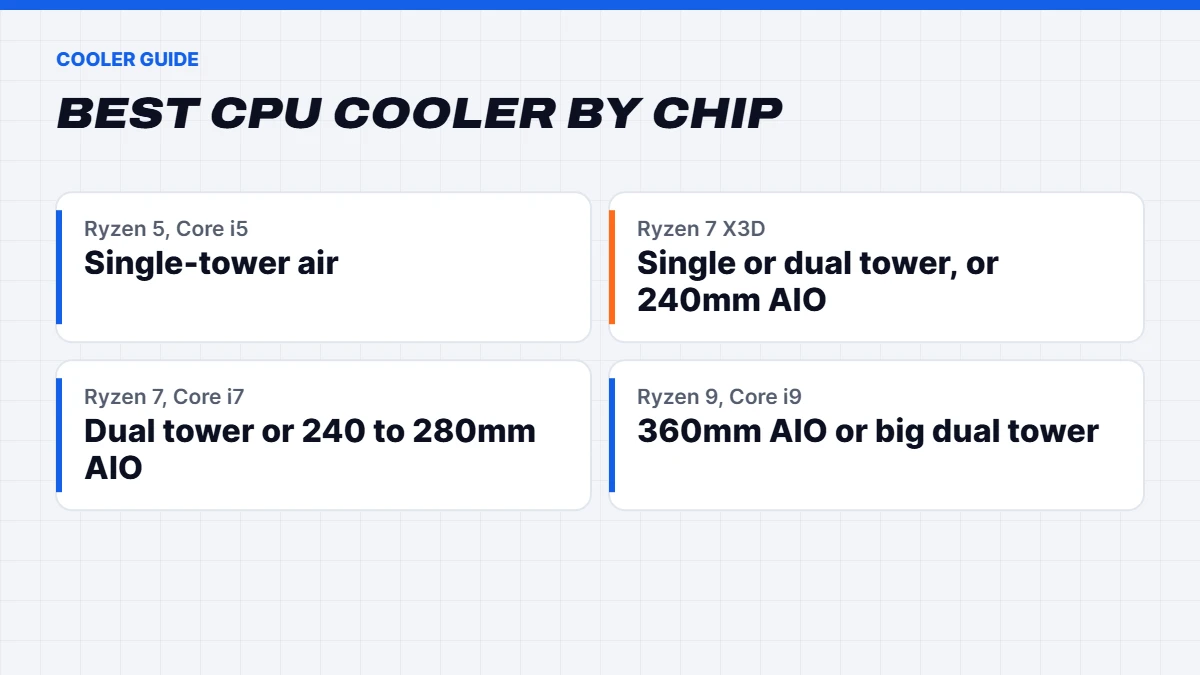
Here’s a simple guide to picking the best CPU cooler for common processors:
| Processor | Suggested cooler |
|---|---|
| — | — |
| Ryzen 5, Core i5 | Quality single-tower air cooler |
| Ryzen 7 7800X3D or 9800X3D | Single or dual-tower air cooler, or a 240mm AIO |
| Ryzen 7 non-X3D, Core i7 | Dual-tower air cooler or 240 to 280mm AIO |
| Ryzen 9, Core i9, Core Ultra 9 | 360mm AIO or a large dual-tower air cooler |
AIO vs air cooler: which is better?
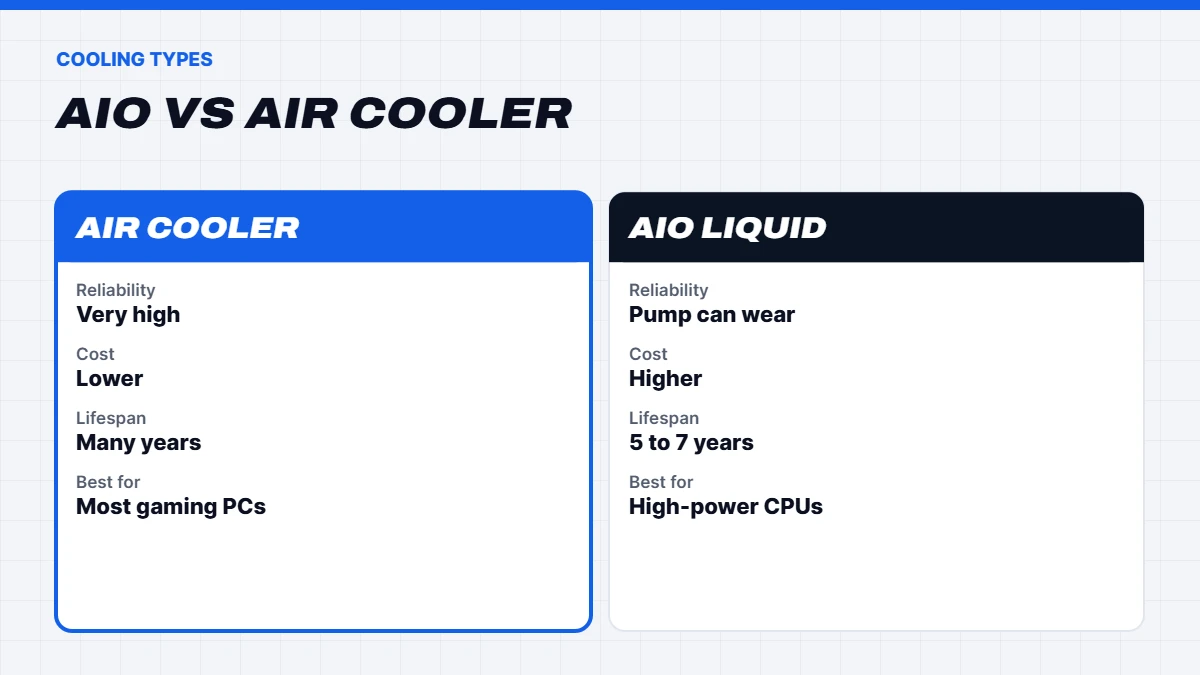
The AIO vs air cooler question comes up constantly. Both work well, and the right choice depends on your priorities:
| Air cooler | AIO liquid cooler | |
|---|---|---|
| — | — | — |
| Cooling performance | Great for most CPUs | Better for high-power CPUs |
| Noise | Very quiet with good fans | Quiet, but pump may hum |
| Reliability | Very high, only fans can wear | Pump can fail after years |
| Lifespan | Lasts many years | Typically 5 to 7 years |
| Size | Tall, can block RAM | Radiator needs case space |
| Looks | Plain or RGB | Clean, often with RGB |
| Cost | Lower | Higher |
Our honest take: a quality tower air cooler is the best value and most reliable choice for most gaming PCs. A 360mm AIO makes sense for high-end processors like the Ryzen 9 9950X3D or Intel Core i9, for heavy all-core workloads, or if you want a clean look and lots of headroom.
AIO vs air cooler: installation tips
Whichever side of the AIO vs air cooler debate you land on, installation matters:
- AIO radiators: mount them at the top of the case, or at the front with the tubes at the bottom. Avoid having the pump as the highest point in the loop, as trapped air can cause noise and poor cooling.
- Air coolers: point the fan so it blows towards the rear exhaust fan, and check it clears your RAM and the side panel.
- Thermal paste: a pea-sized dot in the centre is enough for most processors. Many coolers come with paste pre-applied.
- Mounting pressure: tighten screws evenly in a cross pattern, a little at a time.
When to replace thermal paste
Thermal paste fills tiny gaps between the processor and the cooler so heat transfers well. It doesn’t need changing often on a desktop, but it’s worth replacing if you remove the cooler for any reason, or if temperatures creep up over several years despite a clean. Clean off old paste with isopropyl alcohol and a lint-free cloth, apply a small amount of new paste, and refit the cooler evenly.
CPU temperature in laptops
Laptops are a special case. Their coolers are tiny compared with desktop coolers, so laptop processors routinely run in the 80s and 90s under load. As long as the laptop doesn’t shut down, slow down badly or get too hot to touch during light use, that’s normal. If it does, dust is the usual culprit. Our guide on how to clean a laptop fan covers the fix.
Cooling in our PCs
We match coolers to each processor. Mid-range builds use quality tower air coolers, while high-end and high-power builds use 360mm liquid coolers. Every PC we build is tested before dispatch. For example, our liquid cooled gaming PC uses a 360mm ARCTIC Liquid Freezer with seven fans, while our RGB PC uses a DeepCool tower cooler.
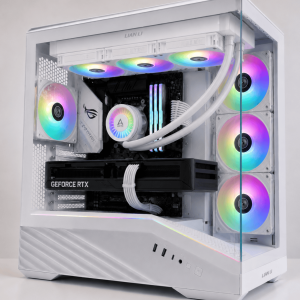 Vision Arctic Apex – Liquid Cooled Gaming PC, RTX 5080 Original price was: $5,999.00.$4,499.00Current price is: $4,499.00.See the build
 Best Value RTX 5080 Gaming PC – Ryzen 7 7800X3D, 32GB DDR5 Original price was: $5,999.00.$4,499.00Current price is: $4,499.00.See the build
 Vision Performance RGB – RGB PC with RTX 5070 & Ryzen 7 7800X3D Original price was: $3,600.00.$2,700.00Current price is: $2,700.00.See the build
If your current PC runs hot and you’re not sure why, message us on live chat with your processor, cooler and temperatures, and we’ll help you work it out.
Common CPU temperature myths
- “Anything over 80°C is dangerous.” Not for modern desktop processors under load, many of which are designed to run up to around 95°C.
- “Liquid cooling is always better.” A good dual-tower air cooler can match many 240mm AIOs, with fewer parts to fail.
- “More thermal paste is better.” Too much can make things worse. A small amount is all you need.
- “Idle temperature tells you everything.” Load temperatures while gaming or working matter much more.
- “You need to check temps every day.” Check when something changes, or when the PC feels off.
The short version
Learning how to check CPU temperature takes a few minutes with a free tool like HWiNFO, and it’s the quickest way to diagnose a loud, hot or slow PC. Expect 30 to 50°C at idle and 60 to 85°C while gaming on a typical desktop, with modern chips allowed to run hotter under heavy load. If temperatures are too high, clean out the dust first, then check airflow and the cooler. When choosing the best CPU cooler, a quality tower air cooler suits most gaming PCs, and in the AIO vs air cooler debate, liquid cooling earns its place on high-power processors.
CPU temperature FAQs
How do I check CPU temp without software?
Restart and enter the BIOS by pressing Delete or F2 during start-up. Most BIOS screens show the CPU temperature, though only at idle.
Is 90°C too hot for a CPU?
For many modern desktop processors under heavy load, it’s within design limits. If it happens during light gaming or idle, clean the cooler and check airflow.
What is the best CPU cooler for gaming?
For most gaming PCs, a quality single or dual-tower air cooler. For high-power processors, a 360mm AIO liquid cooler.
AIO vs air cooler: which lasts longer?
Air coolers usually last longer, as only the fans can wear out. AIOs typically last five to seven years before the pump or liquid may need replacing.
Does a better cooler make my PC faster?
It can. Modern processors boost higher and for longer when they run cooler, so a better cooler can add a little performance, especially on high-power chips under long, heavy workloads. For most gaming, the gain is modest.
How often should I check CPU temp?
There’s no need to watch it constantly. Check when you first set up a PC, after cleaning or changing parts, and whenever it feels slower, louder or crashes.
Why is my CPU temperature so high at idle?
Usually background apps, dust, a poorly seated cooler or aggressive power settings. Check Task Manager first.