Description
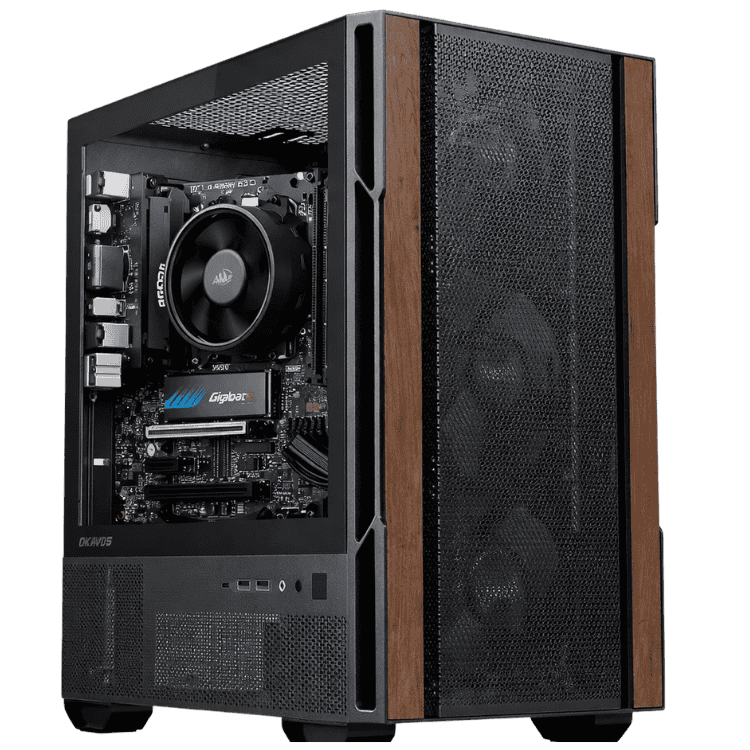
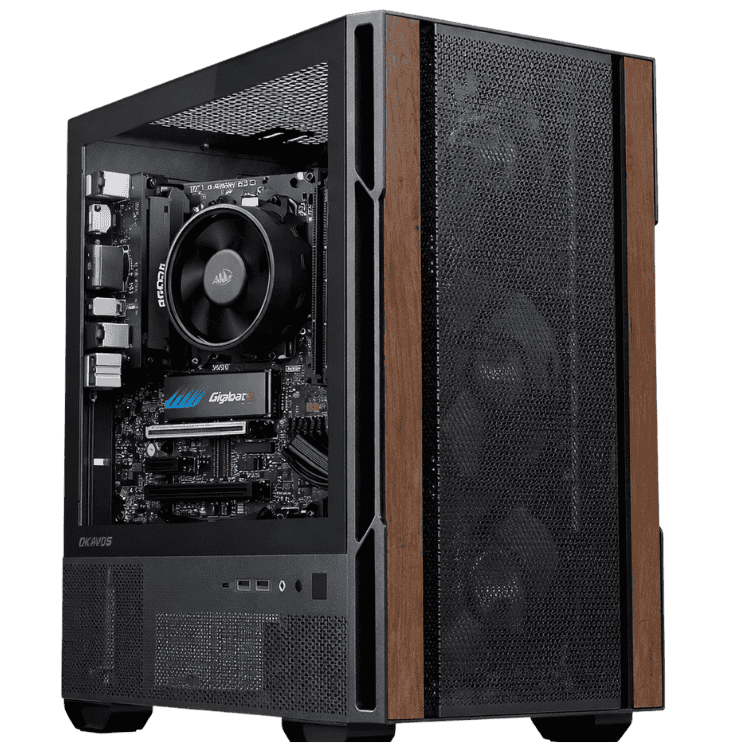
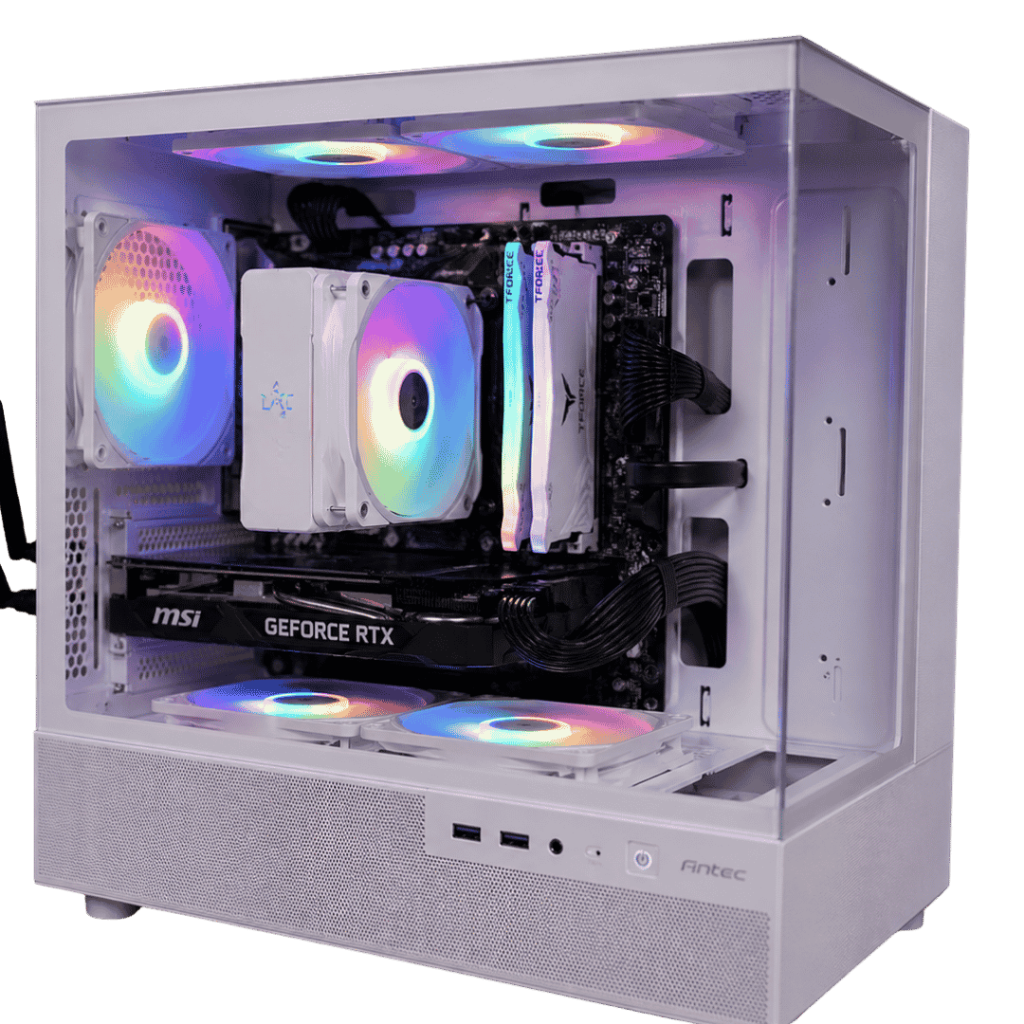
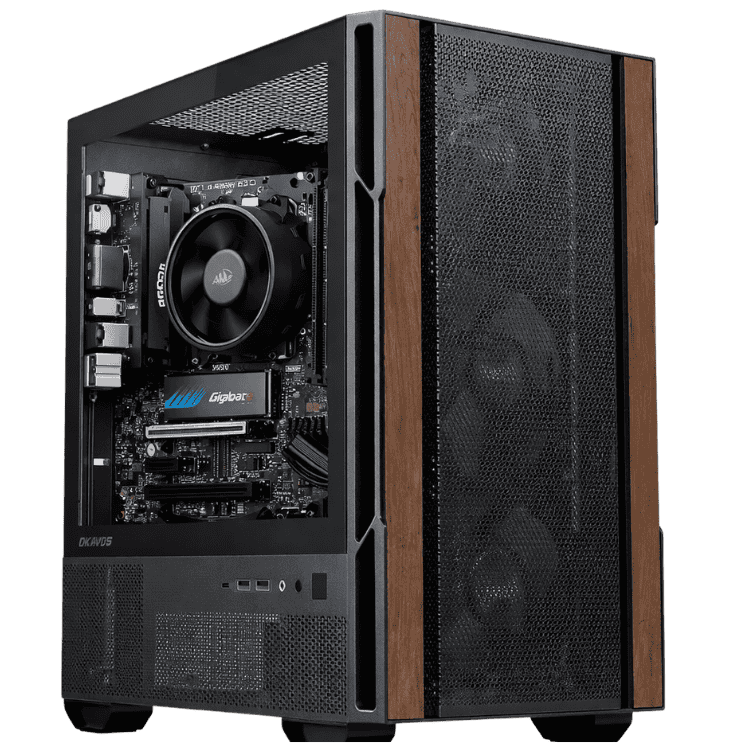
The Vision Student Success PC is a student computer that’s ready for schoolwork the moment it’s plugged in. Windows 11 is installed and updated, Microsoft Office Home & Business 2024 is included with Word, Excel, PowerPoint, Outlook and OneNote, and Wi-Fi is built in. There’s no software to buy and no hours of setup, so students can get straight into assignments, online classes and research.
Every one is assembled, configured and tested by our team in Sydney before it ships.
Who this student desktop suits
- primary school students starting to type assignments and use online learning
- high school students juggling research, essays and presentations
- university and TAFE students who want a reliable desk setup for study
- parents who want one dependable computer for homework and family use
Looking for something cheaper? Our school computer with a Ryzen 5 8500G costs less. If the family also wants to play games, our family computer with an RTX 5050 adds a dedicated graphics card.
Microsoft Office included
Most Australian schools, universities and workplaces use Microsoft Office, and this PC for students comes with it installed:
- Word for essays, reports and written assessments
- Excel for spreadsheets, maths and business subjects
- PowerPoint for class presentations and projects
- Outlook for email and calendars
- OneNote for organising class notes and study plans
Office versions differ in how long Microsoft supports them with updates. Message us before you order if you’d like to know exactly which version is included.
Windows 11, set up and ready
We install Windows 11, the drivers and the latest updates before it ships, so there’s no long first-day setup. Windows 11 also works with Microsoft Family Safety, which lets parents set screen time limits and content filters for younger students.
What’s included
| Processor | AMD Ryzen 5 8600G (6 cores, 12 threads, up to 5.0GHz) with Radeon 760M graphics |
|---|---|
| Memory | 16GB (2 × 8GB) DDR5-5600 |
| Storage | Lexar NM620 1TB NVMe SSD |
| Motherboard | ASUS PRIME B650M-A WIFI II (built-in Wi-Fi) |
| Operating system | Windows 11, installed and updated |
| Office software | Microsoft Office Home & Business 2024: Word, Excel, PowerPoint, Outlook and OneNote |
| Wireless | Wi-Fi ready |
| Preparation | Assembled, drivers installed, updates completed and stress tested |
| Support | Local Australian support from our team |
| Not included | Monitor, keyboard, mouse and webcam |
Inside is an AMD Ryzen 5 8600G with built-in Radeon 760M graphics, 16GB of DDR5 memory and a 1TB NVMe SSD, so it stays quick with lots of tabs, Office documents and video lessons open at once.
A PC for students at every stage
Primary school
Younger students mostly need a reliable computer for typing practice, reading programs, online maths platforms and simple research. A student computer in a shared family space makes it easy for parents to help and keep an eye on things.
High school
From Year 7, the workload grows: longer essays, research across many tabs, presentations and online submissions. Having Office installed and a comfortable desk setup helps high school students work for longer without frustration.
University and TAFE
Tertiary students write long reports, manage references, join online lectures and work on group projects. A dependable PC for students at home, alongside a laptop for campus, is a setup many uni students swear by.
Why a desktop instead of a laptop?
Laptops are portable, but entry-level models often struggle once a few apps are open, and they’re easy to drop, lose or leave at school. A student desktop has some real advantages for study at home:
- Better ergonomics: a proper monitor at eye level, a full-size keyboard and a comfortable mouse.
- Consistent performance: no battery or overheating issues during long sessions.
- Easier to upgrade: memory and storage can be added later.
- A dedicated study space: a desk setup helps many students focus.
Many families find a student desktop at home plus a basic school laptop is the most practical combination.
What this student computer handles well
- Word, Excel and PowerPoint assignments
- Google Classroom, Canvas, Moodle and other learning platforms
- Zoom and Microsoft Teams online classes, with a USB webcam
- research across lots of browser tabs
- YouTube lessons and educational videos
- email and everyday family use
Setting up a study space around your student desktop
The computer is only part of a productive setup. A few things make a big difference:
- A 24-inch Full HD monitor positioned at eye level.
- A comfortable keyboard and mouse sized for the student.
- A USB webcam and headset for online classes and recorded presentations.
- Good lighting, and a chair that supports good posture.
We can suggest accessories that suit your budget when you order.
Coding and STEM subjects
Many schools now teach coding from primary school. A student computer running Windows 11 handles beginner tools such as Scratch, Python and Visual Studio Code, plus Minecraft Education for schools that use it. If your student’s course needs specialised software, send us the requirements and we’ll confirm this student desktop suits it.
Screen time and online safety
Give each child their own Windows account, then use Microsoft Family Safety to set screen time limits, filter websites in Microsoft Edge and see activity reports. Keeping the computer in a shared space rather than a bedroom also helps younger students stay on task.
Day one with your student computer
- Connect the monitor, keyboard, mouse and power.
- Switch it on and connect to your home Wi-Fi.
- Sign in with a Microsoft account, or create one for the student.
- Open Word to check Office is ready, then sign in to the school’s learning platform.
- Turn on OneDrive backup for the Documents and Desktop folders.
Keeping school files safe
Losing an assignment the night before it’s due is every student’s nightmare. Set up OneDrive, which comes with a Microsoft account, so Documents and Desktop folders back up automatically. Many schools also provide cloud storage through Google Drive or Microsoft 365. Either way, saving work to the cloud means it’s safe even if something happens to the computer.
Helpful accessibility tools
Windows 11 and Office include tools that help many students, especially those with dyslexia or other learning differences. Voice typing (press Windows + H) lets students dictate instead of type, Immersive Reader in Word reads text aloud and adjusts spacing, and Magnifier enlarges anything on screen. They’re all free and already on this student computer.
Buying for a school or tutoring centre?
If you’re setting up a classroom, library or tutoring centre, matching computers make life much easier for staff and students. Tell us how many you need and which software you use, and we’ll quote identical systems with everything installed.
Why buy a prebuilt student computer?
A big-box store computer often arrives with trial software, no Office and hours of updates to run. Ours arrives with Windows 11 updated, Office installed and the system already tested. If anything goes wrong, you deal with a local team in Australia, not a call centre.
Upgrading a student desktop as students grow
Students’ needs change between primary school and university. A desktop can keep up: memory and storage can be increased, and we can recommend upgrades if new subjects need more power, for example video editing or design software.
How it compares with our other home and study PCs
- Budget School Desktop PC: a Ryzen 5 8500G tower with Windows installed, at a lower price.
- Home & Study Desktop: a Ryzen 5 7500F with an RTX 5050 for study and gaming.
- HP All in One PC: a 23.8-inch all in one computer with the screen, speakers and webcam built in.
Browse all of our home desktop computers.
Support for parents
Not everyone is a tech expert, and that’s fine. If you have questions about setting up accounts, Office, Wi-Fi or parental controls, message our team on live chat and we’ll walk you through it.
Built and tested in Sydney
- assembled and configured by our team
- Windows 11, drivers and updates installed
- Microsoft Office installed
- stress tested before it ships
Student computer FAQs
Does it come with a monitor, keyboard and mouse?
No. You’ll need to add a monitor, keyboard and mouse. Ask us if you’d like help choosing them.
Which version of Microsoft Office is included?
Message us before you order and we’ll confirm the exact version.
Can it be used for online classes?
Yes. Add a USB webcam and headset for Zoom, Teams and Google Meet.
Is it a good PC for students at university?
Yes, for writing, research, online lectures and Office work. For design, video or engineering software, message us and we’ll recommend a more powerful option.
Can it be upgraded later?
Yes. Memory and storage can be added as needs grow.
How quickly can we start using it?
Straight away. Windows, updates and Office are already done, so once the monitor, keyboard and mouse are connected, you only need to sign in and connect to Wi-Fi.
Can the whole family share it?
Yes. Give each person their own Windows account so their files, settings and browser history stay separate, and parents can set controls on the children’s accounts.
Does it have a webcam?
No. Desktop computers don’t include webcams, so add a USB webcam for online classes.
Is a student desktop better than a Chromebook?
Chromebooks are cheap and simple, but they can’t run the full desktop versions of Word, Excel and PowerPoint. A Windows student desktop runs full Office and a much wider range of school software.
Do you deliver Australia-wide?
Yes, to every state and territory, including regional areas.