
A laptop that sounds like a jet engine, burns your legs and slows down after ten minutes is almost always telling you the same thing: it’s too hot. The most common cause is dust, and the fix is usually simple. Learning how to clean laptop fan vents properly takes about 15 minutes, costs next to nothing, and can make an older laptop run cooler, quieter and faster.
This guide covers why laptops overheat, how to clean laptop fan vents safely with and without opening the case, how to fix laptop overheating that cleaning doesn’t solve, and how to clean a desktop PC while you’re at it.
Quick answer
Shut the laptop down, unplug it, and blow short bursts of compressed air into the vents while holding the fan still through the grille if you can. For a deeper clean, remove the bottom panel, hold the fan blades still and clear dust from the fan and heatsink fins. Then keep the vents clear, use the laptop on a hard surface, and check background apps and power settings to stop the fan running hard.
In this guide
Why is my laptop fan so loud?
If you’re wondering why is my laptop fan so loud, the cause is usually one of these:
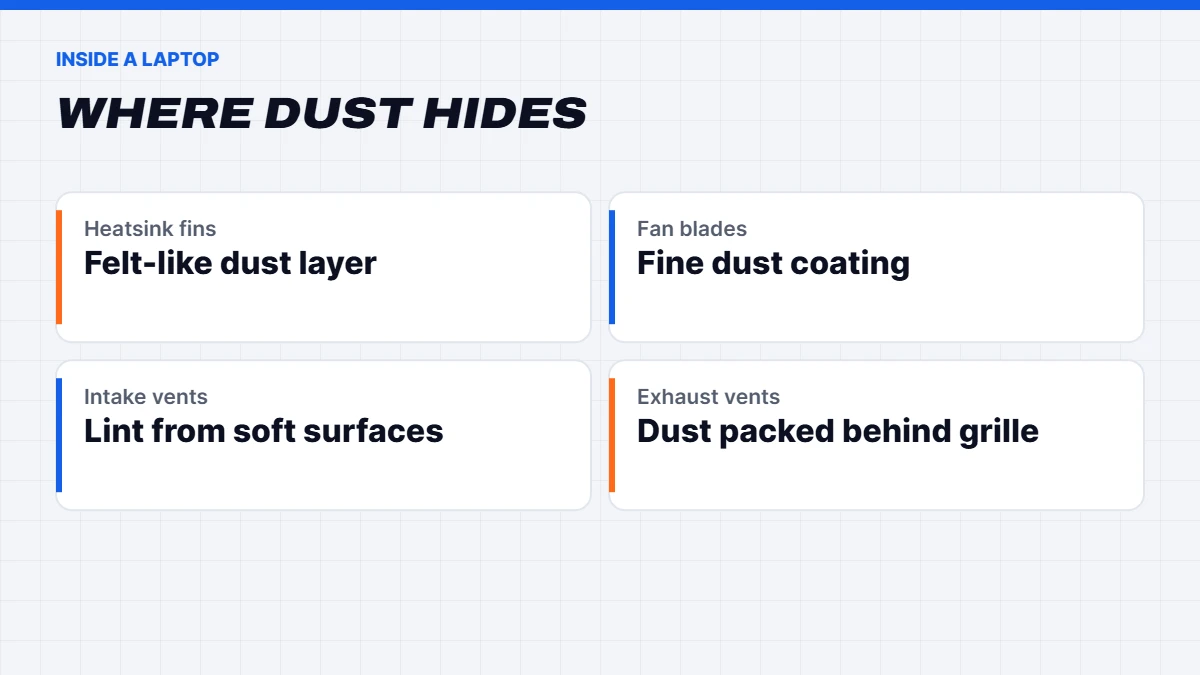
- Dust build-up. Dust clogs the fan and the thin metal fins of the heatsink, so air can’t flow. The fan spins faster to compensate, and it gets louder.
- Heavy work. Games, video calls, exports and lots of browser tabs make the processor and graphics chip work hard, which creates heat.
- Blocked vents. Using a laptop on a bed, couch or lap covers the intake vents.
- Background apps. Updates, antivirus scans, syncing or a stuck process can keep the processor busy even when you’re not doing much.
- Hot rooms. In an Australian summer, a laptop in a warm room has less cool air to work with.
- Dried-out thermal paste. On older laptops, the paste between the chip and the heatsink can dry out, reducing how well heat transfers.
Some fan noise is normal, especially on gaming laptops under load. The warning signs are a fan that’s loud all the time, a laptop that’s hot even when idle, or a laptop that slows down after a few minutes of work.
How dust slows your laptop down
Dust doesn’t just make a laptop louder. When the heatsink is clogged, heat can’t escape, so the processor and graphics chip reach their temperature limits quickly. To protect themselves, they slow down, which is called thermal throttling. You’ll notice it as a laptop that starts quickly but becomes sluggish after a few minutes, or games that start smoothly and then stutter.
That’s why knowing how to clean laptop fan and heatsink parts is one of the best free performance fixes for an older laptop. A clean cooling system lets the chips hold their full speed for longer.
What you’ll need
- A can of compressed air or an electric air duster.
- A small Phillips screwdriver, and sometimes a Torx screwdriver, for the bottom panel.
- A plastic pry tool or old guitar pick for clips on the bottom panel.
- A soft brush, like a clean paintbrush or makeup brush.
- A toothpick or plastic tool for holding the fan still.
- Isopropyl alcohol and a lint-free cloth if you’ll replace thermal paste.
Don’t use a vacuum cleaner directly on the inside of a laptop. Vacuums can create static electricity and can damage small parts.
How to clean laptop fan vents without opening it
This is the quick, low-risk method, and it often makes a noticeable difference:
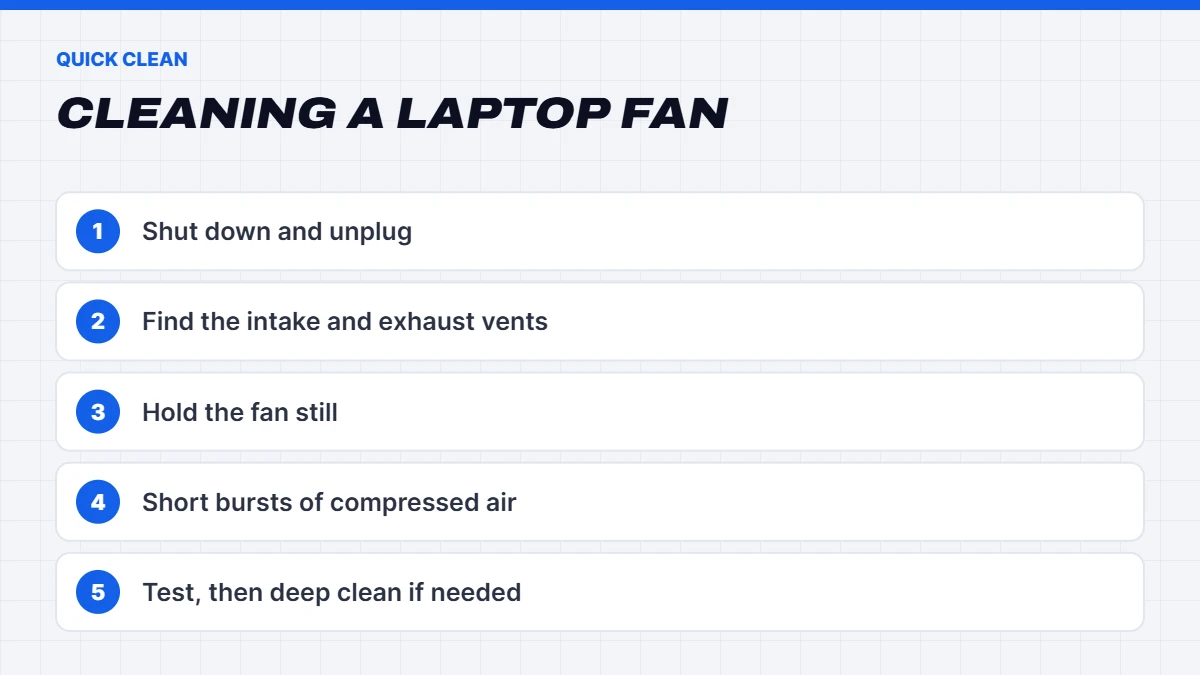
- Shut down the laptop completely and unplug the charger. Don’t just put it to sleep.
- Find the vents. Usually there are intake vents on the bottom and exhaust vents on the side or back.
- Hold the fan still if you can see it through the grille, using a toothpick. Letting compressed air spin the fan too fast can damage it.
- Blow short bursts of compressed air into the exhaust vents first, then the intake vents. Hold the can upright to avoid spraying liquid propellant.
- Repeat a few times until no more dust comes out.
If you see a cloud of dust, you’ve found the problem. Turn the laptop on and see if it runs cooler and quieter.
How to clean laptop fan and heatsink properly
For a deeper clean, you’ll need to remove the bottom panel. Before you start, check your warranty: if your laptop is still covered, consider asking the manufacturer or the retailer to service it. Many laptops have model-specific guides on iFixit, which are worth checking before you open yours.
- Shut down, unplug, and hold the power button for a few seconds to drain any remaining power.
- Remove the screws from the bottom panel. Keep them in order, as they’re often different lengths.
- Gently pry the panel off with a plastic tool, starting at a corner or near the hinge.
- Disconnect the battery if it’s easy to reach. Lift the connector straight up, not by the wires.
- Hold the fan blades still with a toothpick or finger.
- Brush dust off the fan blades, then use short bursts of compressed air to clear the heatsink fins where the fan blows air out. This is usually where the worst dust sits, in a felt-like layer.
- Clean the vents and panel before putting it back together.
- Reconnect the battery, refit the panel and screws, and test.
If you’re not comfortable opening your laptop, a local repair shop can do this quickly and inexpensively.
How to fix laptop overheating after cleaning
If cleaning helps but doesn’t solve it, here’s how to fix laptop overheating with a few more steps:
- Use a hard, flat surface. A desk, a tray or a laptop stand keeps the intake vents clear. Raising the back slightly improves airflow.
- Check Task Manager. Press Ctrl + Shift + Esc and sort by CPU. If an app you’re not using sits near the top, close it or uninstall it.
- Change the power mode. In Settings > System > Power & battery, a balanced mode often runs cooler than Best performance for everyday tasks.
- Use the maker’s control software. Many laptops, especially gaming laptops, have quiet, balanced and performance profiles that control fan behaviour.
- Update Windows, drivers and BIOS. Updates sometimes improve fan control and power management.
- Try a cooling pad. It won’t fix a clogged fan, but it can help a little with gaming laptops under heavy load.
- Lower game settings or cap the frame rate. Asking the graphics chip for fewer frames reduces heat noticeably.
Gaming laptops and heat
Gaming laptops pack a powerful processor and graphics chip into a small space, so they run hotter and louder than everyday laptops by design. Under heavy gaming load, fans spinning fast and a warm keyboard deck are normal. What isn’t normal is a gaming laptop that shuts down, stutters badly after a few minutes, or runs loud even at the desktop.
For gaming laptops, how to fix laptop overheating usually comes down to three things: a clean cooling system, a hard surface with the back raised slightly, and sensible performance settings. Many gaming laptops also let you set a frame rate cap or a balanced performance mode in their control software, which can drop temperatures noticeably with little visible difference in many games.
How to stop laptop fan noise
If your goal is a quieter laptop rather than a cooler one, here’s how to stop laptop fan noise without risking overheating:
- Clean the fan, as above. A clean fan doesn’t need to spin as fast.
- Choose a quiet or balanced fan profile in the manufacturer’s software.
- Close background apps you don’t need, like launchers and sync tools.
- Limit frame rates in games, or turn on your graphics driver’s frame rate limiter.
- Keep the room cool. A few degrees cooler in the room makes a real difference.
Avoid apps that promise to switch your fans off or force them to a low speed. Overriding the fan can let the laptop get dangerously hot.
Fan noise that isn’t dust
Not every noise is a dusty fan. If you’re still asking why is my laptop fan so loud after a clean, listen to the kind of noise:
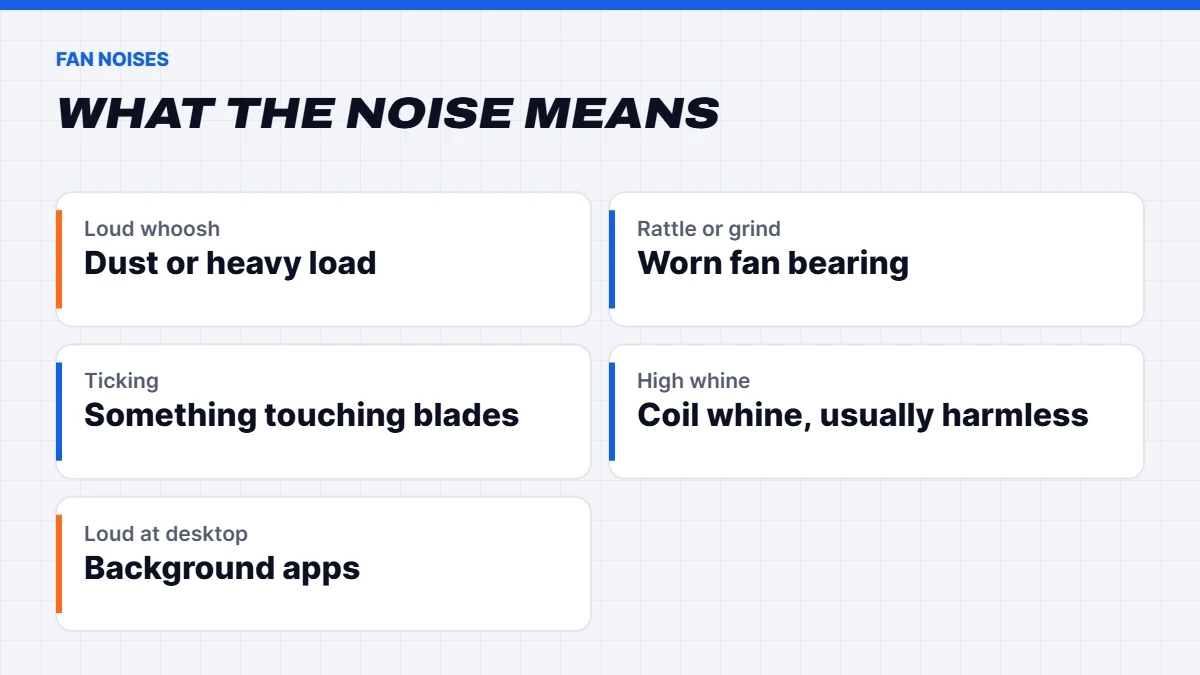
- Rattling or grinding usually means the fan’s bearing is wearing out. A replacement fan is often inexpensive and fixes it.
- Ticking or clicking can mean a cable or bit of debris is touching the blades.
- A high-pitched whine that changes with load is often coil whine from electronic parts, not the fan. It’s usually harmless.
- Constant loud spinning at the desktop points to background apps, so check Task Manager.
Knowing how to stop laptop fan noise starts with working out which of these you’re hearing.
Replacing thermal paste
On laptops more than three or four years old, the thermal paste between the chip and the heatsink may have dried out. Replacing it can lower temperatures noticeably, but it’s a more advanced job: you need to remove the heatsink, clean off the old paste with isopropyl alcohol, apply a small amount of new paste and refit it carefully. If you’ve never done it, it’s worth having a technician do it alongside a clean.
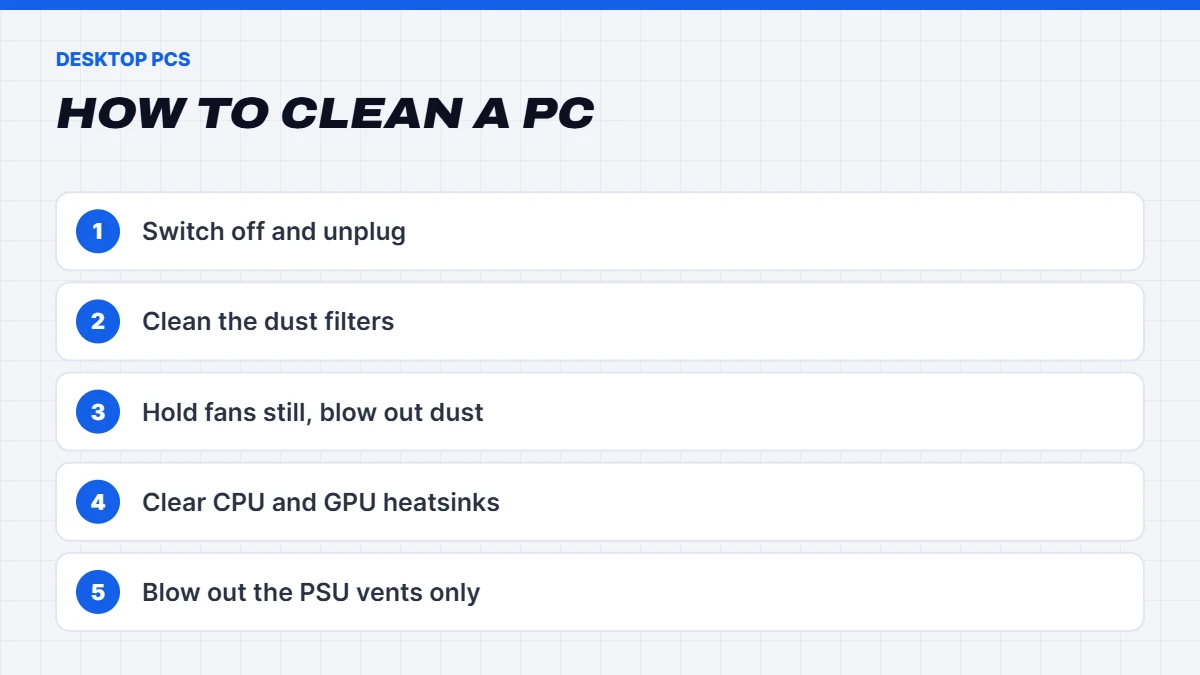
How to clean PC parts in a desktop
Desktops collect dust too, and they’re easier to clean. Here’s how to clean PC parts safely:
- Shut down and switch off at the power supply and wall, then unplug.
- Take the PC somewhere you don’t mind dust, ideally outside or near a window.
- Clean the dust filters. Most cases have removable filters on the front, top and bottom. Rinse or brush them, and let them dry fully.
- Hold each fan still and blow out dust with compressed air, including the CPU cooler, case fans and graphics card fans.
- Clear the heatsink fins on the CPU cooler and graphics card.
- Blow dust out of the power supply through its vents, but never open the power supply itself.
- Wipe the outside with a slightly damp microfibre cloth.
Cleaning every six to twelve months keeps temperatures down and fans quiet. If you have pets or carpet, you may need to do it more often.
Preventing dust build-up
A little prevention means less cleaning:
- Keep laptops off beds, carpets and blankets, which feed lint straight into the vents.
- Raise desktop PCs off the carpet, onto a desk or a small stand.
- Clean dust filters on desktops every couple of months.
- Keep pets’ hair in mind. If you have pets, plan to clean more often.
- Use positive pressure in desktops, with slightly more intake than exhaust fans, so air is pulled through the filters rather than through gaps.
A regular routine of how to clean PC filters and laptop vents every few months keeps both running cool for years.
A quick overheating checklist
If you’re short on time, here’s how to fix laptop overheating in order of what usually helps most:
- Move it to a hard surface and clear the vents.
- Check Task Manager for busy apps.
- Blow out the vents with compressed air.
- Switch to a balanced power or fan profile.
- Update Windows, drivers and the BIOS.
- Do a deep clean, and replace thermal paste on older laptops.
How hot is too hot?
Laptop processors often run warm under load, and modern chips are designed to slow themselves down if they reach their limit. Brief spikes under heavy load are normal. Signs that it’s too hot include the laptop shutting down unexpectedly, slowing down sharply after a few minutes, or the case being uncomfortably hot to touch during light use. If you see those signs, clean it and check the steps above.
When it’s time for a new laptop
Sometimes cleaning and tweaks aren’t enough. If a laptop still overheats after a clean, the fan is rattling or grinding, or it’s also slow, struggling with Windows 11 or has a swollen battery, it may be time to replace it. Our guide on how to fix a slow laptop covers the signs, and when you’re ready, our laptops range lists every spec clearly. For gamers, our guide to the best gaming laptop explains why thicker models with bigger fans run cooler and quieter.
 ASUS Vivobook Go 15 – Ryzen 5 7520U, 16GB RAM, 512GB SSD Original price was: $1,099.00.$824.00Current price is: $824.00.See the build
 Lenovo ThinkBook 16 G7 – Core Ultra 7 155U, 16GB RAM, 512GB SSD, Windows 11 Pro Original price was: $2,149.00.$1,599.00Current price is: $1,599.00.See the build
 MSI Katana 15 HX – RTX 5070 Gaming Laptop, i7-14650HX, QHD 165Hz Original price was: $3,999.00.$2,999.00Current price is: $2,999.00.See the build
Not sure whether it’s worth fixing? Message us on live chat with your laptop’s model and what it’s doing.
The short version
Most overheating and fan noise comes down to dust, blocked vents and busy background apps. Learning how to clean laptop fan vents, keeping the laptop on a hard surface and checking Task Manager will solve the problem for most people in under half an hour. For older laptops, a deep clean and fresh thermal paste can make them feel almost new. And if a laptop still overheats after all that, it’s a sign that a repair or replacement is the better use of your money.
Laptop fan and overheating FAQs
How often should I clean my laptop fan?
Every six to twelve months, or more often if you have pets, use it on soft surfaces, or notice it getting louder.
Can I clean a laptop fan without opening it?
Yes. Compressed air through the vents, with the laptop off and the fan held still if possible, removes a lot of dust. A deeper clean needs the bottom panel off.
Why is my laptop fan so loud all of a sudden?
Usually a background update, a busy app or dust build-up. Check Task Manager first, then clean the vents.
Is it bad if my laptop gets hot?
Getting warm under load is normal. Shutting down, slowing sharply or being very hot during light use are signs it needs attention.
Does cleaning the fan make a laptop faster?
Often, yes. A clean fan and heatsink let the processor hold its full speed instead of slowing down to stay cool, which is why learning how to clean laptop fan parts is such a useful fix for older laptops.
Is compressed air safe for cleaning a PC?
Yes, if you use short bursts, hold fans still and keep the can upright. Never use a household vacuum on the inside of a PC or laptop.
Do laptop cooling pads work?
They help a little, mostly by improving airflow under the laptop. They won’t fix a clogged fan.