
Windows 11 Home vs Pro is one of those choices that looks more important than it is for most people, and less important than it is for a few. Every PC and laptop comes with one or the other, and Pro costs more, so it’s natural to wonder whether you’re missing out with Home or wasting money on Pro.
We set up Windows on every computer we sell, and we get this question constantly. The short version is that Home is the right choice for most gamers, students and families, while Pro earns its price for small businesses, remote workers and power users who need specific tools. This Windows 11 Home vs Pro guide explains exactly where the two differ, so you can decide in a couple of minutes.
Quick answer
Windows 11 Home has everything most people need, including the same gaming performance, security basics and features as Pro. Windows 11 Pro adds business and power-user tools: BitLocker management, Remote Desktop hosting, Hyper-V virtual machines, Windows Sandbox, Group Policy, and joining a work domain or Microsoft Entra ID. If you don’t know whether you need those, you probably don’t.
In this guide
Windows 11 Home vs Pro at a glance
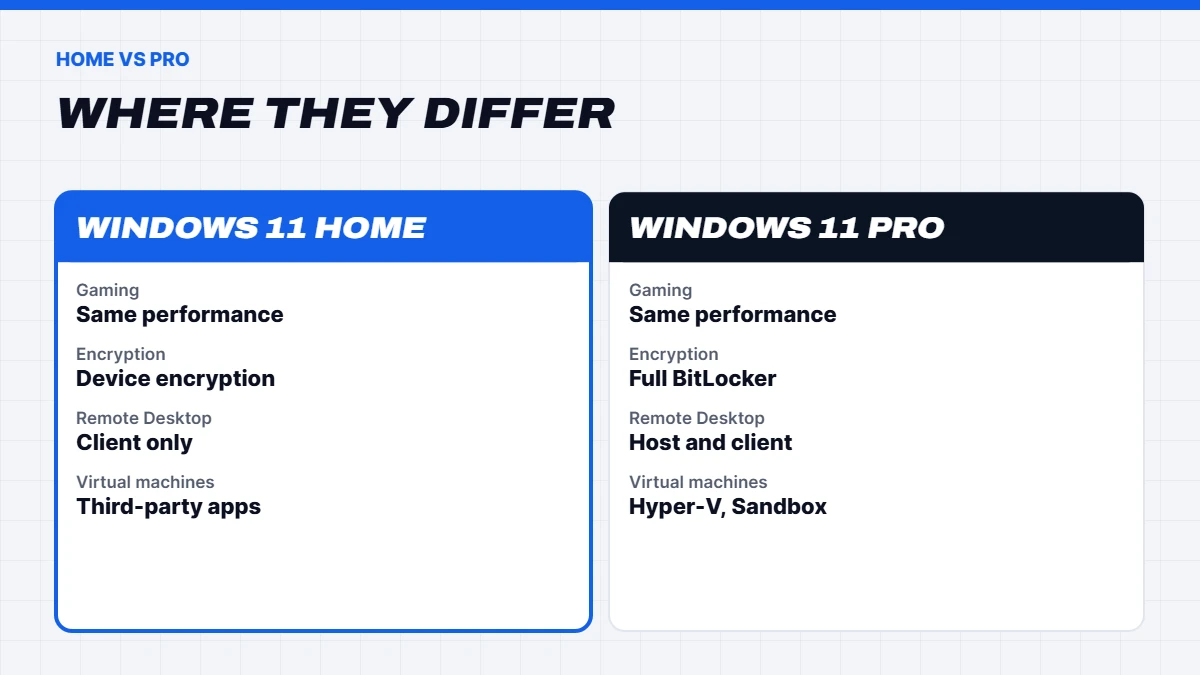
Here’s a side-by-side summary of the main differences:
| Feature | Windows 11 Home | Windows 11 Pro |
|---|---|---|
| — | — | — |
| Gaming performance | Same | Same |
| Windows Security and Defender | Yes | Yes |
| Device encryption | Yes, on supported hardware | Yes |
| BitLocker with full management | No | Yes |
| Remote Desktop host | No, client only | Yes |
| Hyper-V virtual machines | No | Yes |
| Windows Sandbox | No | Yes |
| Group Policy Editor | No | Yes |
| Domain and Entra ID join | No | Yes |
| Maximum RAM | 128GB | 2TB |
| Processor sockets | 1 | 2 |
Everything else you use day to day, including the Start menu, Snap Layouts, the Microsoft Store, Xbox app, Game Mode, DirectX 12 and Auto HDR, is the same in both.
What’s exactly the same
It helps to start with what doesn’t change, because it covers most of what people actually do on a PC:
- Games and apps. Every game and normal app runs the same way on both editions.
- Security basics. Both include Windows Security, Microsoft Defender antivirus, the firewall, Secure Boot, Windows Hello sign-in and parental controls.
- Updates. Both get the same feature and security updates.
- Everyday features. Snap Layouts, virtual desktops, widgets, OneDrive, the Microsoft Store and the Xbox app are all identical.
- Windows Subsystem for Linux. Developers can run Linux tools on both Home and Pro.
So if you’re comparing Windows 11 Pro vs Home purely on how the PC feels to use, you won’t notice a difference.
Windows 11 Home vs Pro for gaming
There is no gaming performance difference between Windows 11 Home and Pro. Same frame rates, same features, same compatibility. Both support DirectX 12 Ultimate, Game Mode, Auto HDR and DirectStorage, and anti-cheat systems work on both.
That’s why we install Windows 11 Home on most of our gaming PCs. Paying extra for Pro on a gaming machine only makes sense if you also need one of the Pro features below, such as hosting Remote Desktop or running virtual machines.
Encryption: device encryption vs BitLocker
This is the difference that causes the most confusion. Windows 11 Home includes device encryption on supported hardware, which encrypts your drive automatically when you sign in with a Microsoft account. For a home laptop, that’s often all the encryption you need: if it’s lost or stolen, your files are protected.
Windows 11 Pro adds full BitLocker management. You can choose exactly which drives to encrypt, encrypt external USB drives with BitLocker To Go, set a PIN at start-up, and manage recovery keys across several PCs. For businesses handling client data, and for anyone who needs to show they encrypt devices, that control is valuable.
Whichever edition you have, make sure you know where your recovery key is saved. It’s usually in your Microsoft account. Losing it after a hardware change can mean losing access to your files.
Remote Desktop
Windows 11 Pro can act as a Remote Desktop host, which means you can connect to it from another computer, tablet or phone and use it as if you were sitting in front of it. Home can connect out to other PCs, but nobody can connect in to a Home PC using Microsoft’s Remote Desktop.
If you work from home and want to reach your office PC, or the other way around, Pro is the simple built-in way to do it. That said, third-party remote access apps work on Home, so it’s not the only option.
Hyper-V and Windows Sandbox
Hyper-V is Microsoft’s built-in tool for running virtual machines: complete separate copies of Windows or Linux running in a window on your PC. Developers, IT students and anyone testing software find it very handy. It’s Pro only, although free third-party virtual machine apps also run on Home.
Windows Sandbox is a lightweight, disposable copy of Windows. You can open a suspicious file or test an app inside it, and when you close the Sandbox, everything inside it is wiped. It’s one of Pro’s most underrated features.
Group Policy and business tools
Pro includes the Local Group Policy Editor, which lets you control hundreds of Windows settings, such as how updates install or which features users can change. It’s mainly for IT administrators and power users.
Pro can also join a work domain or Microsoft Entra ID, which is how businesses manage their PCs centrally, apply security policies and deploy software. If your workplace manages its computers, they’ll almost certainly require Pro. Pro also supports Assigned Access, a kiosk mode that locks a PC to a single app, which is handy for reception desks and shopfronts.
Windows 11 Home vs Pro for working from home
Plenty of people work from home on a personal PC, and that’s where the Windows 11 Home vs Pro decision gets more interesting. If your job runs entirely in a web browser, Microsoft 365 and video calls, Home is fine. If your employer wants to manage your device, needs you to join their network, or asks for BitLocker encryption, you’ll need Pro.
Remote Desktop is the other big one. If you want to reach your home PC from the office, or your office PC from home, Pro makes that easy. Check with your IT team before buying, as many workplaces have a preferred setup.
Windows 11 Pro vs Home on a laptop
On a laptop, the Windows 11 Pro vs Home question mostly comes down to encryption and management. Laptops get lost and stolen far more often than desktops, so encryption matters. Home’s device encryption covers most personal laptops well, as long as you sign in with a Microsoft account and the hardware supports it.
For business laptops, Pro is the better fit. BitLocker management, remote wipe through device management tools and domain join all make it easier to protect company data if a laptop goes missing. That’s why most business laptops ship with Pro.
Windows 11 Home vs Pro for developers and IT students
Developers and IT students are the group most likely to benefit from Pro on a personal machine. Hyper-V makes it easy to spin up test environments, Windows Sandbox is perfect for testing installers, and Group Policy helps when learning how businesses configure Windows.
That said, Windows Subsystem for Linux, Docker Desktop with WSL, Visual Studio Code and most development tools work fine on Home. If your course or job doesn’t specifically need Hyper-V, Home is still a sensible starting point.
Windows 11 Home vs Pro for families
For a family PC, Home is almost always the right pick. Parental controls through Microsoft Family Safety, screen time limits, content filters and activity reports all work on Home, and they’re managed from a phone app. Each family member can have their own account and settings.
Pro doesn’t add anything meaningful for families, so the extra money is better spent on more storage, more memory or a better screen.
Windows 11 Pro vs Home for a small business
For a small business, the Windows 11 Pro vs Home choice is more clear-cut. Even a two-person office benefits from BitLocker on laptops, the option to manage devices centrally through Microsoft 365 Business plans, and the ability to set policies like automatic screen locking. If a laptop with client data goes missing, being able to show it was encrypted and managed can matter a great deal.
Pro also makes it easier to hand a PC to a new staff member or IT provider later, because it can be enrolled into management tools without reinstalling Windows.
What about Pro for Workstations and Enterprise?
You may also see Windows 11 Pro for Workstations, which Microsoft’s Australian store lists at AU$525. It’s designed for high-end workstations with server-grade processors, very large amounts of memory and specialised storage. Unless you’re building a serious workstation with that kind of hardware, regular Pro covers everything.
Enterprise and Education editions are sold through volume licensing to organisations, schools and universities, not to individuals.
Hardware limits
Home supports up to 128GB of RAM and a single processor socket, while Pro supports up to 2TB of RAM and two sockets. For gaming PCs and normal desktops, Home’s limits are far above what you’ll ever use. They only matter for heavy-duty workstations with very large amounts of memory or dual-processor setups.
Windows 11 Home vs Pro price in Australia
At the time of writing, Microsoft’s Australian store lists Windows 11 Home at AU$249 and Windows 11 Pro at AU$379 as full licences. Most people never buy one separately, though, because Windows comes pre-installed and activated on new PCs and laptops. It mainly matters if you build a PC yourself, where the Windows 11 Home vs Pro choice adds a real cost to your parts list.
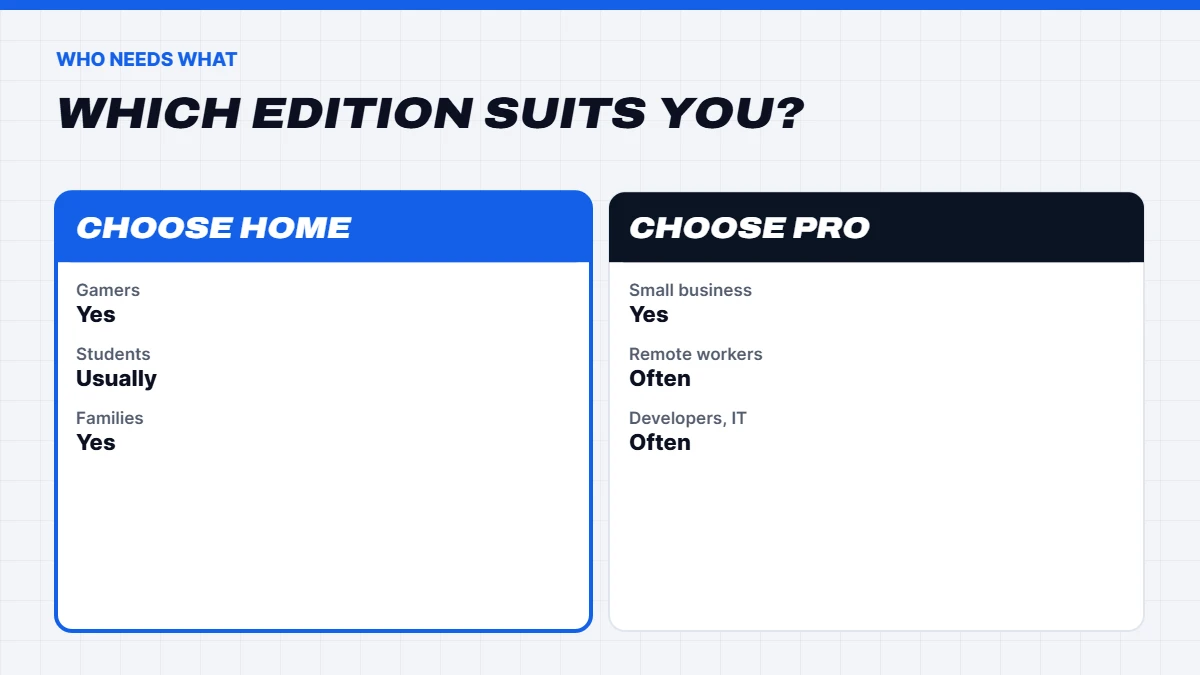
If you already have Home and want Pro, you don’t need to reinstall anything. Go to Settings > System > Activation and choose the option to upgrade your edition of Windows. You can buy the upgrade through the Microsoft Store, with the price shown before you pay, or enter a Pro product key. Your files and apps stay put.
Be wary of very cheap Windows keys from marketplace sellers and deal sites. Many are grey-market keys meant for other regions or volume licensing, and they can be deactivated later.
Who should choose Windows 11 Home
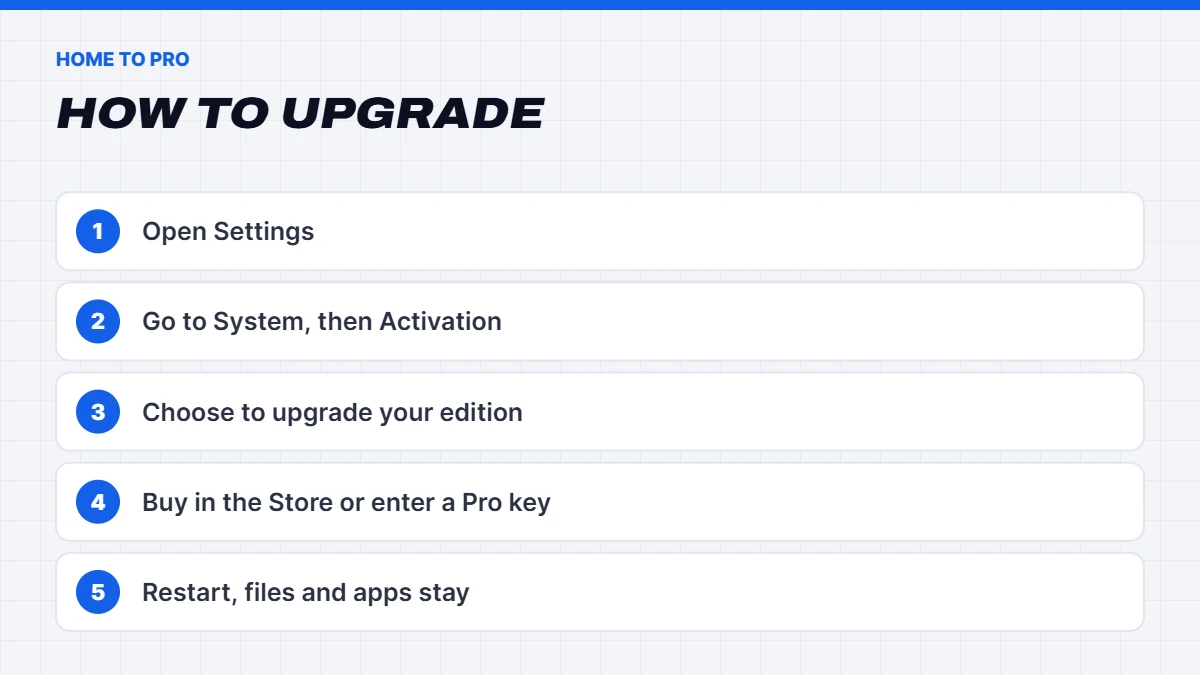
Home is the right choice if you:
- Mainly game, stream, browse, study or do everyday work.
- Have a personal laptop that’s protected by device encryption and a Microsoft account.
- Don’t need to remote into the PC, run virtual machines or join a work network.
That covers the vast majority of home users and gamers.
Who should choose Windows 11 Pro
Pro is worth it if you:
- Run a small business and want BitLocker, central management or domain join.
- Work remotely and want to reach this PC through Remote Desktop.
- Are a developer or IT student who uses Hyper-V or Windows Sandbox.
- Need Group Policy for fine control over Windows.
- Are buying for a workplace that manages its PCs with Microsoft Entra ID or Intune.
If you’re unsure, Home is the safe choice, because you can upgrade to Pro later in a few minutes. Going the other way, from Pro back to Home, usually means a clean install.
Common Windows 11 Home vs Pro myths
A few things we hear that aren’t quite right:
- “Pro is faster.” It isn’t. Both editions run the same core of Windows, and performance is identical.
- “Home can’t use more than 16GB of RAM.” Home supports up to 128GB, which is far more than most PCs have.
- “Home is less secure.” Both get the same security updates and protections. Pro adds management tools, not a stronger core.
- “You need Pro for Microsoft Office.” Microsoft 365 and Office work the same on both.
- “You can’t upgrade later.” You can, in a few minutes, from Settings.
Which edition comes with our PCs?
Most of our gaming PCs come with Windows 11 Home installed and activated, because it’s all a gaming PC needs. Some builds come with Pro, and each product listing says which edition is included. For business use, our office computer range and business laptops like the Lenovo ThinkBook 16 and Dell Pro 14 Plus come with Windows 11 Pro. If you need Pro on a build that comes with Home, message us on live chat and we’ll sort it out before it ships.
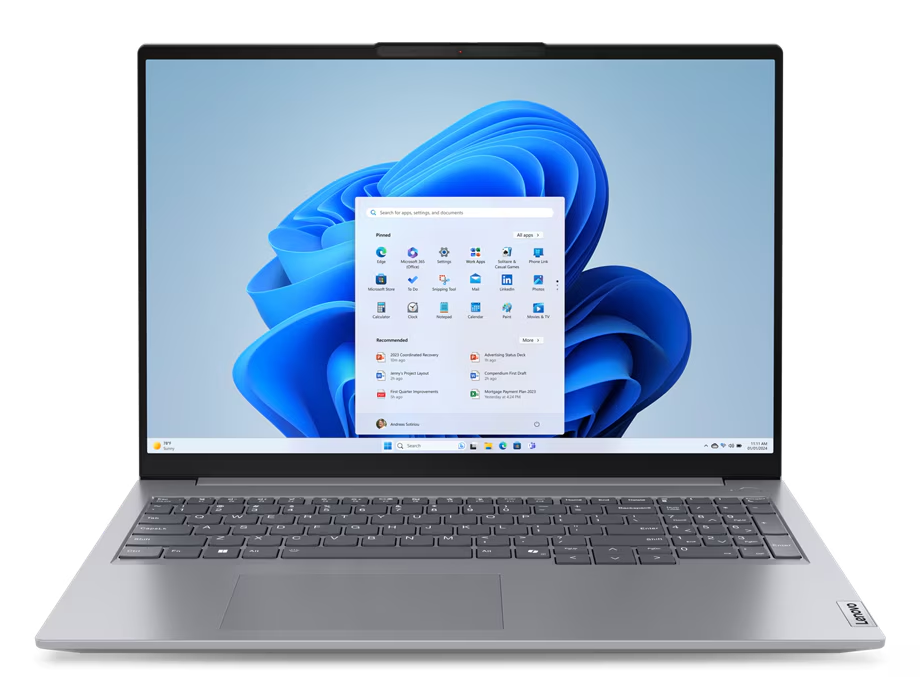
 Lenovo ThinkBook 16 G7 – Core Ultra 7 155U, 16GB RAM, 512GB SSD, Windows 11 Pro Original price was: $2,149.00.$1,599.00Current price is: $1,599.00.See the build
 Dell Pro 14 Plus – 14-inch Business Laptop, Core Ultra 5, 16GB RAM, Windows 11 Pro Original price was: $2,299.00.$1,699.00Current price is: $1,699.00.See the build
Our verdict on Windows 11 Home vs Pro
For gaming, study and everyday home use, Windows 11 Home is all you need, and the money is better spent on the hardware. For small businesses, remote workers, developers and anyone whose workplace manages their PC, Pro’s extra tools are worth the price. And because upgrading from Home to Pro is quick and keeps your files, there’s little risk in starting with Home and upgrading only if you find you need it.
How to check which edition you have
Not sure what’s on your current PC? Go to Settings > System > About and look under Windows specifications. It will say Windows 11 Home or Windows 11 Pro, along with the version number. You can also press the Windows key, type winver and press Enter for a quick summary.
Windows 11 Home vs Pro FAQs
Is Windows 11 Pro better for gaming?
No. Gaming performance is identical. Choose Pro only if you need its business or power-user features.
Does Windows 11 Home have encryption?
Yes. Home includes device encryption on supported hardware. Pro adds full BitLocker management, BitLocker To Go and more control.
Can I upgrade from Windows 11 Home to Pro later?
Yes. Go to Settings > System > Activation and upgrade your edition. Your files and apps are kept.
Windows 11 Pro vs Home: which is better for a small business?
Pro, because it adds BitLocker management, Remote Desktop hosting, domain and Entra ID join, and Group Policy.
Is Windows 11 Pro worth it for students?
Usually not, unless your course needs Hyper-V or Remote Desktop. Check with your uni, as some provide Windows licences to students in certain courses. Our guide to the best laptop for students covers what else matters for study.