
If you’re still on Windows 10, you’ve probably seen the reminders: Windows 10 end of support arrived on 14 October 2025, and Microsoft wants everyone on Windows 11. The good news is that if your PC is compatible, learning how to upgrade to Windows 11 takes a few minutes and the upgrade itself is free. The less good news is that plenty of older PCs don’t meet the requirements, and for those, the choice is between a stopgap and a replacement.
We help customers with this every week, from quick upgrades to full replacements. This guide walks through what end of support means, how to check whether your PC can run Windows 11, how to upgrade step by step, how to fix the most common blockers, and how to decide when replacing makes more sense.
Quick answer
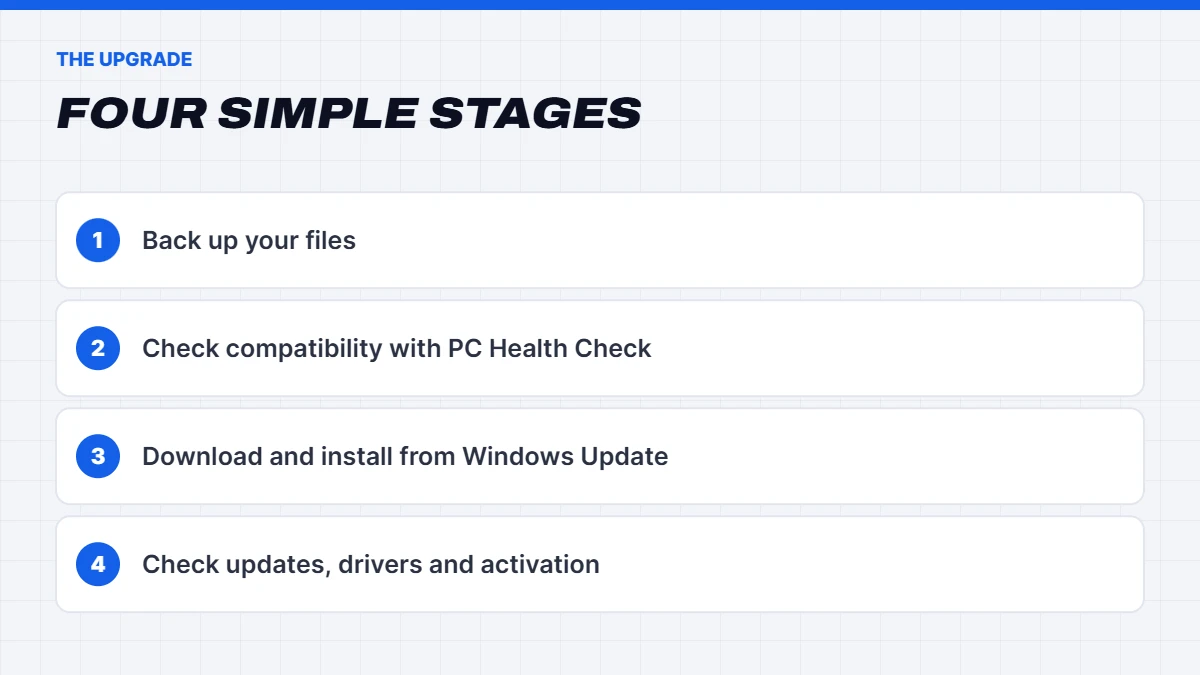
To upgrade, back up your files, run the PC Health Check app or check Windows Update to confirm your PC is compatible, then go to Settings > Update & Security > Windows Update and choose Download and install for Windows 11. It’s free on eligible PCs with a genuine Windows 10 licence. If your PC isn’t compatible, you can enrol in Extended Security Updates, which now run to October 2027, as a stopgap while you plan a replacement.
In this guide
Windows 10 end of support: what it means
Windows 10 end of support doesn’t mean your PC stops working. It means Microsoft stopped providing free security updates, feature updates and technical support for Windows 10 Home and Pro after 14 October 2025. Your computer will still turn on, and your apps will still open.
The risk grows over time. Without security fixes, newly discovered weaknesses in Windows stay open, which makes it easier for malware and scams to take hold. Software makers also gradually stop supporting older systems, so browsers, games, printers and apps will eventually drop Windows 10. For a PC you use for banking, shopping or work, staying on an unsupported system isn’t a great idea.
The Extended Security Updates option
For people who can’t move to Windows 11 straight away, Microsoft offers a consumer Extended Security Updates (ESU) program. It keeps critical security patches coming to enrolled Windows 10 PCs. In June 2026, Microsoft extended the consumer program, so enrolled PCs now get security updates until 12 October 2027.
You enrol through Settings > Update & Security > Windows Update, where eligible PCs show an enrolment option. Microsoft’s ESU program page explains the current requirements and options. Remember that ESU only provides security fixes, not new features or support, and it’s a bridge to buy time rather than a permanent fix.
Why upgrade to Windows 11 at all?
Beyond staying secure, Windows 11 brings some genuine improvements. It gets regular feature updates and new security protections, it handles modern hardware better, and it’s where all new Windows features land. For gamers, it supports features like DirectStorage and Auto HDR, and game developers increasingly test on Windows 11 first.
It’s also simply where the rest of the software world is heading. Over the next couple of years, more apps, games and devices will list Windows 11 as a requirement, and Windows 10 end of support makes that shift faster.
Windows 11 vs Windows 10: what changes day to day
If you’re nervous about relearning everything, don’t be. Windows 11 feels familiar within a day or two. The main differences you’ll notice:
- The Start button and taskbar icons are centred, though you can move them back to the left.
- The right-click menu is simpler, with older options under “Show more options”.
- Snap Layouts make it easy to arrange windows side by side by hovering over the maximise button.
- File Explorer has tabs, like a web browser.
- Settings is reorganised and much more complete, so you’ll rarely need the old Control Panel.
Windows 11 system requirements
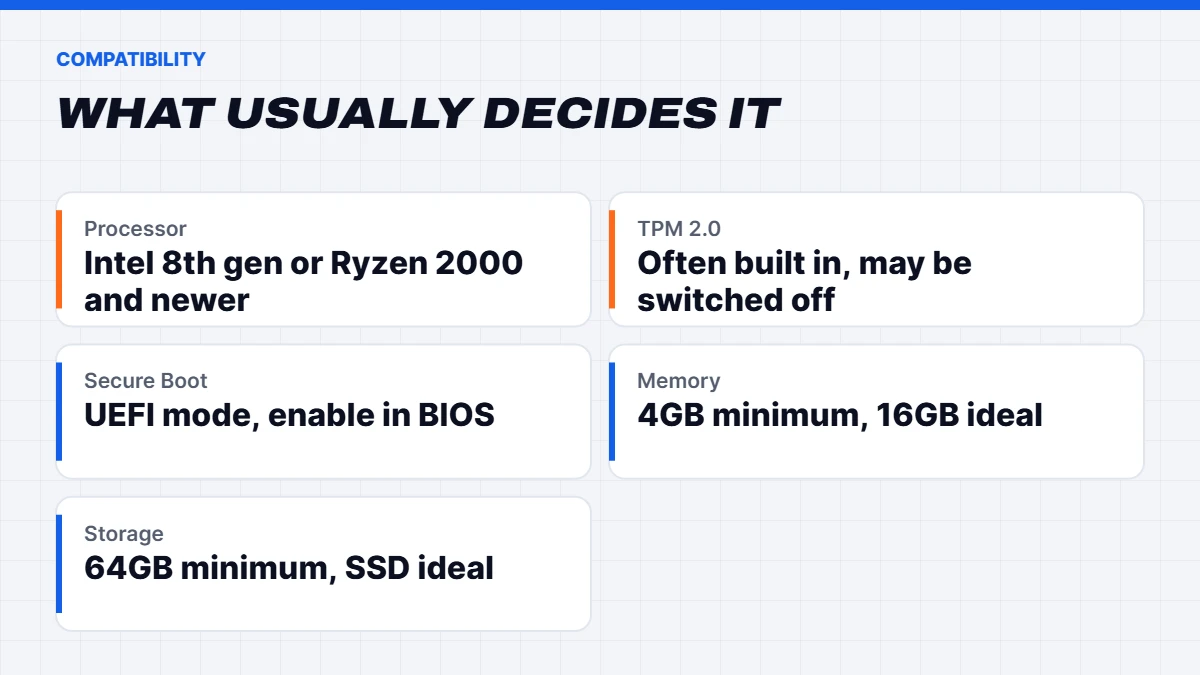
Before you can upgrade, your PC needs to meet the Windows 11 system requirements. These are Microsoft’s official minimums:
| Component | Minimum requirement |
|---|---|
| — | — |
| Processor | 1GHz or faster, 2 or more cores, 64-bit, on Microsoft’s supported list |
| Memory | 4GB of RAM |
| Storage | 64GB or more |
| Firmware | UEFI with Secure Boot capability |
| Security chip | TPM version 2.0 |
| Graphics | DirectX 12 compatible with a WDDM 2.0 driver |
| Display | Larger than 9 inches, 720p or higher |
Of all the Windows 11 system requirements, the processor and TPM rules are the ones that rule out most older PCs. In practice, Intel Core processors from the 8th generation onwards and AMD Ryzen 2000 series onwards are generally supported, while older chips usually aren’t. Windows 11 Home also needs an internet connection and a Microsoft account during setup.
Those are the bare minimums, though. Our honest advice is that the Windows 11 requirements on paper aren’t the same as a good experience. For a PC that feels quick, we’d want at least 8GB of RAM, ideally 16GB, and an SSD rather than a hard drive.
Can my PC run Windows 11?
The easiest way to answer “can my PC run Windows 11?” is to ask Windows itself:
- Check Windows Update. Go to Settings > Update & Security > Windows Update. If your PC is compatible, you’ll often see a message saying it can run Windows 11, with an option to download it.
- Run PC Health Check. Download Microsoft’s free PC Health Check app and select Check now. It tells you whether your PC meets the requirements, and if not, which part fails.
- Check the processor. Go to Settings > System > About to see your processor model, then compare it with Microsoft’s supported list.
- Check TPM. Press Windows + R, type tpm.msc and press Enter. Look for “Specification Version: 2.0”.
- Check Secure Boot. Press Windows + R, type msinfo32, and look for Secure Boot State in System Summary.
If PC Health Check says your PC can’t run Windows 11 because of TPM or Secure Boot, don’t give up yet. Those are often just switched off in the BIOS, and fixing them is covered below.
How to upgrade to Windows 11 step by step
Here’s how to upgrade to Windows 11 on a compatible PC, keeping your files and apps:
- Back up your files. Use OneDrive, an external drive or both. Upgrades rarely go wrong, but it’s never worth the risk.
- Install all Windows 10 updates first, including optional driver updates, and restart.
- Free up space. Make sure you have plenty of free storage. At least 30 to 40GB free makes the upgrade smoother.
- Start the upgrade. In Settings > Update & Security > Windows Update, select Download and install under the Windows 11 offer. If you don’t see it, use Microsoft’s Windows 11 Installation Assistant from the Windows 11 download page.
- Leave it to run. It usually takes an hour or two and restarts several times. Keep laptops plugged in.
- Sign in and check everything. Your files, apps and most settings carry over.
If something isn’t right, you can roll back within 10 days through Settings > System > Recovery > Go back. After 10 days, the old files are removed to free up space.
How to upgrade to Windows 11 with a clean install
Some people prefer a fresh start rather than an in-place upgrade, especially on an older PC that’s built up years of clutter. A clean install takes longer to set up afterwards, but often leaves the PC feeling quicker. Here’s how to upgrade to Windows 11 this way:
- Back up everything you want to keep, and make a list of the apps you’ll need to reinstall.
- Create a USB installer with Microsoft’s Media Creation Tool and a USB drive of 8GB or more.
- Boot from the USB drive, usually by pressing a key like F12 at start-up to open the boot menu.
- Choose a custom install, delete the old Windows partitions if you want a completely fresh start, and install to the empty space.
- Sign in, update and reinstall your apps and files.
Windows 11 should activate automatically on a PC that had a genuine, activated copy of Windows 10, as the licence is linked to the hardware.
Fixing common upgrade blockers
TPM is switched off. Most PCs from around 2017 onwards have TPM 2.0 built into the processor, but it may be disabled. Restart, enter the BIOS (usually by pressing Delete or F2 at start-up), and look for fTPM on AMD systems or PTT or Intel Platform Trust Technology on Intel systems. Enable it, save and restart, then run PC Health Check again.
Secure Boot is off. In the BIOS, find the Secure Boot setting and enable it. If the PC uses legacy BIOS mode with an MBR disk, it first needs converting to a GPT disk and UEFI mode. Windows includes a tool called MBR2GPT for this, but it’s a more technical job, so back up first or ask for help.
Not enough storage. Clear space with Settings > System > Storage, or connect an external drive when the installer asks.
An app or driver is blocking the upgrade. The installer usually names it. Update or uninstall that app, then try again.
The processor isn’t supported. Unfortunately, this can’t be fixed with a setting. See the options below.
What about unsupported PCs?
You’ll find guides online for installing Windows 11 on unsupported hardware. They can work, but Microsoft doesn’t support them, those PCs may not reliably receive updates, and future updates could stop working altogether. We don’t recommend it for a PC you depend on.
If your processor isn’t supported, your realistic options are:
- Enrol in ESU to stay secure on Windows 10 until October 2027, then replace the PC.
- Replace the PC now, especially if it’s also slow or ageing.
- Repurpose it for light use, such as running a lightweight Linux distribution for web browsing, if you’re comfortable with that.
Upgrading a laptop vs a desktop
The upgrade process is the same on both, but there are a couple of differences. Laptops should always be plugged in during the upgrade, and it’s worth checking the manufacturer’s support page for Windows 11 drivers, especially for touchpads, function keys and power management.
Desktops are easier to keep going if they fall just short. A desktop with a hard drive can get an SSD, and one with 4GB of RAM can usually take more, which makes Windows 11 far more pleasant. Many laptops, especially thin ones, have soldered memory that can’t be upgraded. Still asking “can my PC run Windows 11 well, not just at all?” The answer usually comes down to the SSD and RAM.
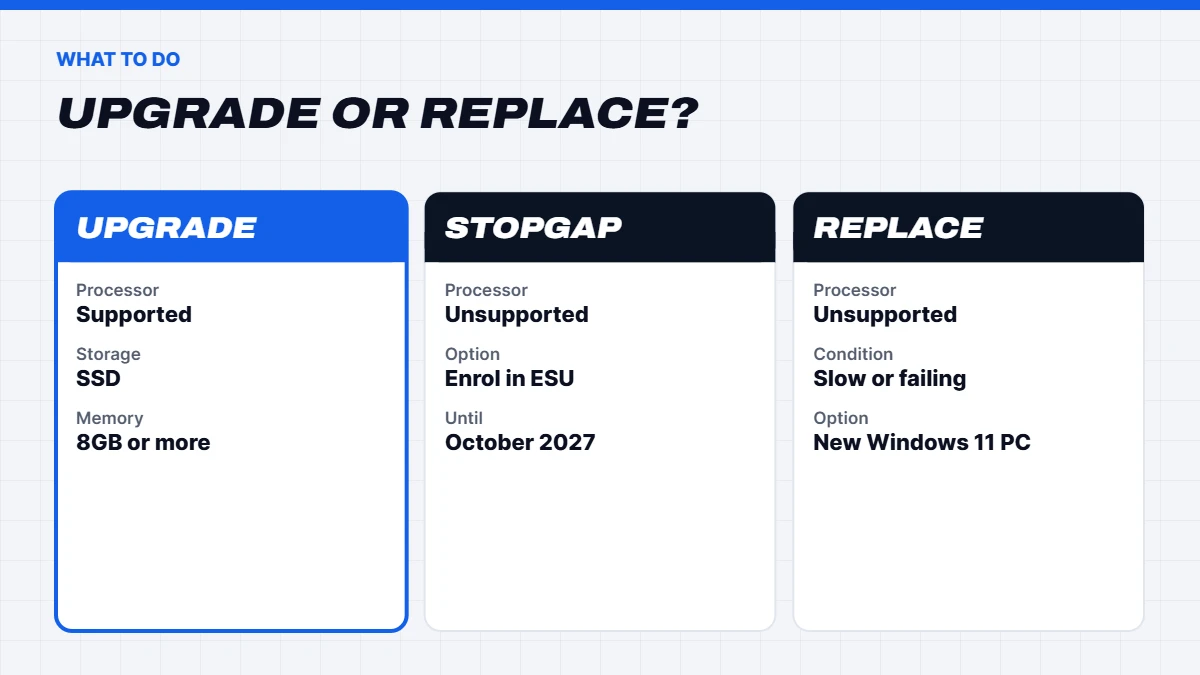
Upgrade or replace?
| Your PC | Our suggestion |
|---|---|
| — | — |
| Compatible, with an SSD and 8GB+ RAM | Upgrade to Windows 11 |
| Compatible, but has a hard drive or 4GB RAM | Upgrade, and add an SSD or RAM if possible |
| Fails only on TPM or Secure Boot | Enable them in the BIOS, then upgrade |
| Unsupported processor, otherwise fine | ESU as a stopgap, plan a replacement |
| Unsupported and slow or failing | Replace it |
If your PC is compatible but sluggish, our guide on how to fix a slow laptop covers the free fixes and cheap upgrades worth trying alongside the move to Windows 11.
If you’re replacing your PC
If it’s time for a new computer, a few specs matter most for a PC that’ll last: an SSD of 512GB or more, 16GB of RAM, a recent processor and Windows 11 already installed and activated. Every computer we sell meets the Windows 11 requirements out of the box.
For home use, a home office computer or a family computer covers everyday work, study and light gaming. For a business, the Dell Pro Micro is a compact option with Windows 11 Pro. You’ll find more in our home desktop computer and office computer ranges, and if you’re unsure whether you need Home or Pro, our Windows 11 Home vs Pro guide explains the difference.
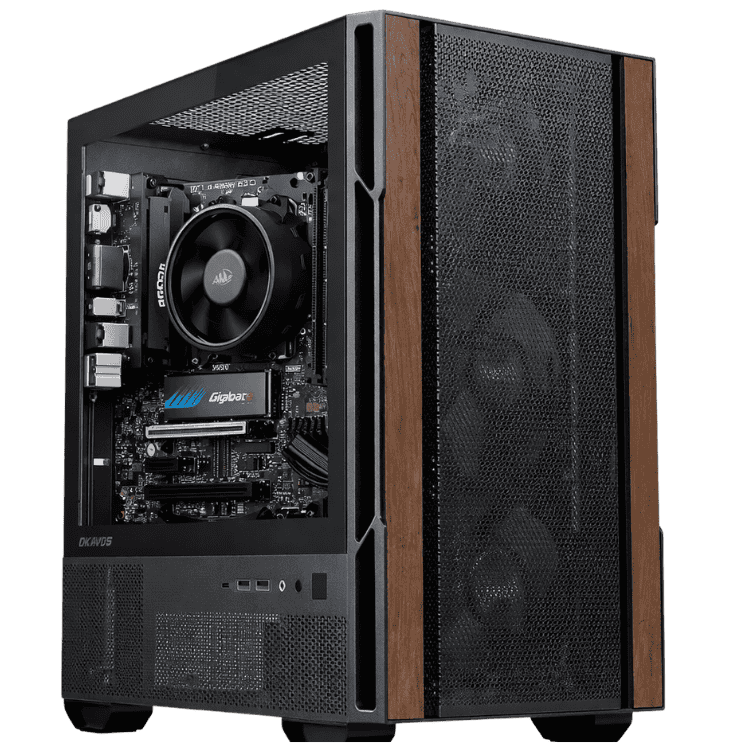
 Home Office Desktop PC – Home Office Computer, Intel Core Ultra 5 225 Original price was: $1,299.00.$974.00Current price is: $974.00.See the build
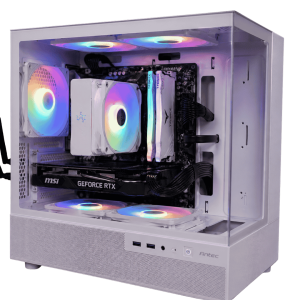 Home & Study Desktop – Family Computer, Ryzen 5 7500F + RTX 5050 Original price was: $1,599.00.$1,199.00Current price is: $1,199.00.See the build
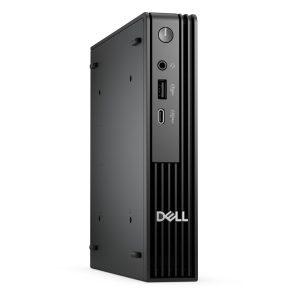 Dell Pro Micro – Mini PC, Core Ultra 5 235T, 16GB RAM, 512GB SSD, Windows 11 Pro Original price was: $1,299.00.$974.00Current price is: $974.00.See the build
Moving to a new PC is easier than it used to be. Windows Backup can sync your settings and files through your Microsoft account, and OneDrive brings your documents across when you sign in. Before you recycle the old PC, wipe it with Settings > Update & Security > Recovery > Reset this PC > Remove everything. Computers can be dropped off for free recycling through the National Television and Computer Recycling Scheme at participating sites around Australia.
After upgrading: first things to do
Once you’re on Windows 11, a few quick steps help it feel like home:
- Run Windows Update again to pick up the latest updates and drivers.
- Check activation in Settings > System > Activation.
- Move the Start button to the left if you prefer, under Settings > Personalisation > Taskbar > Taskbar behaviours.
- Review privacy settings under Settings > Privacy & security.
- Check your printer and other devices still work, and install updated drivers if not.
Windows 11 upgrade FAQs
Is the upgrade to Windows 11 free?
Yes, on eligible PCs running a genuine, activated copy of Windows 10. You don’t need to buy a new licence.
What are the Windows 11 requirements for gaming?
The same minimums apply, but for gaming you’ll want far more: a modern 6-core processor, 16 to 32GB of RAM, an SSD and a DirectX 12 graphics card.
Can my PC run Windows 11 without TPM 2.0?
Not officially. Many PCs have TPM 2.0 built in but switched off, so check the BIOS before assuming yours doesn’t.
What happens after Windows 10 end of support?
Your PC keeps working, but without free security updates unless it’s enrolled in ESU, which now runs until 12 October 2027.
What are the Windows 11 system requirements in simple terms?
A supported 64-bit processor, 4GB of RAM, 64GB of storage, UEFI with Secure Boot, and TPM 2.0. Most PCs from around 2018 onwards meet them.
Will I lose my files when I upgrade?
No. A standard upgrade keeps your files, apps and most settings. Back up first anyway.
Can I go back to Windows 10 after upgrading?
Yes, within 10 days, through Settings > System > Recovery > Go back. After that, you’d need a clean install of Windows 10, which we wouldn’t recommend now that it’s out of support.
Do I need to buy Windows 11 for a new PC?
No. New PCs and laptops come with Windows 11 installed and activated. You only need to buy a licence if you build a PC yourself.
How long does the Windows 11 upgrade take?
Usually one to two hours, depending on your PC’s speed and internet connection.