
Laptops get most of the attention, but for a lot of homes and offices, the best desktop computer is still the smarter buy. Desktops give you more performance for the money, a bigger and more comfortable screen setup, easier repairs and upgrades, and they last longer. The catch, of course, is that they stay on the desk.
This guide covers what makes a good desktop for home and work, our honest picks for different needs, and the classic laptop vs desktop question, including gaming laptop vs desktop, so you can decide which suits the way you actually work.
Quick answer
For most homes and offices, the best desktop computer has a recent Intel Core i5 or AMD Ryzen 5, 16GB of RAM, a 512GB or larger SSD and Windows 11. Choose Windows 11 Pro for business use. If the computer will always sit in one place, a desktop gives better value, comfort and longevity than a laptop. If you need to work in different places, a laptop is worth the trade-offs.
In this guide
What makes the best desktop computer?
For home and office use, focus on these:
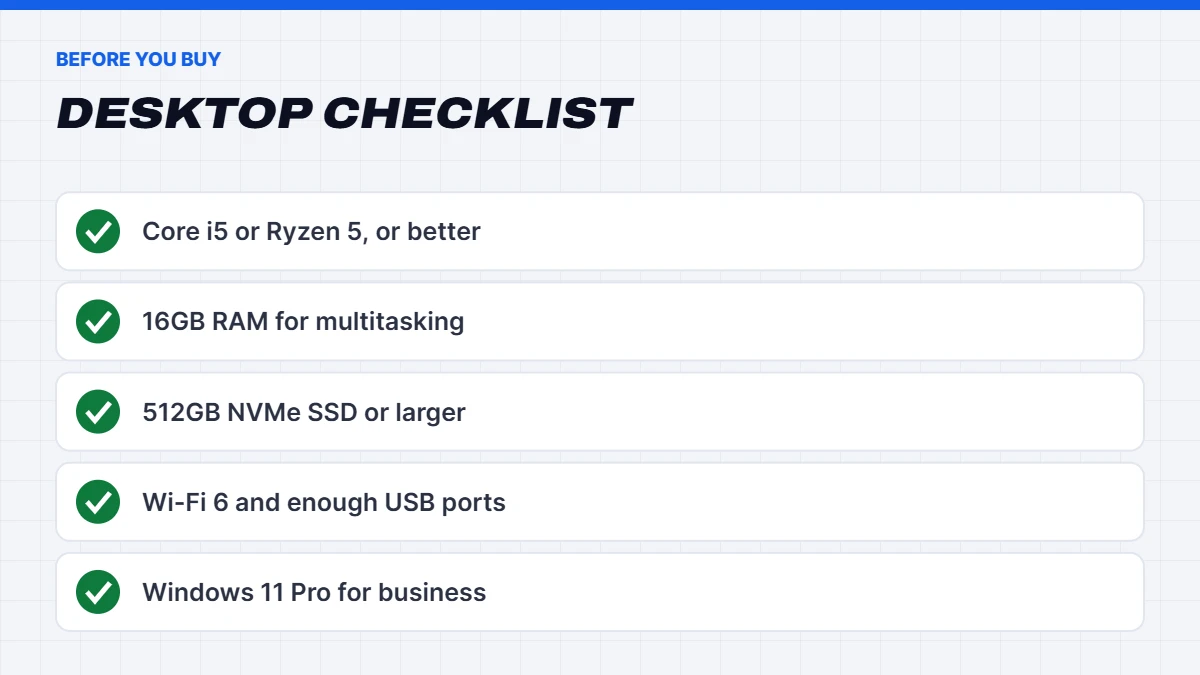
- Processor: a recent Intel Core i5 or AMD Ryzen 5 handles everyday work easily. Step up to a Core i7 or Ryzen 7 for heavy multitasking or creative apps.
- Memory: 16GB of RAM for smooth multitasking. 8GB is enough for very light use, but it’s tight for many browser tabs and video calls.
- Storage: an NVMe SSD of at least 512GB. Avoid hard drives as the main drive.
- Graphics: built-in graphics are fine for office work and video. Add a dedicated card for gaming, multiple high-resolution screens or creative apps.
- Connectivity: Wi-Fi 6 or newer, Bluetooth, and enough USB ports for your accessories.
- Windows edition: Windows 11 Home for personal use, or Pro for business features like BitLocker and device management.
- Size: a compact or micro desktop saves space, while a larger tower is easier to upgrade and runs quieter.
Our best desktop computer picks
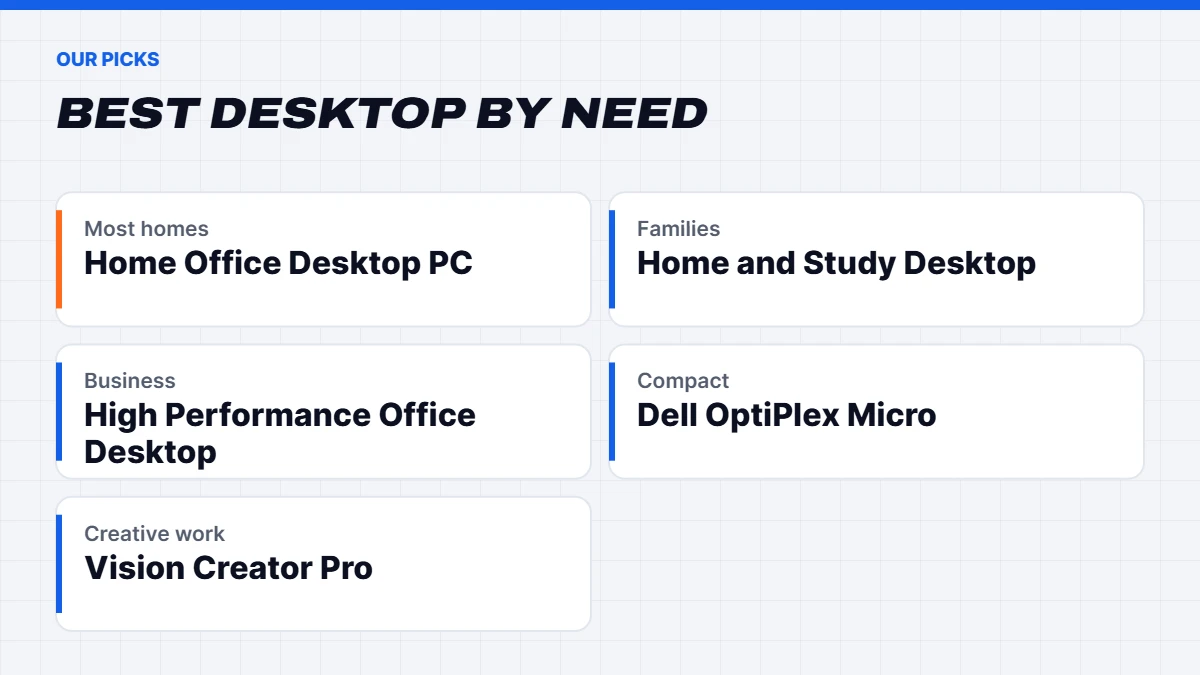
Here’s how we’d match our current range to different needs. Live prices are shown in the product cards below.
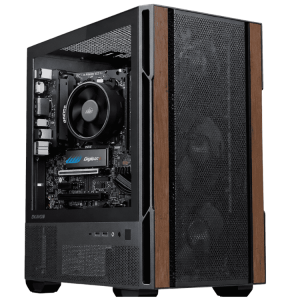
Best for most homes: Home Office Desktop PC. Our home office computer has an Intel Core Ultra 5 225, 16GB of DDR5, a 1TB NVMe SSD and built-in Wi-Fi. It’s quick, quiet and ready for work, study and everyday use straight away.
Best for families: Home & Study Desktop. Our family computer pairs a Ryzen 5 7500F with an RTX 5050 8GB, 16GB of DDR5 and a 1TB SSD. The graphics card means it handles light gaming and creative apps as well as homework and browsing.
Best on a tight budget: Vision Budget Office PC. Our cheap desktop computer uses a Ryzen 5 8500G with built-in graphics, Wi-Fi and Windows 11, with 16GB of DDR5 and a 1TB NVMe SSD, so it handles email, web, documents and everyday multitasking comfortably. There’s room to add more memory later.
Best for business: High Performance Office Desktop. Our office desktop has an Intel Core Ultra 5 225F, an RTX 5050 for multiple monitors and creative apps, 16GB of DDR5, a 1TB SSD and Windows 11 Pro, in a quiet case. It’s a great fit for small offices that want speed and quiet.
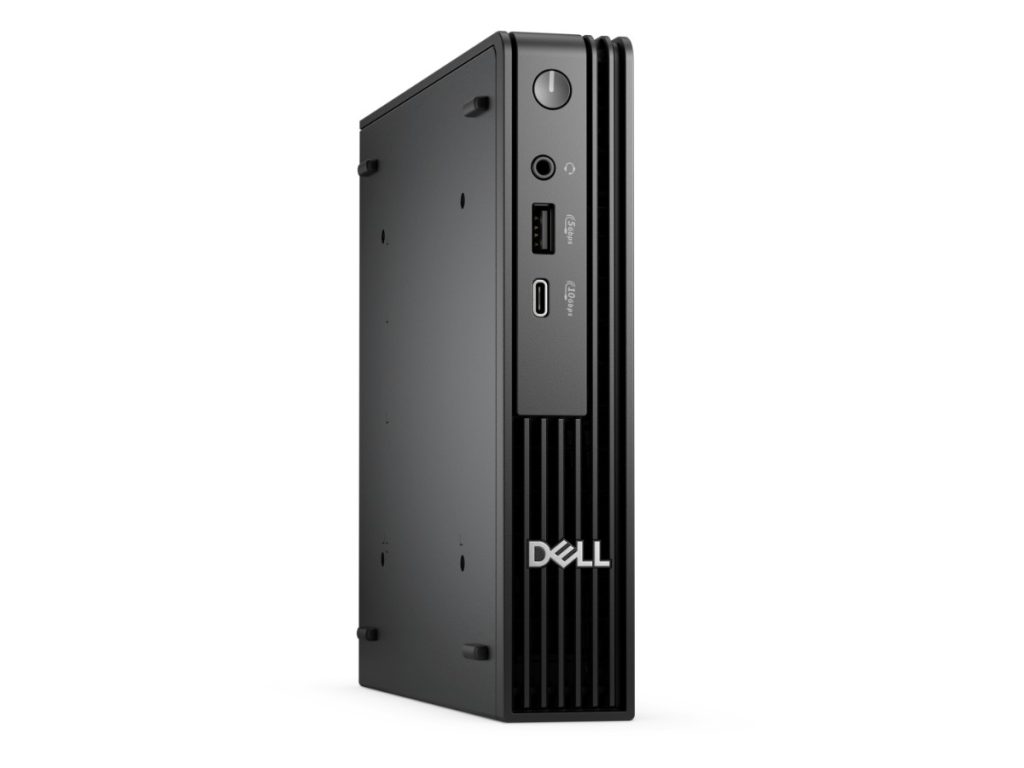
Best compact option: Dell Pro Micro. The Dell Pro Micro packs a 14-core Core Ultra 5 235T, 16GB of DDR5, a 512GB SSD and Windows 11 Pro into a tiny box that can mount behind a monitor. It’s the successor to Dell’s OptiPlex Micro, with room to add more memory later.
Best for creative work: Vision Creator Pro. Our work computer has a 20-core Core Ultra 7 265KF, 32GB of DDR5, an RTX 5060 and a 1TB SSD, ideal for photo editing, multiple monitors and heavier multitasking.
Best for students: Vision Student Success PC. Our student computer comes set up with Windows 11 and Microsoft Office, so it’s ready for assignments from day one.
 Home Office Desktop PC – Home Office Computer, Intel Core Ultra 5 225 Original price was: $1,299.00.$974.00Current price is: $974.00.See the build
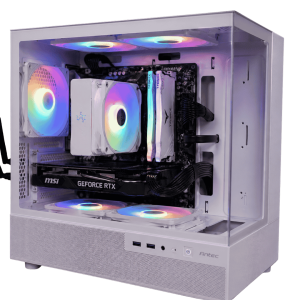 Home & Study Desktop – Family Computer, Ryzen 5 7500F + RTX 5050 Original price was: $1,599.00.$1,199.00Current price is: $1,199.00.See the build
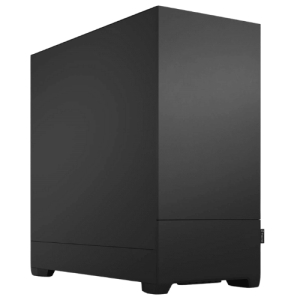 Vision High Performance Office Desktop – Core Ultra 5 + RTX 5050 Original price was: $2,099.00.$1,574.00Current price is: $1,574.00.See the build
Best desktop computer for seniors and families
For a shared family PC or a computer for older relatives, simplicity and reliability matter more than raw power. The best desktop computer for this job starts quickly, has a large, clear screen and a comfortable keyboard, and doesn’t need constant attention. A desktop with an SSD, 16GB of RAM and Windows 11 Home, set up with separate user accounts and Microsoft Family Safety for children, covers most needs. A 24 or 27-inch monitor makes text easier to read, and you can enlarge everything further in Windows display settings.
Best desktop computer for a small business
When choosing the best desktop computer for a small business, think about consistency and support as much as specs. Buying the same model for each desk makes setup, troubleshooting and spare parts simpler. Choose Windows 11 Pro for BitLocker and device management, make sure there’s a clear warranty and support process, and consider compact desktops that mount behind monitors to keep reception and front desks tidy. Our office computer range is built with these needs in mind.
Laptop vs desktop: which should you buy?
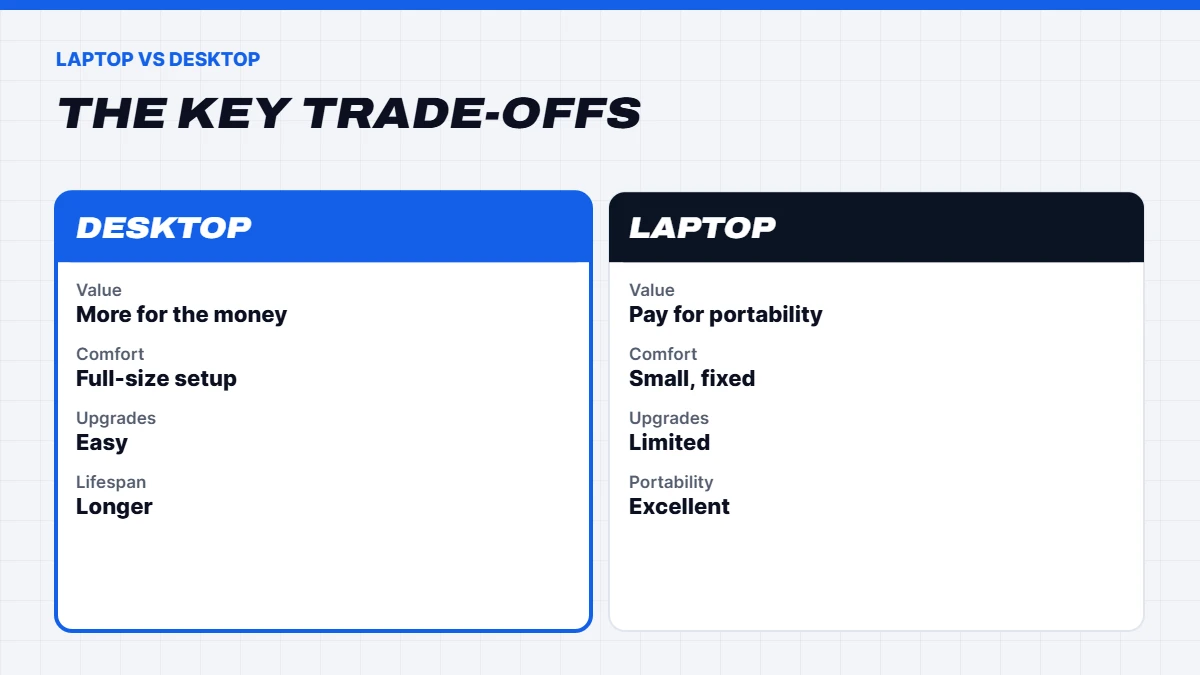
The laptop vs desktop decision mostly comes down to whether you need portability. Here’s how they compare:
| Desktop | Laptop | |
|---|---|---|
| — | — | — |
| Performance for the money | Higher | Lower |
| Screen and keyboard comfort | Full-size, adjustable | Small, fixed |
| Upgrades | Easy | Limited, often none |
| Repairs | Easy and cheaper | Harder and costlier |
| Lifespan | Often longer | Often shorter |
| Portability | None | Excellent |
| Space | Needs a desk | Folds away |
Choose a desktop if the computer will live in one spot, you want the most performance for your budget, or you value a comfortable setup with a large monitor and full keyboard. Choose a laptop if you work in different rooms or places, travel, study on campus, or have very little space.
Many people end up with both: a desktop at home for comfort and power, and a lighter laptop for when they’re out. Our guides to the best laptop for work and the best laptop for students cover the laptop side.
Laptop vs desktop for working from home
For working from home, the laptop vs desktop choice often depends on whether you also go into an office. If you’re home most days, a desktop with a good monitor, keyboard and webcam is more comfortable for long hours and usually cheaper for the same performance. If you move between home and the office, a laptop with a dock at home gives you a similar desk setup with one cable.
Many hybrid workers find the best of both is a laptop for work and a desktop at home for personal use, gaming or study. Whatever you choose, an external monitor at eye level makes a bigger difference to comfort than almost any spec.
Gaming laptop vs desktop
The gaming laptop vs desktop gap is even bigger than for everyday computers. Laptop graphics chips share names with desktop cards, but they’re cut down to fit inside a slim chassis and run on far less power. A gaming desktop with an RTX 5070 is considerably faster than a gaming laptop with an RTX 5070, and usually costs less.
Gaming desktops also run cooler and quieter, and you can upgrade the graphics card in a few years rather than replacing the whole machine. A gaming laptop makes sense if you genuinely need to game in different places, such as at uni, while travelling, or in shared housing where a desktop won’t fit. Our guide to the best gaming laptop covers how to choose one well. If it’ll stay on one desk, our gaming PCs give you much more for your money.
Gaming laptop vs desktop: the cost over time
The gaming laptop vs desktop gap grows over time. After three or four years, a gaming desktop can be refreshed with a new graphics card and extra memory for a fraction of the price of a new machine. A gaming laptop usually has to be replaced entirely, because its graphics chip is soldered to the motherboard. Spread over five or six years, a desktop is almost always the cheaper way to keep playing new games well.
All-in-one, mini PC or tower?
Desktops come in a few shapes:
- Towers are the easiest to upgrade and cool, and the best choice for gaming and creative work.
- Mini and micro PCs are tiny and quiet, great for offices and small spaces, but with limited upgrades.
- All-in-ones build the computer into the screen, for a tidy desk with one cable. They’re harder to repair and upgrade, and you replace the screen when you replace the computer.
For most homes, a compact tower or mini PC paired with a good monitor is the most flexible choice.
Don’t forget the monitor
A desktop needs a screen, keyboard and mouse, so budget for them if you’re starting from scratch. For office work, a 24-inch 1080p monitor is fine, while a 27-inch 1440p monitor gives you noticeably more space for side-by-side windows. For gaming, match the monitor’s resolution and refresh rate to your graphics card. Our guide to 1080p vs 1440p vs 4K explains how.
Common mistakes when buying a desktop
- Buying a hard drive as the main drive. An SSD makes everything feel quicker.
- Too little RAM. 8GB fills up quickly with modern browsers and video calls.
- Paying for a gaming graphics card you won’t use for office work.
- Choosing an all-in-one without thinking about repairs and upgrades.
- Forgetting Windows 11 Pro for business use.
Avoid these and the best desktop computer for your needs will feel quick for years.
Home or Pro?
Most home users only need Windows 11 Home. Businesses should choose Windows 11 Pro for BitLocker encryption, Remote Desktop hosting and device management. Microsoft’s Australian store lists Windows 11 Pro as a separate licence, but it’s usually cheaper to buy a business desktop with Pro already included. Our Windows 11 Home vs Pro guide explains the differences.
Setting up a comfortable desktop workspace
One of the biggest benefits of a desktop is ergonomics. A few tips:
- Put the top of the monitor at or slightly below eye level, about an arm’s length away.
- Use a full-size keyboard and a comfortable mouse at elbow height.
- Consider a second monitor. Two screens make side-by-side work much easier.
- Tidy the cables with clips or a tray to keep the desk clear.
Setting up a new desktop
Moving to a new computer is easier than it used to be. Sign in with your Microsoft account and Windows can restore many of your settings, while OneDrive brings across your documents and photos. Windows Backup on your old PC can sync your settings, apps list and files ahead of time. After that, run Windows Update until everything is current, install your printer and favourite apps, and set up cloud backup so your files are protected from day one.
Power use and running costs
Desktops use more electricity than laptops, but for office and home use the difference is modest. A typical office desktop draws relatively little power while browsing or working on documents, and modern processors idle very efficiently. Mini PCs are especially frugal. Gaming desktops use much more while gaming, so if running costs matter to you, turn on sleep after a short idle period and switch the PC off overnight.
What to do with your old computer
Before passing on or recycling an old computer, back up your files, then wipe it with Settings > System > Recovery > Reset this PC > Remove everything. Old computers can be dropped off for free recycling at participating sites through the National Television and Computer Recycling Scheme. If it still works well, a reset PC can make a good second computer for kids or a spare for guests.
How long does a desktop last?
A good desktop typically lasts five to seven years, and often longer with a simple upgrade like more RAM or a bigger SSD along the way. Because parts are standard, a failing component can usually be replaced rather than writing off the whole computer. That’s a big part of why desktops are often better value over time than laptops.
If your current desktop is slowing down, our guide on how to fix a slow laptop works for desktops too, and if it can’t run Windows 11, our guide on how to upgrade to Windows 11 explains your options.
You’ll find every model in our desktop computer range, and if you’d like help choosing, message us on live chat with what you’ll use it for.
Desktop computer FAQs
What is the best desktop computer for home use?
A desktop with a recent Core i5 or Ryzen 5, 16GB of RAM, a 512GB SSD and Windows 11 Home suits most homes.
Laptop vs desktop: which lasts longer?
Desktops usually last longer, because they run cooler and parts can be upgraded or replaced.
Is a gaming laptop vs desktop worth considering for uni?
If you need to game in different places, a gaming laptop makes sense. If you’ll mostly game at home, a desktop gives much more performance for the money.
Laptop vs desktop: which is better for students?
A laptop if they need to study on campus or in different rooms. A desktop if they mainly study at home and want a comfortable setup and better value.
What’s the best desktop computer for gaming?
A gaming desktop matched to your monitor, such as an RTX 5070 build for 1440p. Our guide to the best gaming PC Australia options covers our picks by budget.
Do I need Windows 11 Pro on a home desktop?
Usually not. Home has everything most people need. Pro is for business features.
Are mini PCs good enough for office work?
Yes. Modern mini PCs with a recent Core i5 or Ryzen 5, 16GB of RAM and an SSD handle office work, browsing and video calls easily, while using little power and desk space.
Can I use a TV as a desktop monitor?
You can, through HDMI, but a proper monitor is usually sharper for text and more comfortable at desk distance. TVs work best from the couch.
Is 8GB of RAM enough for a desktop?
For light use, yes. For multitasking, video calls and many browser tabs, 16GB is much better.