
Welcome to the Vision Gaming PC blog. We sell gaming PCs, workstations, desktops and laptops, delivered Australia-wide from Sydney, and this blog is where we answer the questions people ask us before they buy: which graphics card is worth the money, how much RAM is enough, whether a Black Friday price is really a deal, and how to fix a slow laptop before you give up on it.
Our team writes every guide here. We keep it plain, we tell you when a cheaper option makes more sense, and we link to the official specs when the numbers matter. Browse the latest posts below, or scroll down to the guide library to jump straight to a topic.
-
Gaming Room Ideas: Build a Room Around Your PC
Gaming room ideas that work: layout, lighting layers, colour themes, a white gaming setup, sound, small and renter-friendly rooms, and budget upgrades.
-
Gaming Setup Guide: Desk, Lighting and Layout Ideas
How to build a great gaming setup: choosing a desk and chair, monitor position, PC placement, cable management, lighting and gaming setup ideas for…
-
Best Gaming Monitor: How to Choose One for Your PC
How to choose the best gaming monitor for your PC: resolution, refresh rate, panel types, OLED burn-in, adaptive sync and HDR, with suggestions for…
-
Best Desktop Computer for Home and Work (and Laptop vs Desktop)
How to choose the best desktop computer for home, family and office use, our honest picks, and the laptop vs desktop and gaming laptop…
-

How Much Does a Gaming PC Cost in Australia?
How much is a PC in Australia? Honest price ranges for home, office and gaming PCs in late 2026, what you get at each…
-
How to Check Laptop Battery Health on Windows
How to check laptop battery health with the Windows battery report, what the numbers mean, how to make a battery last longer, and why…
-
How to Install RAM in a Desktop or Laptop
How to install RAM in a desktop or laptop step by step: checking compatibility, choosing the right slots, enabling XMP or EXPO, and fixing…
-
How to Check Your PC Specs in Windows 11
How to check PC specs in Windows 11 in about a minute: find your processor, graphics card and RAM in Settings, Task Manager, msinfo32…
-
How to Check CPU Temperature (and What’s Normal)
How to check CPU temperature in Windows, what is normal for modern AMD and Intel processors, how to lower it, and how to choose…
-

How to Clean a Laptop Fan and Stop Overheating
How to clean laptop fan vents safely, with or without opening it, how to fix laptop overheating and fan noise, and how to clean…
-
1080p vs 1440p vs 4K: Which Resolution Should You Game At?
1080p vs 1440p vs 4K explained: how much sharper each looks, how much graphics power you need, what refresh rate means and whether 144Hz…
-
SSD vs HDD vs NVMe: Storage Explained
SSD vs HDD vs NVMe explained: how each works, real speed differences, what matters for gaming, which drive to buy, and how to check…
Inside the Vision Gaming PC blog
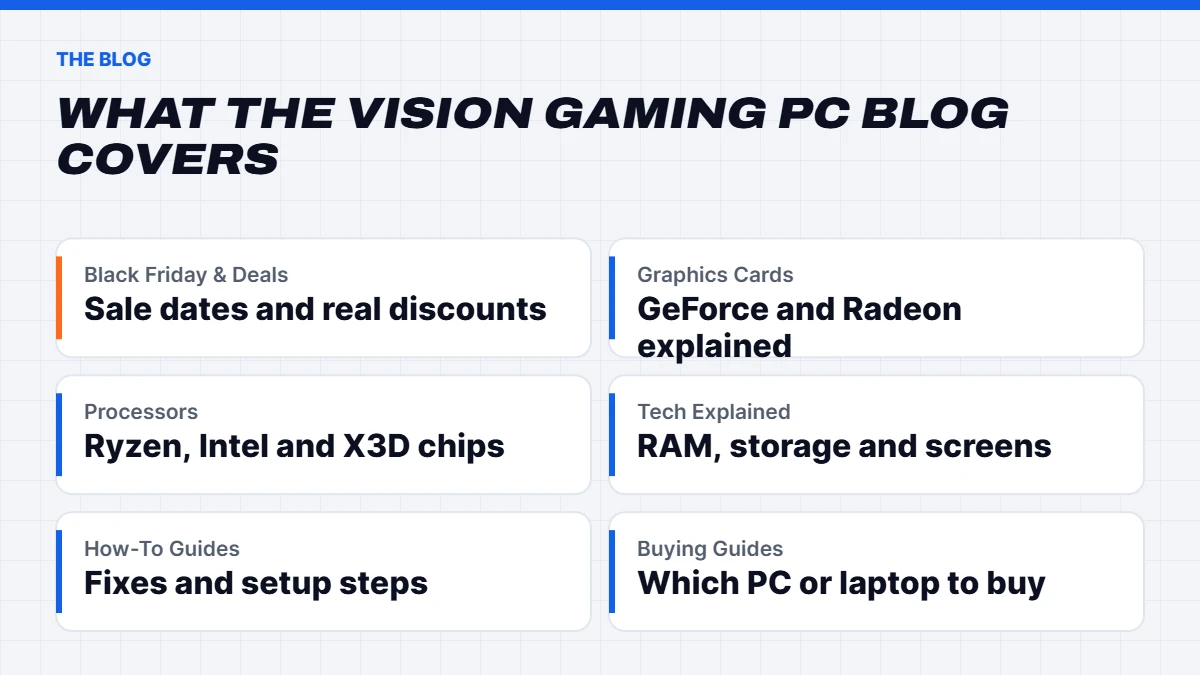
This is the map of the blog. Every topic below starts with a short primer, so you can get the gist in a minute, then points you to the guides that go deeper. Shopping for a new machine? Start with the buying guides and the graphics card primer. Something on your current computer playing up? Jump to the how-to guides.
In this guide
Which guide should you read first?
Most people land on the blog with one of a handful of questions. Here’s where each one is answered best:
- “I want a gaming PC but don’t know where to start.” Read the buying guides first, then the graphics card primer. Together they cover most of the decision.
- “Is this sale price any good?” The Black Friday and deals section shows you how to check a discount properly.
- “My computer is slow, do I need a new one?” Try the how-to guides before you spend anything. A lot of slow machines can be fixed in an afternoon.
- “What do all these specs mean?” The tech guides explain RAM, storage, resolution and the rest without the jargon.
- “I need a computer for work, not games.” Skip to the workstations section and the buying guides for office and study machines.
Black Friday and deals
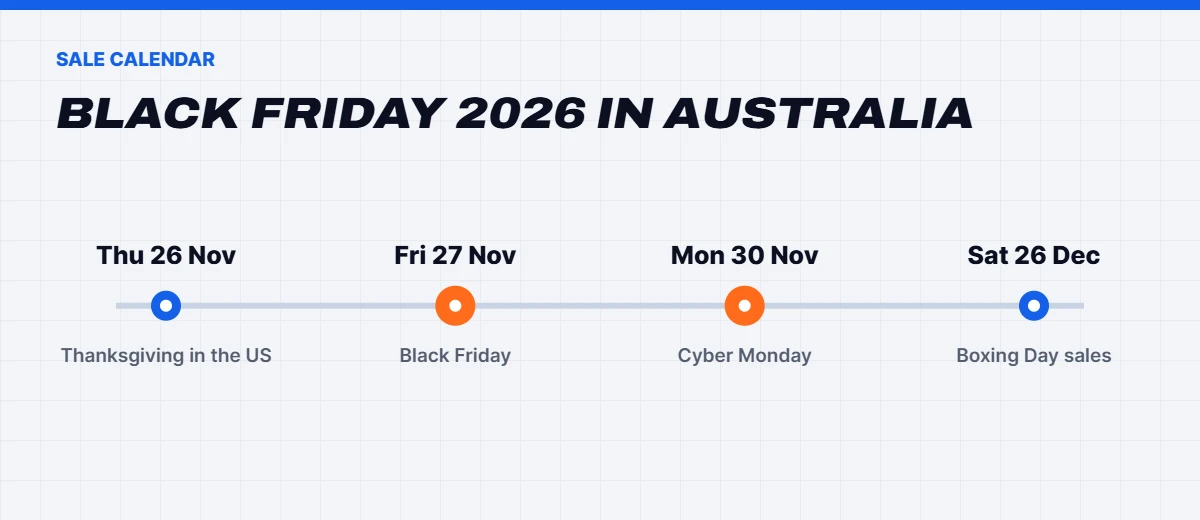
Black Friday falls on Friday 27 November in 2026 and Cyber Monday on Monday 30 November. In Australia the sales now start well before the Friday, and most shops keep them running across the weekend, so the real window is closer to ten days than one. Boxing Day and the end of financial year in June are the other two big sale periods for PC parts and laptops.
Our deal guides on the blog have one job: helping you tell a genuine discount from a dressed-up one. That means checking what the price was a few weeks earlier, comparing the full spec sheet rather than the headline, and knowing which parts are worth chasing on sale. Graphics cards, SSDs and monitors tend to see the biggest cuts. Power supplies and cases rarely do, and a cheap no-name power supply is the one part we’d never buy just because it’s discounted.
Sale prices don’t change your rights either. Under Australian Consumer Law, a faulty product bought on sale gets the same repair, replacement or refund rights as one bought at full price. The ACCC explains it clearly in its guide to consumer rights and guarantees.
If you’re shopping for someone else, our guide to gifts for gamers sorts ideas by budget, from a decent headset all the way up to one of our gaming PCs.
Our Black Friday and deals guides:
- When is Black Friday 2026? Dates, start times and how long the sales last.
- Black Friday sales Australia: how to spot a real tech deal.
- Cyber Monday deals on PCs and laptops, and what makes the last day different.
- Black Friday laptop deals: what to buy and what to skip.
- Black Friday gaming PC guide: how to pick the right build.
- Black Friday computer sale picks for home, office and study.
- Black Friday monitor deals: matching a screen to your PC.
From the blog:
- When Is Black Friday 2026 in Australia? Dates, Times and How Long It Lasts
- Black Friday Sales Australia 2026: How to Spot Real Tech Deals
- Cyber Monday 2026 Australia: Dates and the Best PC and Laptop Deals
- Black Friday Laptop Deals 2026: What to Buy and What to Skip
- Black Friday Gaming PC Deals: How to Pick the Right Build
- Black Friday Computer Sale: Home, Office and Study Desktops
- Black Friday Monitor Deals: Matching a Monitor to Your New PC
- Gifts for Gamers: Christmas Ideas for Every Budget
Graphics cards
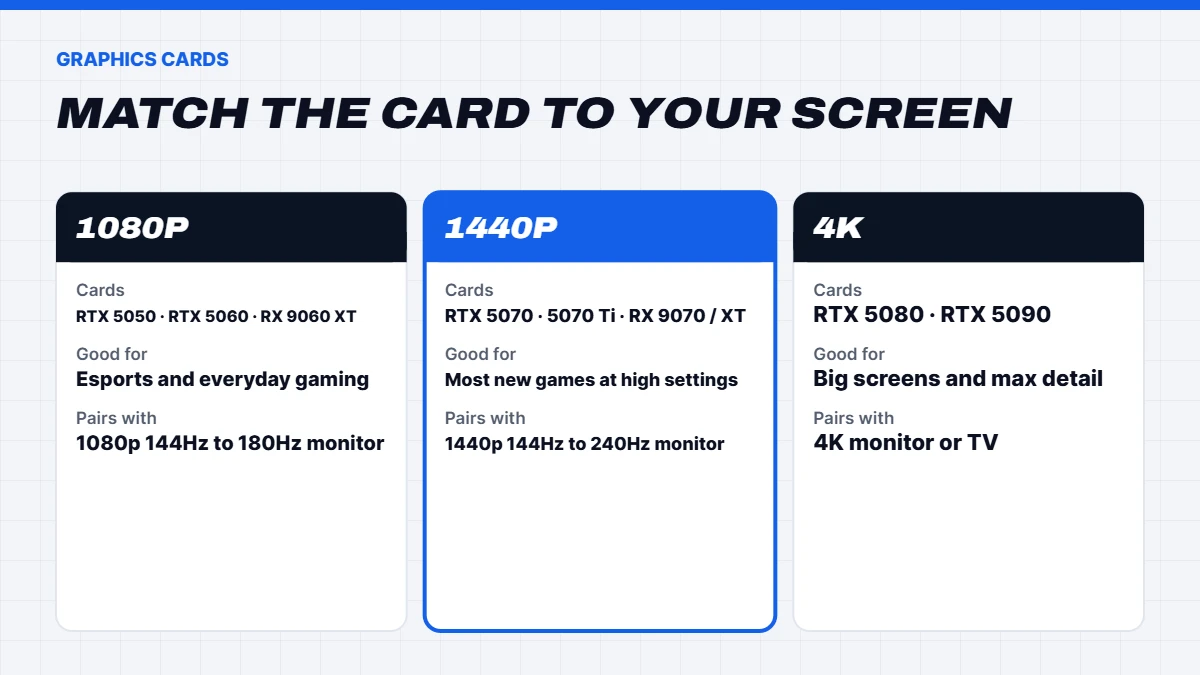
The graphics card decides more about gaming performance than any other part, so it gets the most attention on the blog. The simplest way to choose one is to start with your screen. A 1080p monitor and a 4K TV need very different cards, and paying for power your screen can’t show is the most common way people overspend.
Here’s how the current cards line up. For 1080p, the GeForce RTX 5060 and Radeon RX 9060 XT are the sweet spot, and the RTX 5050 is the entry point. For 1440p, the RTX 5070, RTX 5070 Ti, RX 9070 and RX 9070 XT cover most budgets. For 4K, the RTX 5080 is the card most people should buy, and the RTX 5090 is for anyone who wants the fastest gaming card you can get and is happy to pay for it.
Memory on the card matters more than it used to. New games with high-resolution textures can fill 8GB quickly, which is why we lean towards 12GB and 16GB cards for anyone who plans to keep their PC for a few years. Our graphics card guides cover NVIDIA’s DLSS and frame generation, AMD’s FSR, ray tracing, and the honest trade-offs between GeForce and Radeon at each price point. NVIDIA keeps the official GeForce RTX 50 Series line-up on its site if you’d like to check the specs yourself.
Already know which side you’re on? Browse our NVIDIA gaming PCs or our Radeon gaming PCs.
From the blog:
- RTX 5090 in Australia: Price, Performance and Who It’s Really For
- RTX 5080 Explained: The 4K Card Most Gamers Should Buy
- RTX 5070 Ti vs RX 9070 XT: Which 16GB Card Wins?
- RTX 5070 Guide: Is 12GB Enough for 1440p Gaming?
- RX 9070 XT and RX 9070: AMD vs NVIDIA for Value Gaming
- RTX 5060, RTX 5050 or RX 9060 XT: Best Budget Graphics Cards
- What Is Ray Tracing? DLSS and Frame Generation Explained
Processors
For gaming, the processor matters less than the graphics card until you play at high refresh rates or in big simulation and strategy games, where it suddenly matters a lot. That’s where AMD’s X3D chips shine. The Ryzen 7 7800X3D and Ryzen 7 9800X3D stack extra cache memory on top of the processor, and games love it. Our processor guides explain what that cache does in plain terms and when the newer chip is worth the extra money.
For work, the picture changes. Video editing, 3D rendering and compiling code all scale with more cores, so a Ryzen 9 or a Core Ultra 7 can finish big jobs noticeably faster than a gaming-first chip. If you do both, there are sensible middle grounds, and we walk through them in our AMD vs Intel comparison.
A quick rule of thumb from our tech guides: a six-core Ryzen 5 is plenty for 1080p gaming, an eight-core Ryzen 7 suits most 1440p and 4K builds, and twelve cores or more only pays off when you render, stream and edit as well as play. If you’ve already picked a side, see our Ryzen gaming PCs or our Intel desktop PCs.
From the blog:
- Ryzen 7 9800X3D vs 7800X3D: Which Gaming CPU to Buy
- AMD vs Intel for Gaming and Work in 2026
- What Is CPU Cache? Why X3D Chips Win at Gaming
Tech explained
Spec sheets are full of numbers that sound important and aren’t, and a few that sound boring and are. This part of the blog is where our tech guides untangle them. Take RAM. For gaming, 16GB still works, but 32GB is the comfortable amount for new games with a browser and Discord open in the background. For heavy video work or large datasets, 64GB and up starts to make sense.
Storage is simpler than it looks. An NVMe SSD is the one to have for Windows and your games, and 1TB is a sensible starting point now that big games often pass 100GB each. Hard drives still make sense for cheap bulk storage of photos and video, just not for anything you want to load quickly.
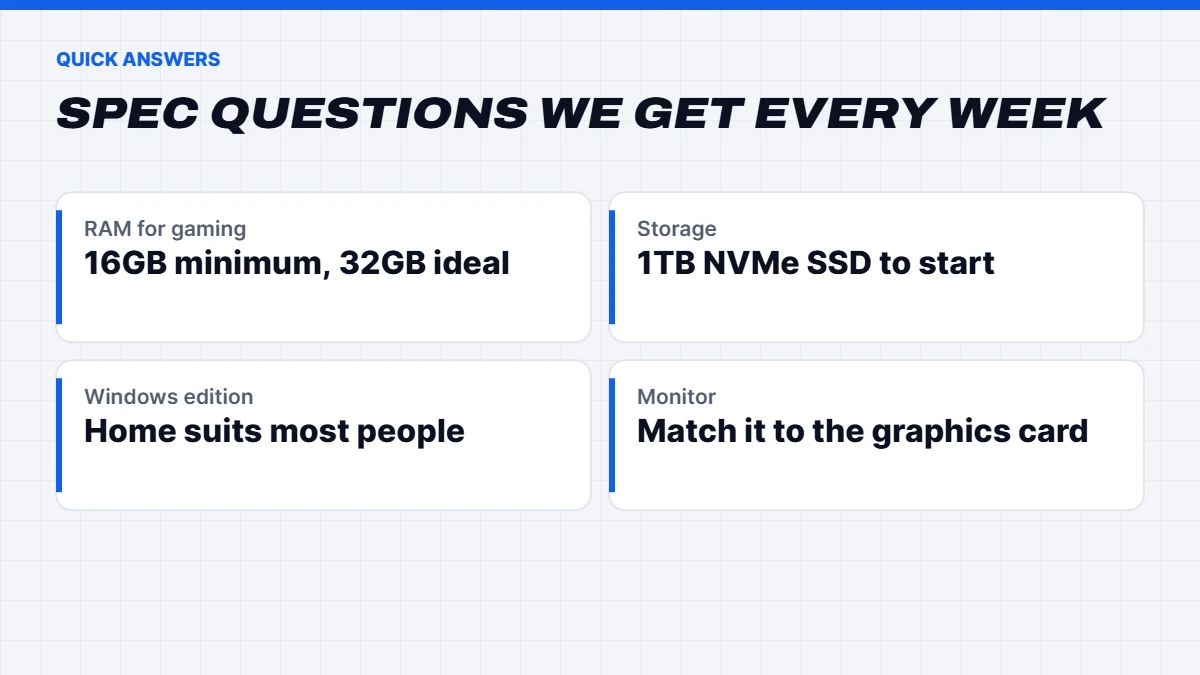
Screens get their own tech guides too. Resolution, refresh rate and panel type all change how a game looks and feels, and the right monitor should match the graphics card rather than the other way around. We also explain why memory prices have climbed recently, and whether DDR5 is worth it over DDR4 if you’re on an older platform. If a number on a spec sheet confuses you, there’s a good chance one of our tech guides already explains it, and if not, ask us and we’ll add it.
From the blog:
- What Is RAM and How Much Do You Need?
- Why Is RAM So Expensive Right Now?
- DDR4 vs DDR5 (and AM4 vs AM5): Is It Time to Upgrade?
- SSD vs HDD vs NVMe: Storage Explained
- 1080p vs 1440p vs 4K: Which Resolution Should You Game At?
How-to guides
Not every problem needs a new computer. Plenty of slow laptops just need a clean-up, a full drive emptied or a fan cleared of dust. Our how-to guides on the blog walk through the fixes step by step, and they tell you honestly when a repair isn’t worth it any more.
The how-to section covers checking your PC’s specs in Windows 11, keeping an eye on CPU temperatures, installing RAM, checking laptop battery health and connecting a PlayStation or Xbox controller to your PC. With Windows 10 now out of free support, we also explain how to check whether your PC can run Windows 11 and what to do if it can’t. Microsoft lists the official Windows 11 requirements if you want the fine print.
Every how-to PC guide starts with the safe, free fixes and only then moves on to anything that involves opening the case. If a step could void a warranty, we say so before you get to it.
From the blog:
- Why Is My Laptop So Slow? Fixes That Work (and When to Replace It)
- Windows 10 End of Support: How to Upgrade to Windows 11 (or Replace Your PC)
- Windows 11 Home vs Pro: Which Do You Need?
- How to Check Your PC Specs in Windows 11
- How to Check CPU Temperature (and What’s Normal)
- How to Clean a Laptop Fan and Stop Overheating
- How to Install RAM in a Desktop or Laptop
- How to Check Laptop Battery Health on Windows
- How to Connect a PS5, PS4 or Xbox Controller to Your PC
Buying guides
Our buying guides answer the big question directly: which computer should you buy for the way you’ll use it, and what should it cost? We write each buying guide around a real budget rather than a spec wish list, and we point out where spending less is the smarter move.
For gaming, every buying guide starts with the screen and the games you play, then matches a graphics card and processor to them. Budget gaming PCs built around an RTX 5060 or RX 9060 XT handle 1080p well. A 1440p gaming PC is the sweet spot for most players, and a 4K gaming PC is for big screens and people who want maximum detail.
From the blog:
- Best Gaming PCs in Australia: Our Picks by Budget
- How Much Does a Gaming PC Cost in Australia?
- Build a PC or Buy Prebuilt? The Honest Cost Breakdown
- Best Desktop Computer for Home and Work (and Laptop vs Desktop)
- Best Gaming Monitor: How to Choose One for Your PC
- GTA 6 on PC: Release Date News and the PC You’ll Need
Five checks before you buy any PC
These five checks come up in nearly every buying guide we write, so here they are in one place:
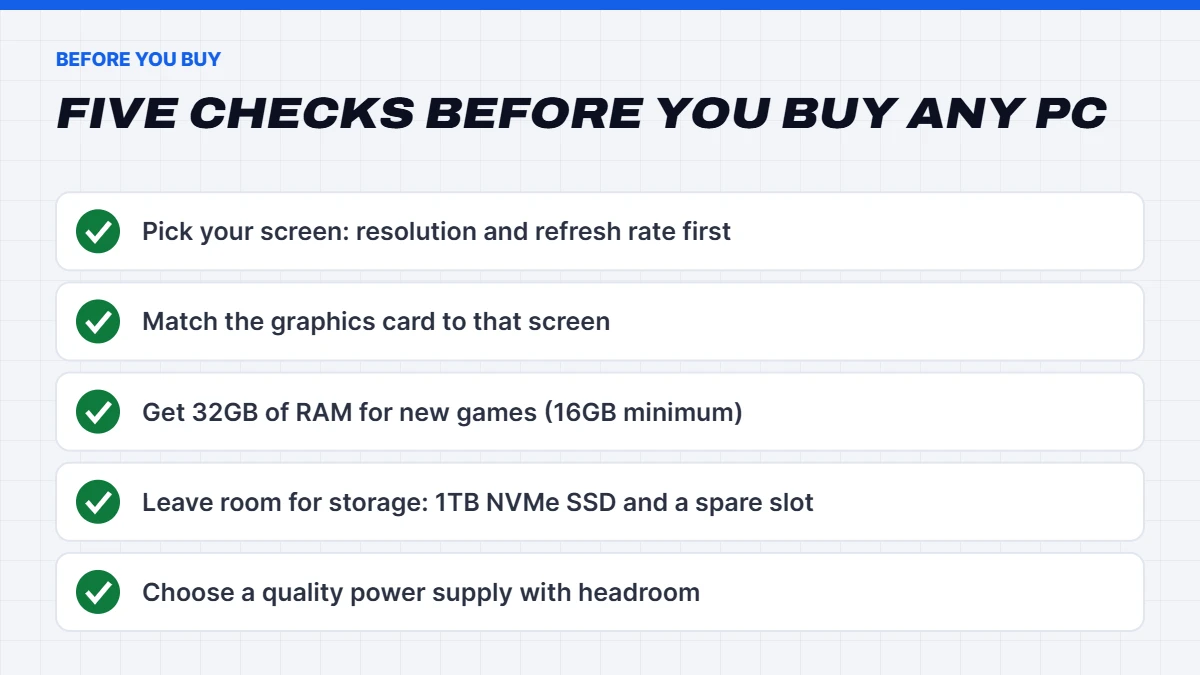
- Start with the screen. Decide on resolution and refresh rate before anything else. A 1080p 144Hz monitor and a 4K 120Hz TV call for completely different machines, and the screen is the part people forget to budget for.
- Match the graphics card to that screen. Buy enough card to drive your monitor well, then stop. Extra power your screen can’t show is money you could have put into storage or a better chair.
- Get enough RAM for the next few years. 16GB is the floor for gaming, 32GB is the comfortable choice for new releases, and creative work often wants more. Two matched sticks run faster than one.
- Leave room for storage. A 1TB NVMe SSD fills quicker than you’d expect. Check there’s a spare M.2 slot so adding a second drive later is a ten-minute job.
- Don’t skimp on the power supply. It’s the least exciting part and the one that protects everything else. A quality unit with some headroom also makes a future upgrade easier.
If a PC ticks all five for your budget, it’s a good buy, whatever the brand on the case.
Not everyone needs a gaming machine. For study, a light laptop for students with good battery life beats a heavy gaming laptop nearly every time. For the home office, a quiet office computer is often all you need. If you’re torn between a laptop and a desktop, our desktop buying guide sets out the trade-offs, and our build-or-buy guide is honest about when building your own PC saves money and when it doesn’t.
Laptops
Laptops are a different kind of buy. You can’t swap the graphics card later and most have memory soldered to the board, so the spec you choose on day one is the spec you live with. Our laptop buying guides focus on the things that are hard to change: screen quality, battery life, weight, keyboard and how loud the fans get under load.
Gaming laptops have come a long way, but they still trade portability for power. A gaming laptop with an RTX 5070 can run new games well, yet it’ll be heavier and louder than a desktop with the same card and cost more. If you need to game on the move, it’s worth it. If the laptop will live on a desk, a desktop gives you more for the money. Our full range of laptops covers study, work and gaming.
Battery life claims are the other thing to read carefully. Manufacturers test with the screen dimmed and light tasks running, so real-world numbers are usually lower. Our laptop guides give you a realistic expectation for each type of machine, and tell you which settings in Windows 11 make the biggest difference to how long a charge lasts.
From the blog:
- Best Gaming Laptop in Australia: RTX 5050 to RTX 5090
- Best Laptop for Students in Australia (Uni, TAFE and School)
- Best Budget Laptop in Australia: Under $1,000 Picks
- Best Laptop for Work and Small Business
Workstations and AI PCs
Workstations get a spot on the blog because the advice is different. For video editing, CAD, 3D rendering and local AI, the right machine depends on the software you use. Some programs lean on the processor, some on the graphics card, and some on huge amounts of memory. Our workstation PC guides start with the software and work back to the parts.
If you already know your workload, browse our workstation PC range, or our AI computer range for running language models and image generation on your own hardware.
Gaming setups
A great PC deserves a desk and room that work with it. This section covers the practical side of a gaming setup: desk depth and height, cable management, lighting that doesn’t cause glare on your screen, and airflow so your PC isn’t breathing its own hot air. We also look at the accessories that make the biggest difference for the money, like a comfortable headset and a mouse that fits your hand.
A few numbers help. A desk around 70 to 80 centimetres deep lets you sit a comfortable distance from a 27-inch monitor, and leaving 10 centimetres or so behind and beside the PC keeps the fans pulling in cool air. If the PC sits on carpet, raise it on a stand or a shelf so the bottom intake isn’t choked with fluff.
Colour-matched builds are popular, so we’ve included ideas for white and pink setups too. If you love the look, our pink gaming PCs are a good place to start the colour scheme.
From the blog:
- Gaming Setup Guide: Desk, Lighting and Layout Ideas
- Gaming Room Ideas: Build a Room Around Your PC
- Gaming Accessories Worth Buying With a New PC
How we write the blog
Every PC guide and tech guide on the blog follows a few simple rules. We write in plain English and explain any jargon the first time it comes up. We don’t quote frame rates we haven’t measured ourselves, because performance changes with drivers, game patches and settings. When a cheaper part or an older model is the better buy, we say so.
We check facts against the source wherever we can, whether that’s NVIDIA, AMD, Intel, Microsoft or the ACCC, and we update guides when things change, like new hardware, price shifts or a Windows update. We also keep prices out of the written guides because they change so often. Where a guide shows one of our PCs, the price you see is pulled live from the shop.
Blog FAQs
How often do you add new guides?
We add new posts to the blog most weeks, and we update the older ones when new hardware arrives or advice changes. The newest posts always sit at the top of this page.
Can I ask for a topic?
Yes, please do. Many of the guides on this blog started as questions from customers. Message us on live chat with your question and if it’s useful to other people too, we’ll write it up.
Does the advice apply outside Australia?
Mostly, yes. The tech is the same everywhere. What’s Australian is the context: our prices are in Australian dollars, the sale dates follow the Australian calendar, and when we talk about warranties and refunds we mean the Australian Consumer Law.
Will the advice push me towards your PCs?
We sell computers, so of course we link to them where they fit. But each buying guide is written to help you choose well, and if a different option suits you better, we’ll tell you. You’ll find plenty of free fixes in the how-to section that don’t involve buying anything.
Still not sure which way to go? Message us on live chat with what you want to play or work on and your budget, and we’ll give you a straight answer.